
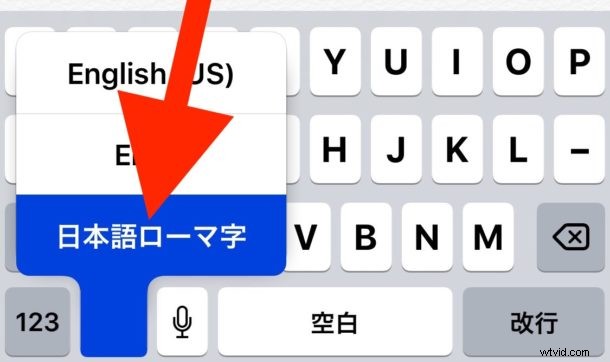
Have you enabled another keyboard language on your iPhone or iPad that you no longer want? Maybe you’re bilingual or were learning a new language and thought it’d be useful. Or perhaps you have discovered a new keyboard language that you never added and you’d like to remove it from iOS? Any added language keyboards appear under the little globe icon on the keyboard of an iOS device if they are enabled, that allows for quickly changing the keyboard language, but if you no longer want a keyboard to appear in that list then you’ll have to remove it from the iPhone or iPad.
If you have another languages keyboard that you want to delete from an iPhone or iPad, read on to learn how to remove keyboard languages from any iOS device.
Oh, and beyond just removing different language keyboards, you can also use this trick to remove the Emoji keyboard or third party keyboards too, if for some reason you don’t like those on iOS as well or want to remove them.
How to Remove a Language Keyboard from iPhone and iPad
Note you must have more than one language keyboard enabled to be able to remove one, you are not able to delete your primary language keyboard from iOS either. Here is how this works:
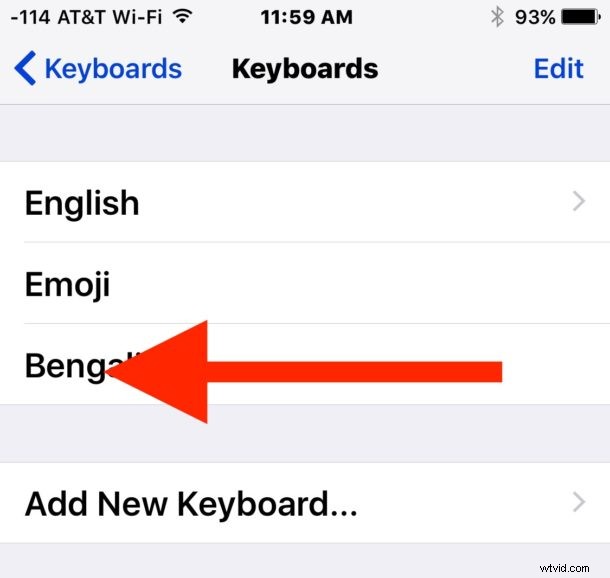
- Open the “Settings” app and go to “General” and then to “Keyboards”
- At the list of Keyboards, swipe left on the keyboard you want to delete*
- Tap the “Delete” button that appears
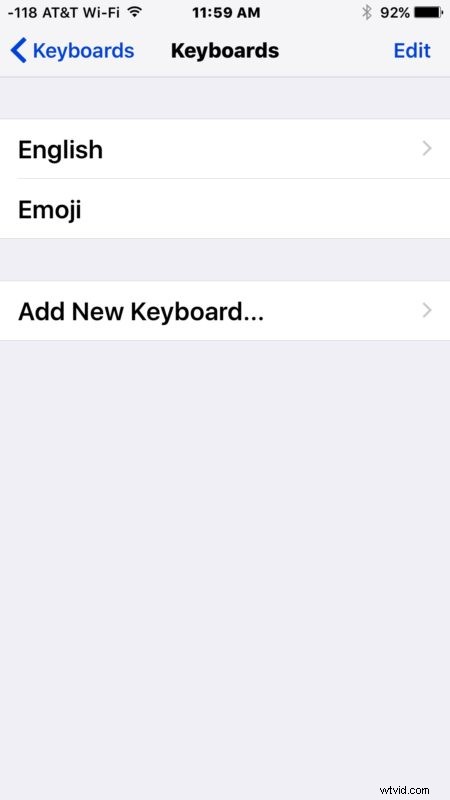
- Repeat with additional language keyboards to remove if desired
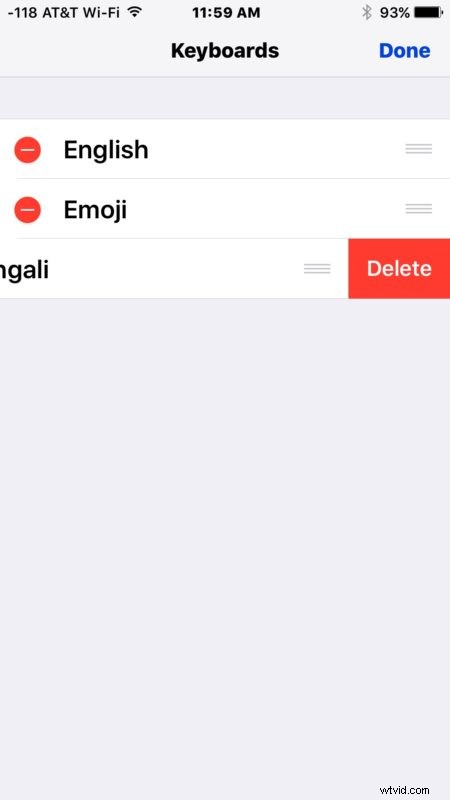
* Note you can also choose “Edit” and then tap the red (-) delete button to remove keyboards from iOS
You can not delete the primary language keyboard from your device, so if you device is setup with English and that was what you chose when setting up the iPhone or iPad to begin with, you can’t remove the English keyboard.
Note that you can also add new keyboards for foreign languages and Emoji from this Keyboard settings menu too, any added keyboard allows you to switch between those at any time in iOS when the keyboard itself is visible. That includes adding third party keyboards too if you want to try one of various swipe and gesture base keyboard options out there for iPhone and iPad.
In this example shown here, we deleted a language keyboard called “Bengali” that mysteriously enabled itself on my iPhone (who knows how the new language was added, it was a new iPhone and setup with English), but you can use this same trick to remove any keyboard language from your iOS device, whether it’s for a language you understand, are learning, or even keyboards for languages you know nothing of whatsoever.