
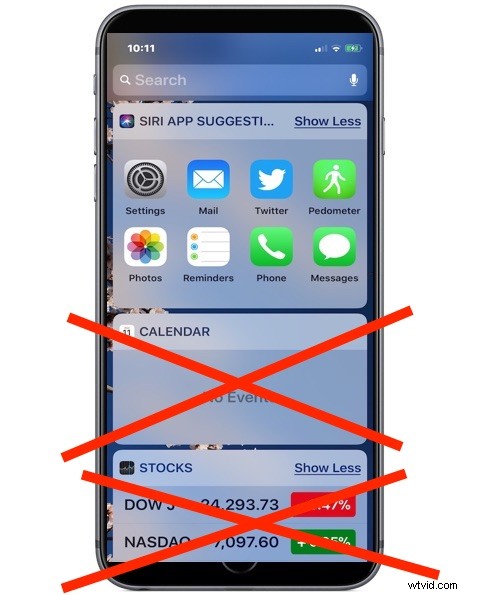
The “Today” screen of iOS contains many widgets for things like weather, news and tabloid headlines, calendar, maps, suggested apps, stocks, amongst others. This “Today” screen is available on the left-most screen and is accessible from the lock screen or Home screen of an iPhone or iPad by swiping to the right (unless you disabled the Today screen, that is). Some users may wish to declutter the widgets that show up on this swipe-over Today screen of their iOS device, and remove widgets that are not applicable or useful to them. Maybe you don’t want your calendar visible at the widget screen, or maybe you don’t want to see tabloid headlines mixed in with news, or maybe you don’t want to stocks or apps on the widget screen, whatever you decide is your choice.
This article will show you how to remove widgets from the Today widget screen of an iPhone or iPad.
Remember if you have previously disabled the Today view screen access from the iOS Lock Screen, you’d only be able to edit and remove widgets by initiating this process from the Home Screen instead of the Lock Screen.
How to Remove Widgets from the “Today” Screen of iPhone and iPad
Ready to remove some of the widgets from your Today widget screen of iOS? Here is how the process works:
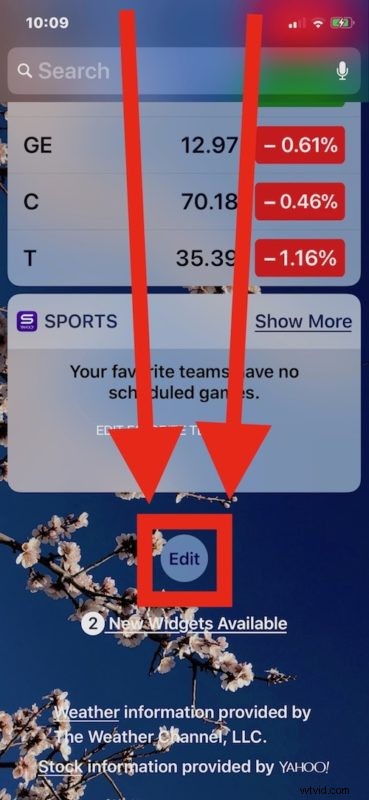
- From the iPhone or iPad, swipe right from the lock screen (or Home Screen) to access the “Today” widget screen
- Scroll down to the bottom of the Today screen, then tap on the “Edit” button
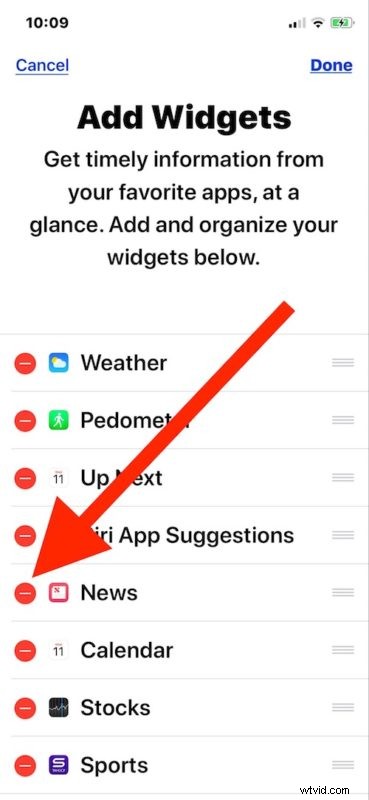
- You’re now at the “Add Widgets” screen, which is where you can add or remove widgets from the Today screen of iOS
- Find the widget you want to remove from the Today screen widget list and tap on the red (-) minus button
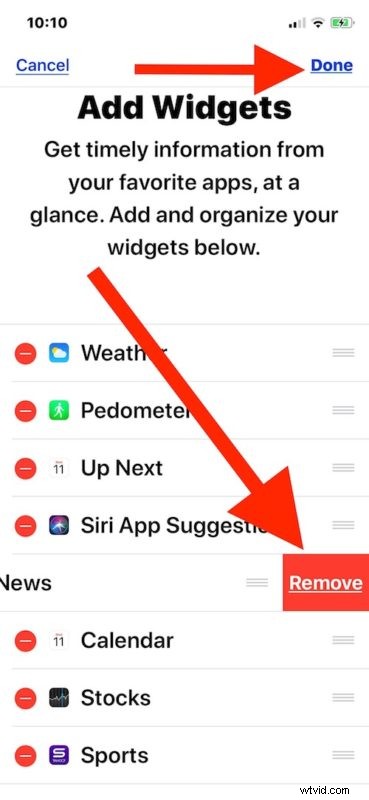
- Confirm that you want to delete a widget by tapping “Remove”
- Repeat with additional widgets you want to remove from the swipe-over Today screen
- When finished, tap on the “Done” button to save your changes
Now when you return to your Today widget screen, the widgets you removed will no longer be visible. This process is the same on iPhone and iPad.
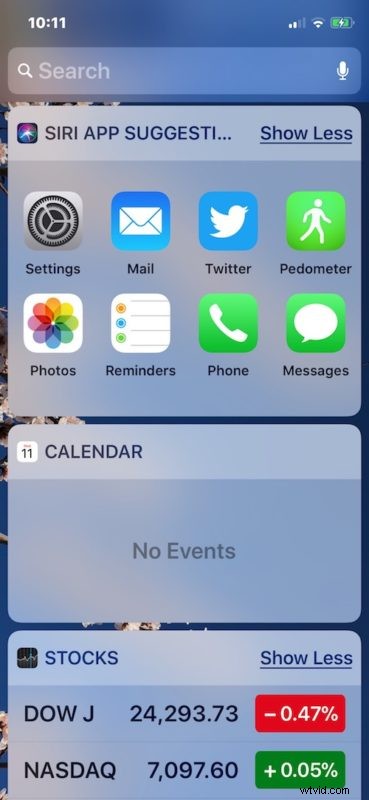
You can also remove all widgets from the iOS Today widget screen if you want to, but then accessing that widget panel would be fairly bare, and it’d probably be better just to disable it at that point.
There are many widgets to adjust, remove, or add, just browse through the list and remove the ones that are not applicable to you, and perhaps add the ones that are. Adding widgets is just a matter of scrolling further down and tapping the green (+) plus button at the “Add Widgets” screen of iOS. Or you can add widgets using 3D Touch on iPhone, but that’s limited to iPhone because iPad does not have 3D Touch support at the moment.
Many third party apps also have widgets, so the more apps you add to your iPhone or iPad the more options you will have to customize the widget screen.
Note this applies to modern iOS versions only, which have the “Today” widget screen view. This is different from earlier and mid-range iOS versions, where Widgets were part of Notification Center and customized from there in earlier iOS releases – if you’re still running an older iOS version that’d be the instructions to follow instead.