
The iOS Notes app is a popular way to collect notes of various things, draw sketches and doodles, maintain an image or picture collection, keep some note data password protected and secure, and much more.
By default the Notes app for iPhone and iPad will place the most recently edited note at the top of the notes app list, but if you want to adjust how you sort your notes you can do so with a settings adjustment. You can choose to sort notes by name title, by date created, or by date edited.
While you may think that sorting options for Notes app would be contained within the iOS Notes app itself, instead the sorting options are found within the Notes Settings within the Settings app. This likely sounds more confusing than it is, so worry not and follow along to sort your iOS Notes just how you’d like.
How to Sort Notes in iOS by Name Title, Date Edited, or Date Created
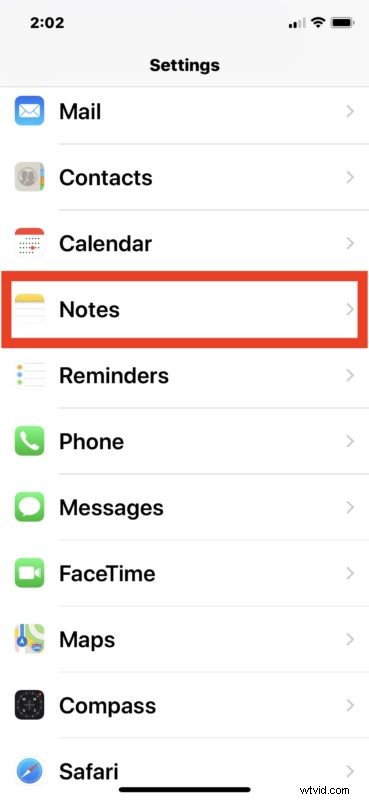
- Open the “Settings” app in iOS and scroll down and choose “Notes”
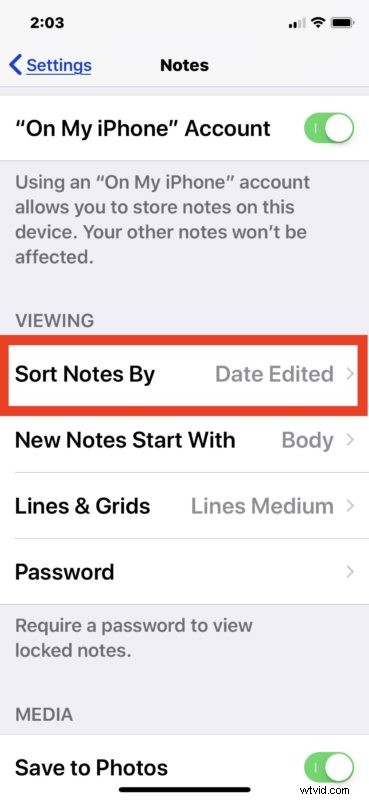
- Scroll down to the “Viewing” section and tap on “Sort Notes By”
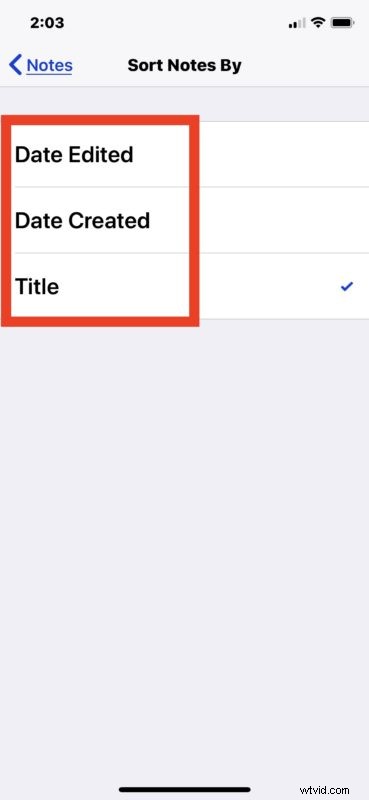
- Choose one of the following three sort options:
- Date Edited – the default setting, topmost apps were edited most recently
- Date Created – topmost apps will be those most recently created
- Title – Notes will appear in alphabetical order by note title
- Exit Settings and open the Notes app into the list view to see you new sorting option in effect
The Note sorting method can also be combined with pinning Notes in iOS to the top so that important notes are always at the top regardless of how the other Notes are sorted.
Perhaps a future version of iOS Notes apps will allow sorting toggle directly in the app itself, but until then you can either adjust how your notes are sorted through the Settings app, or rely on Notes search in iOS, or Notes pinning, to find the note you’re looking for. Happy note taking!