
The Notes app on iPhone and iPad is obviously useful for keeping notes for many purposes, and the latest versions of iOS Notes app includes a great feature that allows capturing photos and videos directly into Notes on iOS. But depending on how your Notes app settings are configured, you may find that the media you capture in Notes app is not saved elsewhere to your device.
If you’d like pictures and movies captured within Notes app to appear in the Photos app for easy retrieval from there, you can enable a simple setting in iOS to do so.
How to Automatically Save Media Captured in Notes to the Photos App of iOS
A single setting will impact both saving of photos and videos from the Notes app into the Photos app of iOS, here is where to look:
- Open the “Settings” app of iOS and go to “Notes”
- Scroll down to the ‘Media’ section and look for “Save to Photos” and toggle that switch ON
- Exit Settings and use the Notes app to capture images and video as usual
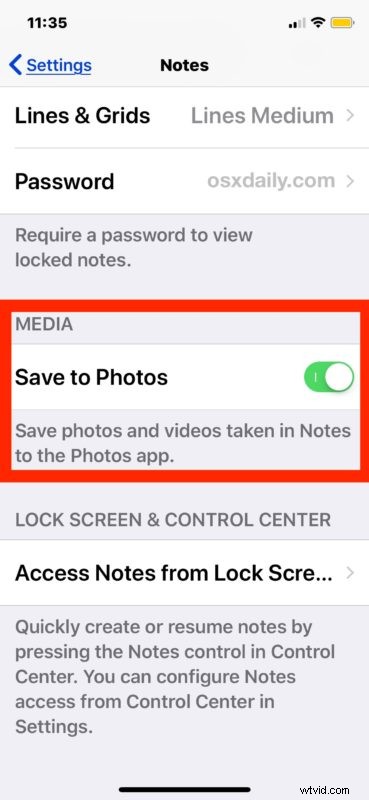
With “Save to Photos” enabled, you will find that all newly taken images and videos from the Notes app will now also save into your Photos app library of the iPhone or iPad.
Of course you can turn the setting for “Save to Photos” to the OFF position too, if it’s currently on but you want the Notes photos and videos to not store in your general Photos app.
Whether or not you want this feature turned off or on likely depends on how you’re using the Notes app. For example if you’re using the Notes app camera features to keep track of expenses or receipts, you may not want those type of pictures cluttering up your general iPhone or iPad photos. On the other hand, if you’re using the Notes app to capture images and videos of wildflowers or something along those lines, you might want to keep all of those pictures in your general Photos app as well. Fortunately with it being such a simple setting, you can toggle it however you’d like, and the change takes effect immediately. Try one way, if you don’t like it, try the other.
The Notes app for iPhone and iPad is increasingly powerful, with camera capturing capabilities, scanning tools, drawing tools, text formatting, image insertion, password protection, and much more. It’s really a great default app in iOS with a huge potential of uses.