
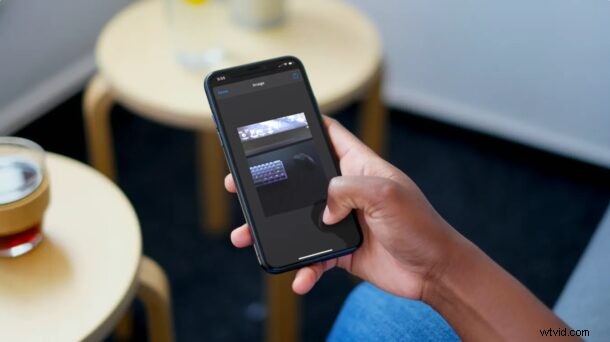
Do you take a lot of burst shots using your iPhone or iPad? How’d you like to convert a bunch of burst images into an animated GIF? You can easily convert these photos to a GIF right on your iOS or ipadOS device without having to install a third-party app from the App Store, thanks to the good old Shortcuts app.
For those who aren’t aware, Burst mode is a camera mode available on both the iPhone and iPad which allows you to capture photos at the rate of ten images per second. This can be done by holding the shutter button instead of just tapping it like you normally would. The built-in Photos app then collectively identifies these shots and sets the best picture as the thumbnail. Typically, burst mode is used to capture fast-paced action shots. However, with the help of a unique iOS shortcut, you can make a GIF from the burst shots you’ve taken.
Interested in learning more about this shortcut? Read along and you’ll be converting burst photos to GIF on iPhone or iPad in no time at all with the Shortcuts app.
How to Convert Burst Photos to GIF on iPhone
Shortcuts app is pre-installed on modern devices but if you don’t have it already you can download it from the App Store. Then, just follow these steps:
- First of all, open the Shortcuts app on your iPhone or iPad.

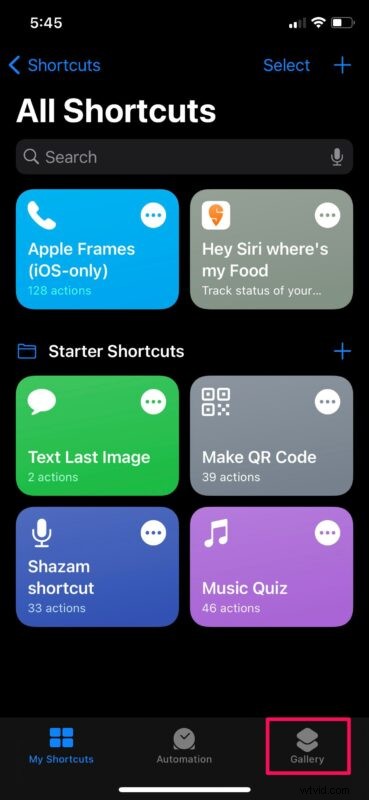
- You’ll be taken to the My Shortcuts section upon launch. Head over to the “Gallery” section from the bottom menu as shown below.
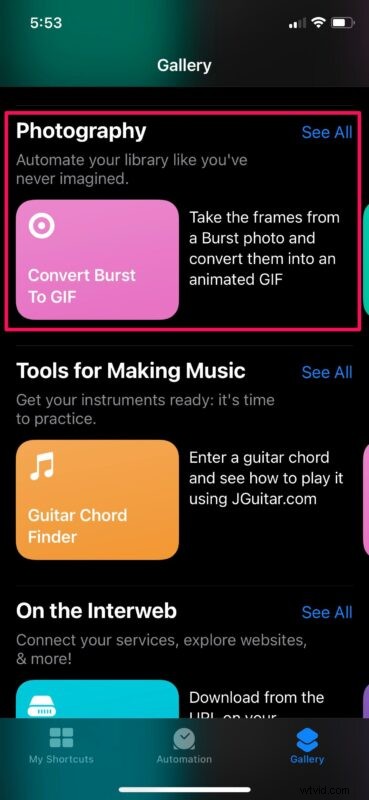
- Here, scroll down to the Photography section and swipe right to find the “Convert Burst to GIF” shortcut. You can also search for this name from the search bar at the top of the menu.
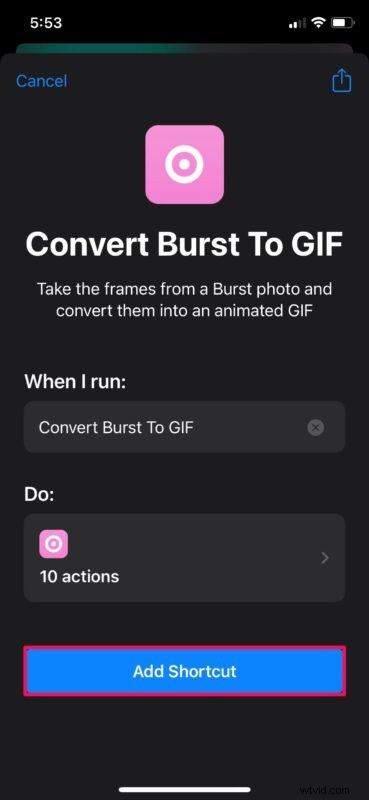
- Now, tap on “Add Shortcut” to install the shortcut on your device and add it to the My Shortcuts section.
- Go back to My Shortcuts and tap on the Convert Burst to GIF shortcut to start using it.
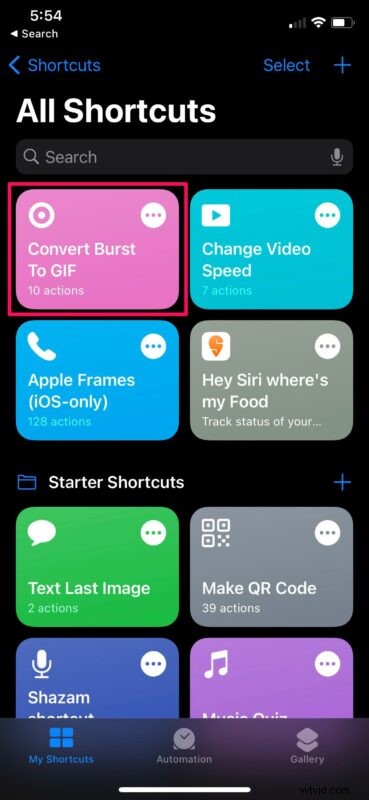
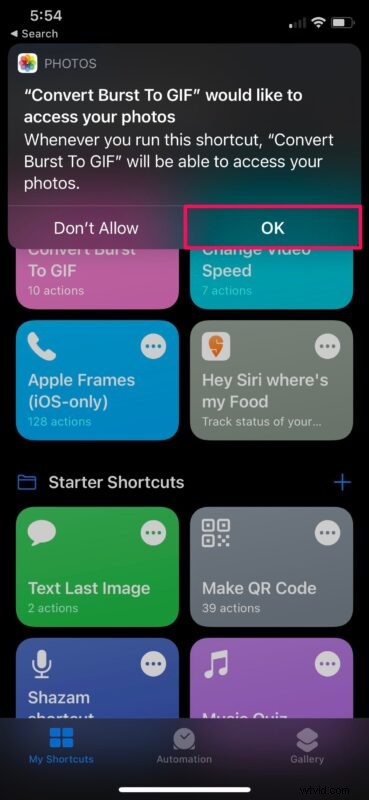
- Now, you’ll be prompted to give Photos app permission to the shortcut. Tap on “OK” to continue.
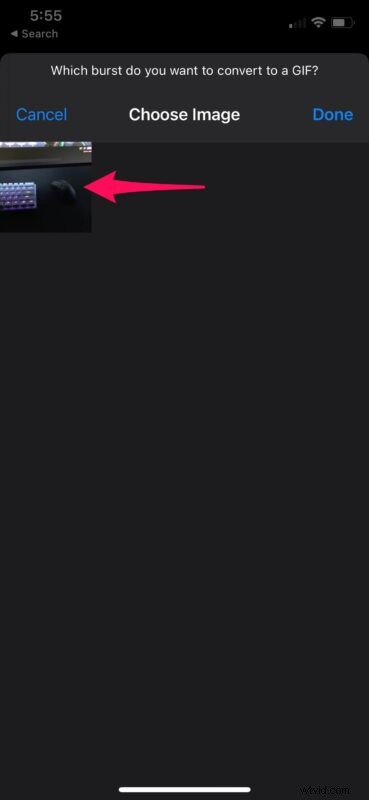
- You’ll now be able to see the contents of the Bursts album in your photo library. Select the burst shot that you want to turn into a GIF by just tapping on it.
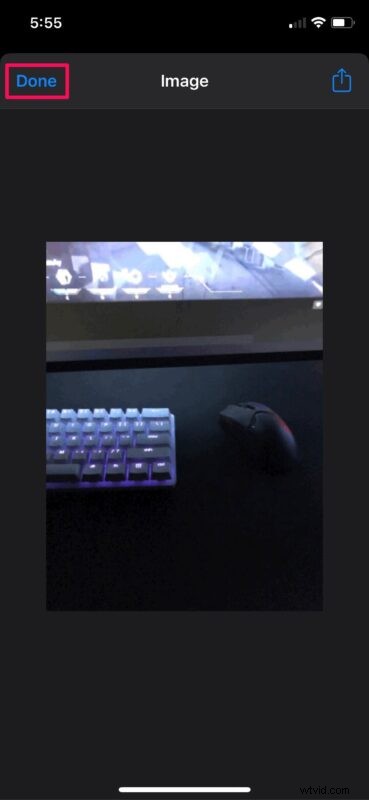
- Once the shortcut completes the task, you’ll see a preview of the GIF on your screen. Just tap on “Done” at the top-left corner.
- You’ll get a pop-up with the option to either share or save the GIF to the Photos app. Select your choice to complete the procedure.
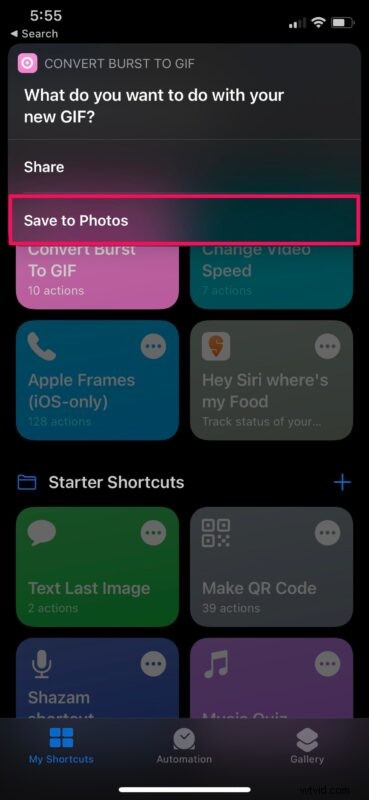
You’ve successfully created a GIF from a burst photo using your iPhone or iPad.
The best part about this particular shortcut is that it’s available in Apple’s Shortcuts Gallery. As a result, you’re not forced to install any untrusted shortcut on your iPhone or iPad. Also, since you’re not using a third-party app to perform this operation, it sort of feels like a feature that’s baked into the operating system.
Although we were focusing on the iOS version of the Shortcuts app in this particular article, you can follow these exact steps to use the shortcut on your iPad too, provided it’s running at least iOS 12. The Gallery section of the Shortcuts app has a bunch of other useful shortcuts as well. For instance, there’s a similar shortcut called Make GIF that can be used to convert live photos and videos to GIFs.
Are you converting burst shots into animated gifs? What do you think of this nifty shortcut and the end result? How often do you think you’ll be using it? Do share your personal experiences and make sure to leave your valuable feedback in the comments section down below.