

Do you regret the name that you chose during the initial setup of your AirTag? Or, do you want to change the accessory that you’re using your AirTag with? Either way, you may be looking to rename your AirTag. This is actually a lot simpler than you think.
AirTags can be used with a lot of different things in your household. For example, you can attach it to your keychain, put it in your backpack, store it in your wallet, or even add it to your pet’s collar. However, if you only have a limited number of AirTags, your priorities may change over time and you may want to use it with a new accessory that you have. In such cases, renaming your AirTags can go a long way in avoiding confusions that may typically occur when you switch things up.
So, how exactly do you select a new accessory for your AirTag, you ask? Without further ado, let’s take a look at how to rename your AirTag after initial setup on your iPhone and iPad.
How to Rename Your AirTag After Initial Setup
We’ll be making use of the built-in Find My app on your iPhone and iPad to get this done. Renaming is pretty easy, but the option is neatly hidden in the app. Here’s what you need to do:
- First, launch the Find My app on your iOS/iPadOS device.

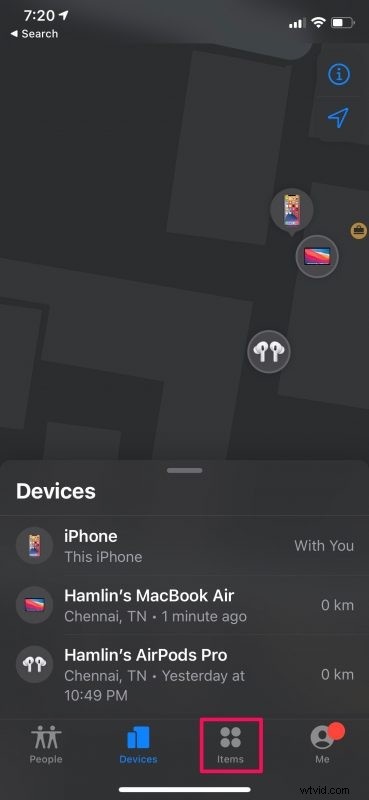
- As soon as the app opens, you’ll be able to see your Find My-enabled Apple devices except the AirTags. To view this, go to the “Items” section from the bottom menu.
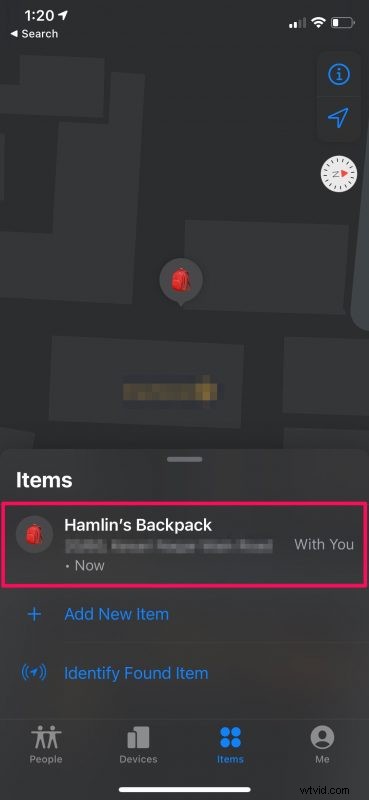
- Here, you’ll find your third-party Find My accessories including your AirTags. Select the AirTag that you want to rename.
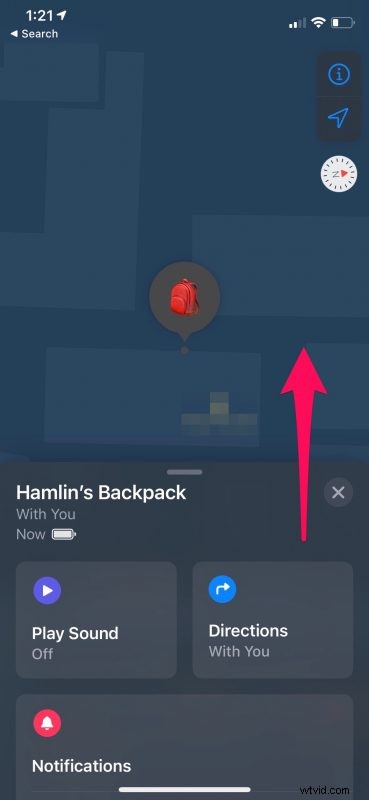
- You’ll now get access to the typical Find My options that you may be familiar with if you use the app every now and then. Swipe up on the card to access more options.
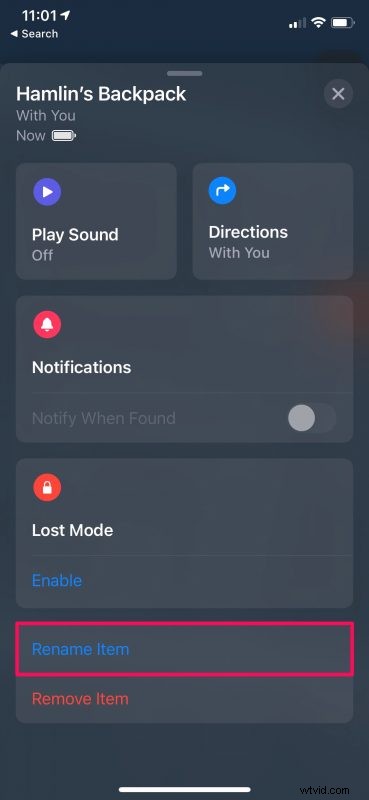
- At the bottom of this menu, you’ll find the option to rename your AirTag. Tap on “Rename Item” to continue.
- Now, select the new accessory that you want to use your AirTags with and tap on the current name to edit and change it. Tap on “Done” to save your changes.
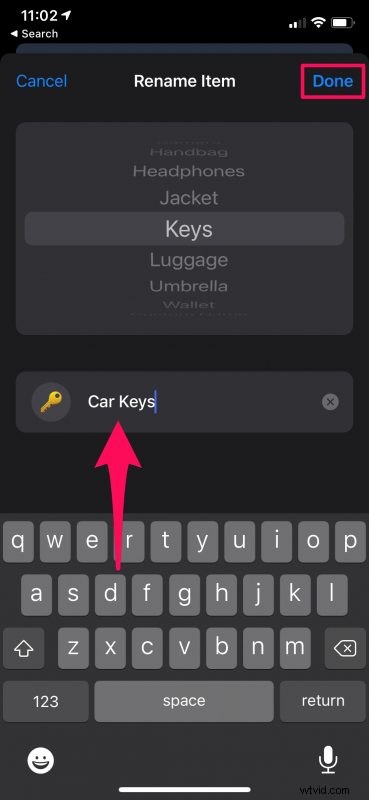
Congrats. You’ve successfully changed the name of your AirTag.
Normally, the icon that’s used by Find My will match the accessory that you select from the list of available items during the renaming process. However, if you tap on this icon, you’ll have the option to choose from hundreds of emojis as well. This maybe useful if you’re pairing your AirTag with a unique product that’s not in the list.
Some users tend to remove their AirTags from the Find My app and go through the initial setup all over again just to pair it with a new accessory. But, as you can see here, that’s not necessary at all.
Do note that you can only rename your AirTag from the Find My app for iOS and iPadOS for the time being, but this capability will arrive with Find My on Mac and iCloud.com soon, and the functionality should basically be the same.
We assume you gave your AirTag a much better name this time around. How many AirTags do you currently own? What all accessories do you use them with? For you personally, what’s the best use case for your AirTags? Let us know your experiences and share your valuable feedback in the comments.