
Have you ever lost an iPhone somewhere in a house, office, or car, and can’t quite find it? Trying to locate a misplaced iPhone can be frustrating, but if you have another iOS device, Apple Watch, or Mac nearby then you can use Siri to help find a lost iPhone.
With this great trick, you’ll be using Siri to play a sound alert on the lost iPhone to help you locate it and track it down. This is perfect for those routine scenarios of an iPhone getting buried under a seat cushion, falling into a car abyss, or just generally being misplaced.
To use the Find My iPhone feature to locate your misplaced iPhone, you’ll obviously need another device with Siri, and Find My iPhone must be enabled on the missing iPhone.
How to Find a Lost iPhone with Siri
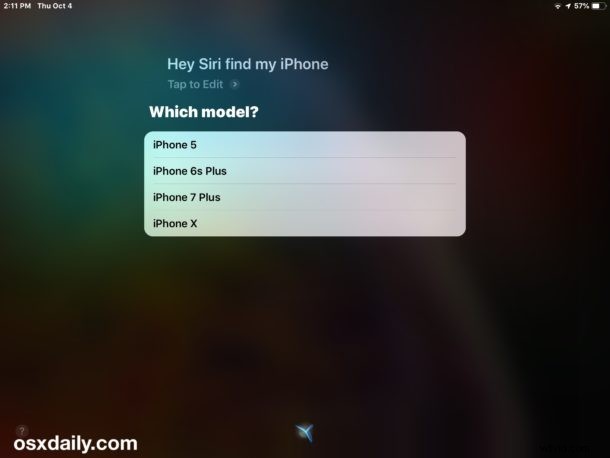
- Summon Siri as usual, then issue the command “Find my iPhone”
- If you have multiple iPhones, choose the iPhone model that is lost to find
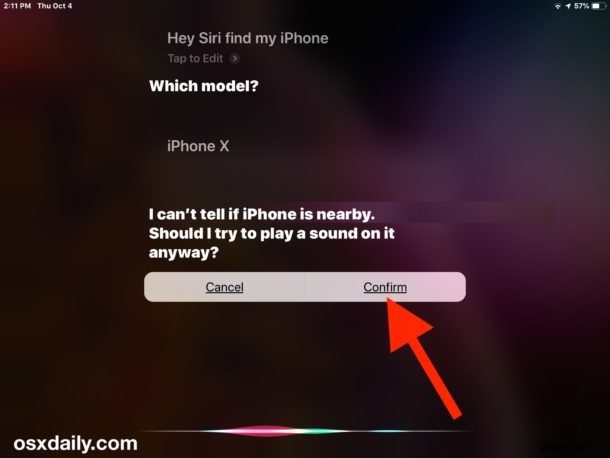
- Confirm that you want to play a sound / alert on the iPhone
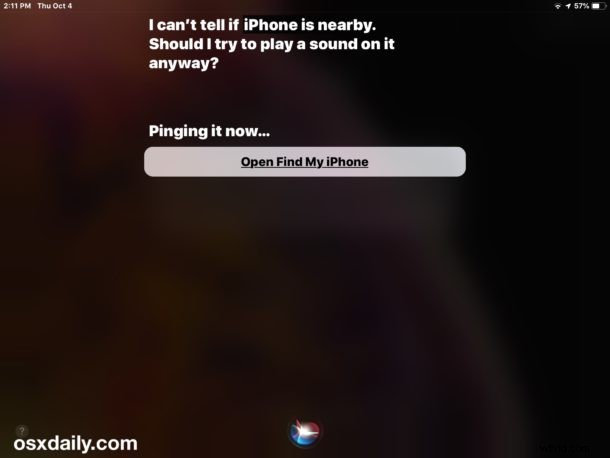
- The iPhone will now play a loud alert sound, helping you to locate the misplaced iPhone
The iPhone alert sound will continue to ping until it is picked up and interacted with, either by pressing a button on the device, unlocking the iPhone, or acknowledging the on-screen alert.

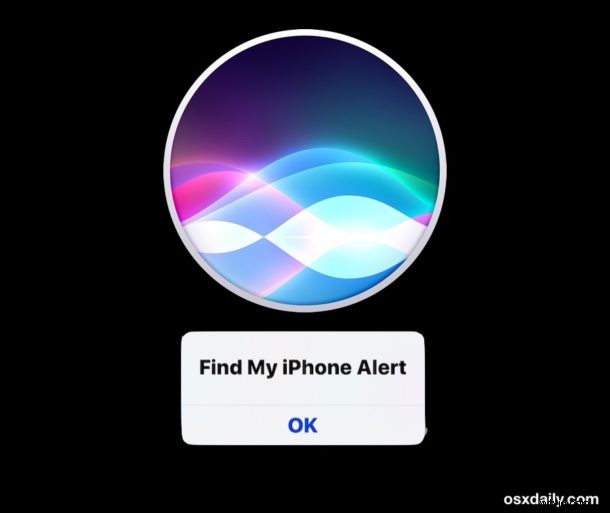
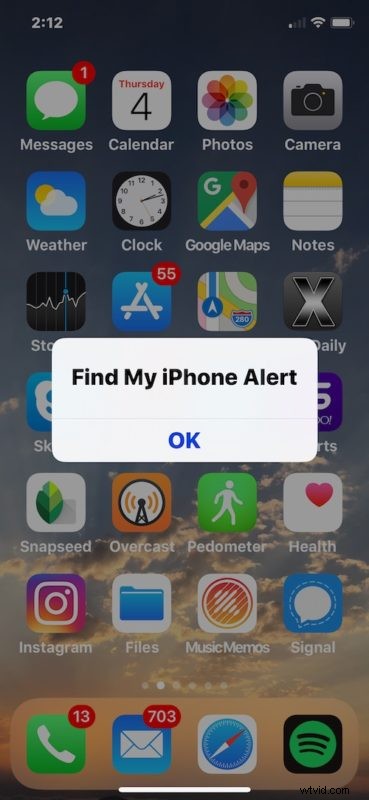
If someone is actively using the iPhone, it will still make an alert sound and display a “Find My iPhone Alert” message, but once someone taps “OK” the alert sound will stop.
So if you think that your iPhone is lost to you but that someone else is actively using your iPhone, and it’s not truly lost or misplaced, but has simply been accosted (like maybe a kid snuck off to hide somewhere with your iPhone to play Fortnite), keep that in mind.
If you don’t have another iPhone, iPad, or Mac with Siri, or if you only have a Windows PC, Android, or older iPhone or iPad nearby, you can also initiate a pinging sound on a lost iPhone from iCloud as discussed here.
For Apple Watch users, a similar feature allows you to ping an iPhone from Apple Watch to help find it, which is also quite useful.
While this is part of the Find My iPhone feature set, this is just a simple finding mechanism initiated by Siri, it’s not the same as iCloud Lock or remote wipe, both of which are much more extreme measures to take if an iPhone (or iPad) is truly lost or was stolen. You can access those features and more by tapping on the Siri option for “Open Find My iPhone”, however.
And yes, this works exactly the same with an iPad, if you were wondering.
Was this helpful to you? Do you know of any other handy tips or tricks for locating a lost iPhone, either by using Siri, Find My iPhone, or any other approach? Share your experiences and thoughts in the comments below!