
Want to share your location with someone easily? Tired of always having to give directions when you’re meeting up with your family, friends, and colleagues? Thanks to the location sharing feature within Apple’s Find My app, you can easily help someone to find you by sharing your location from iPhone or iPad, and in turn your location is accurately shared on a map.
While the Find My app is primarily used to locate lost Apple devices like the iPhone, MacBook, AirPods and more, you can also use it to share your location with friends and family members. With location sharing, you can quickly check when your contacts are moving from place to place, provided they’re sharing their location with you. This feature can also be used by parents to keep an eye on their children’s activity, if necessary. Many families use this capability to know where each other are too. And of course there are many other practical applications for sharing location.
In this article we’ll cover how you can use the Find My app to share your location with contacts on both the iPhone and iPad.
How to Share Your Location with Find My on iPhone & iPad
With the release of iOS 13, Apple combined Find My iPhone and Find My Friends into one app and simply called it “Find My”. So, make sure your device is running iOS or iPadOS 13 or later to follow the procedure more easily. Now, let’s take a look at the necessary steps.
- Open the “Find My” app on your iPhone or iPad.

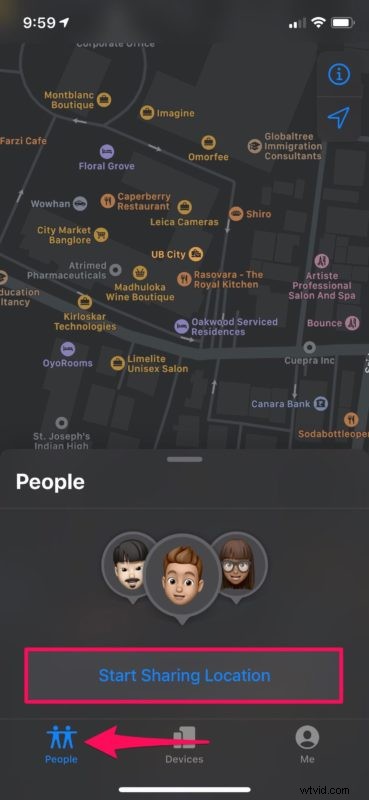
- Head over to the “People” section located at the bottom-left and choose “Start Sharing Location”.
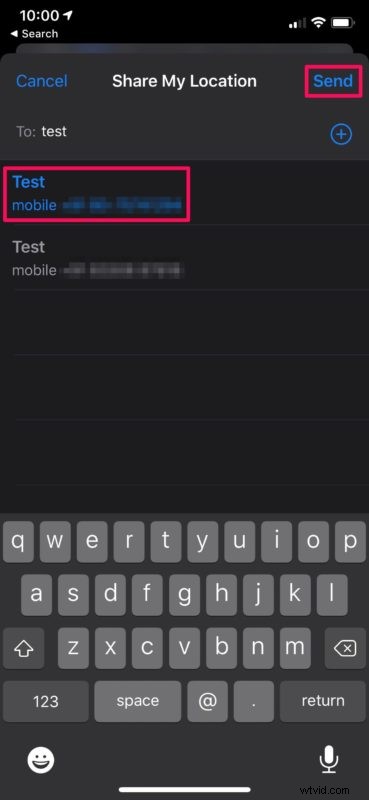
- This will open up your contacts list. Select the contact you want to share your location with and tap “Send”.
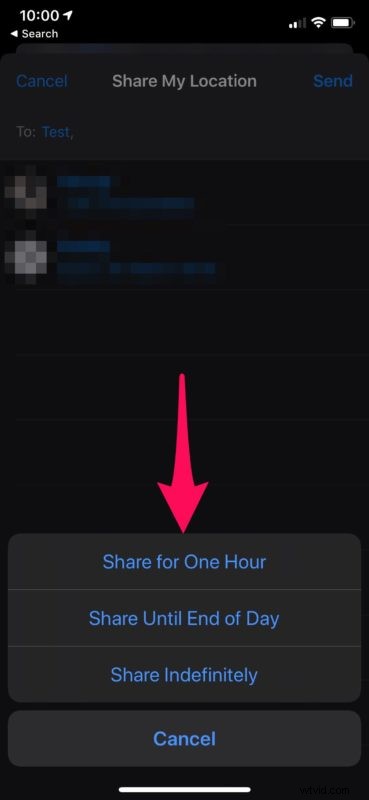
- Now, you’ll have the option to choose how long you want to share your location with that particular contact. Select one of the three available options as shown below. Your name will now show up in the contact’s People section within the Find My app.
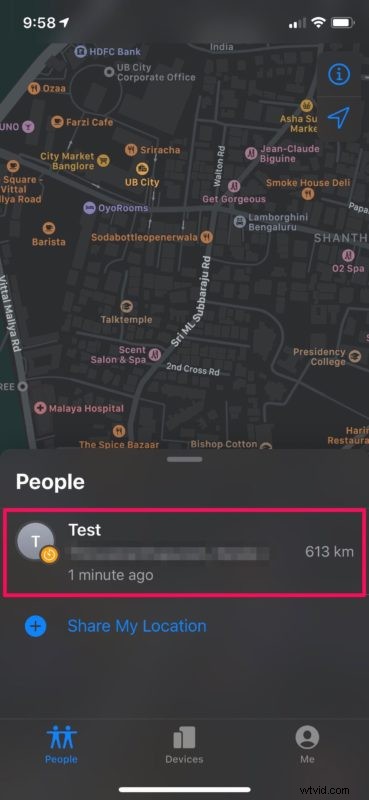
- Once you’ve started sharing your location with the contact, their name will show up in the People section as shown below.
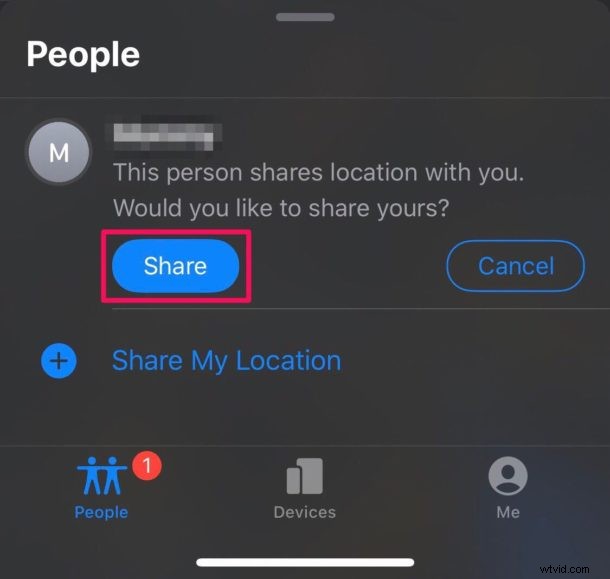
- The contact will be notified that you’re sharing your location with them and they’ll have the option to share theirs with just one tap within the Find My app.
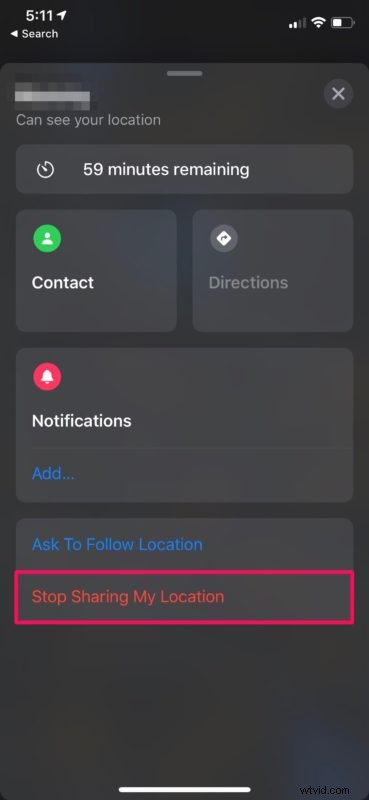
- When you’re done sharing your location with any of your contacts, simply tap on their name in the People section and tap on “Stop Sharing My Location”.
There you have it, you have learned how to use location sharing with Find My app on your iPhone and iPad.
If you have Family Sharing set up and you’re using Location Sharing, your family members will automatically show up within the Find My app. This could come in handy if you check what your kids are up to, on a regular basis.
Are you a fan of this location sharing feature? If so, there’s one more thing you’d be interested in. With the Find My app, you can set up location based notifications for a specific contact. With this enabled, you will be notified once your contact has arrived or left a designated location right on your device’s lock screen.
Do you regularly use iMessage to text your friends and family? Well, you might be happy to know that you can quickly send your location to your contacts with just a phrase. It really can’t get any easier than this.
Thanks to location sharing, manually giving directions to people over a phone call can be considered as a thing of the past.
Do you use Find My to share locations? How many of your contacts are sharing their locations with you? Is this a feature that you’d find yourself using on a regular basis? Do let us know your thoughts and opinions in the comments section down below.