
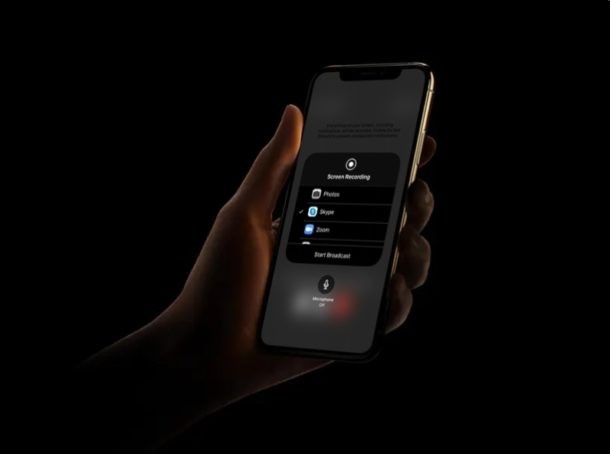
Skype is one of the most popular video calling services that lets you stay connected with friends, family, and coworkers regardless of where you or they are, using just your iPhone or iPad (or other devices too).
Beyond just video chat and group video chat, Skype also lets you share your devices screen. That’s what we’re going to focus on here, so read on to learn how to share the screen of iPhone or iPad over a Skype call.
If you use Skype to video conference with your colleagues, screen sharing can be particularly useful. With this feature, you will be able to share any content that’s on your device with all the participants in the video call, making it a lot easier to do presentations and other work-related tasks.
How to Share Screen with Skype on iPhone & iPad
In order to take advantage of this screen sharing feature, your iPhone or iPad must be running iOS 11 or later so that it has the native screen recording function enabled. You’ll also need Skype, and a Microsoft account to get started with Skype on your device. Now, without further ado, let’s take a look at the necessary steps.
- Open the Skype app on your iPhone or iPad.
- Tap on “Sign in or create” to log on to Skype with your Microsoft account.

- Once you’ve logged in and you’re in the main menu of the app, tap on “Sync Contacts” if your contacts don’t show up automatically.

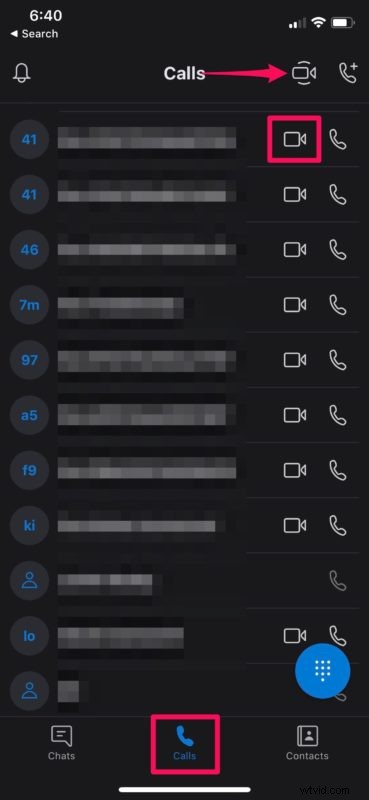
- Now, head over to the “Calls” section and scroll through your contacts to find the person you want to video call with. Tap on the “video” icon to initiate the call. Alternatively, you can access the “Meet Now” feature by tapping the video icon located at the top-right. This allows you to quickly create a group video session which can be used to invite participants for a meeting.
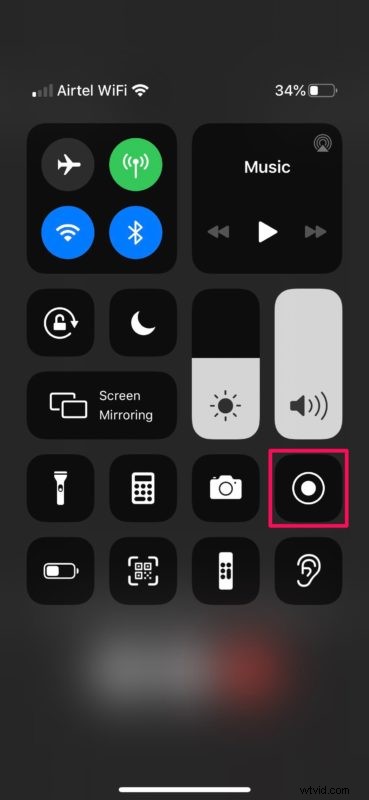
- Once you’re in the video call, swipe down from the top-right corner of the screen to access the iOS Control Center. This is if you’re using an iPad, iPhone X or newer device. If you’re using an older iPhone with a physical home button, simply swipe up from the bottom of your screen.
- In the Control Center, long-press on the screen recording toggle to view more options.
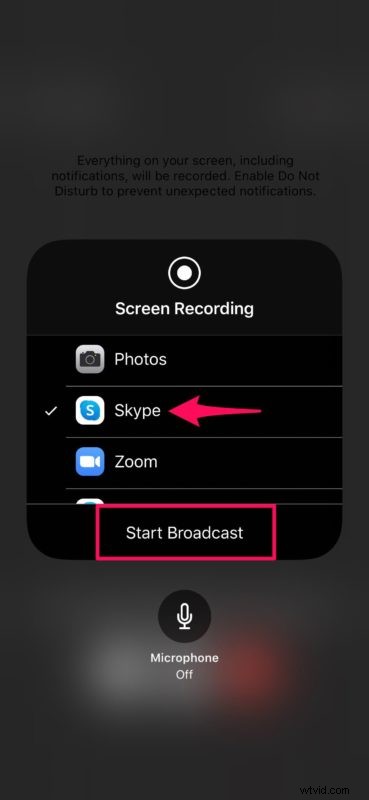
- Now, select “Skype” as shown below and tap on “Start Broadcast” to start sharing the content that’s on your screen.
That’s it. You’ve now learned how to screen share while you’re in a Skype call on the iPhone and iPad.
Skype isn’t the only video calling service that lets you share your screen. Therefore, if you’re not interested in Skype’s features, you can try out screen sharing with Zoom or using Google Hangouts to screen share in a very similar way via the iOS Control Center. Both of these services also allow you to share your screen with up to 100 participants, which is twice as much as Microsoft’s offering. So, if you’re participating in a huge online meeting, Skype might not make the cut. Aside from screen sharing, there are many other video conferencing options available, with Zoom Meetings on iPhone and iPad, group FaceTime video chat with iPhone and iPad and Group FaceTime on Mac, and others too.
Although Skype has always been a popular choice for video calling among the masses, it’s perhaps even more relevant and useful than ever right now during the quarantine period where many people are confined to their houses or working and schooling from home.
We hope you liked Skype’s screen sharing feature that’s available on the iPhone and iPad. If not, what other options have you tried out for screen sharing in iOS and iPadOS, and how does it compare to Skype? Share your thoughts and opinions in the comments!