
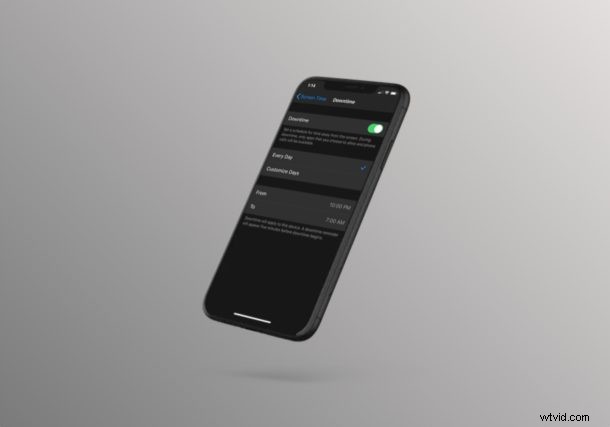
Do you want to restrict your children’s iPhone or iPad usage? Thanks to the Screen Time Downtime feature, this is a fairly simple and straightforward procedure for iOS and iPadOS.
Screen Time allows iOS, iPadOS, and macOS users to keep a check on their device usage, as well as offering many parental control tools to limit the features that children and other users are able to access on a particular device. With Downtime properly configured, parents can have full control over what apps an iOS or ipadOS device is able to access, and even limit the contacts the device is able to communicate with during this set period.
If you’re interested in learning how you can set downtime with Screen Time on both the iPhone and iPad, then read on!
How to Set Downtime with Screen Time on iPhone & iPad
Screen Time is a feature that was introduced alongside the release of iOS 12, so make sure your iPhone or iPad is running modern version of iOS or iPadOS before you go ahead with the procedure.
- Open the “Settings” app from the home screen of your iPhone or iPad.

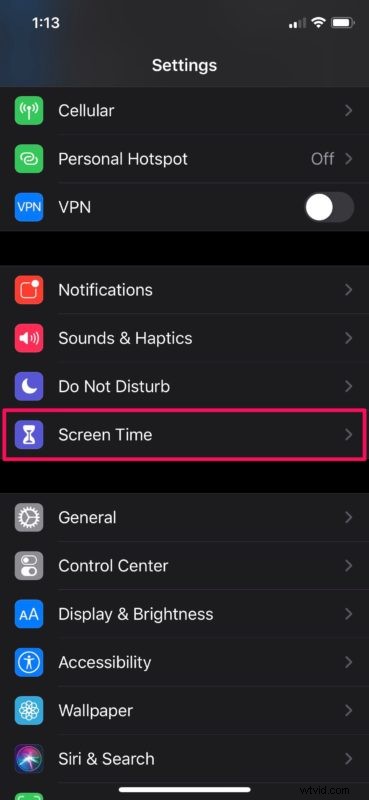
- In the Settings menu, scroll down and tap on “Screen Time”, as shown in the screenshot below.
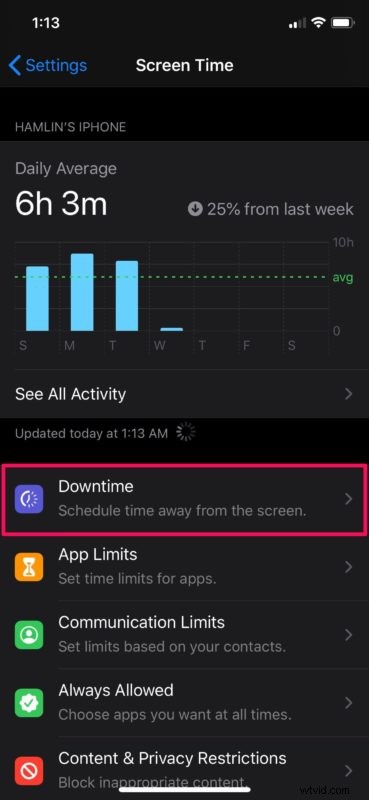
- Here, tap on “Downtime” which is the first tool that Screen Time has to offer.
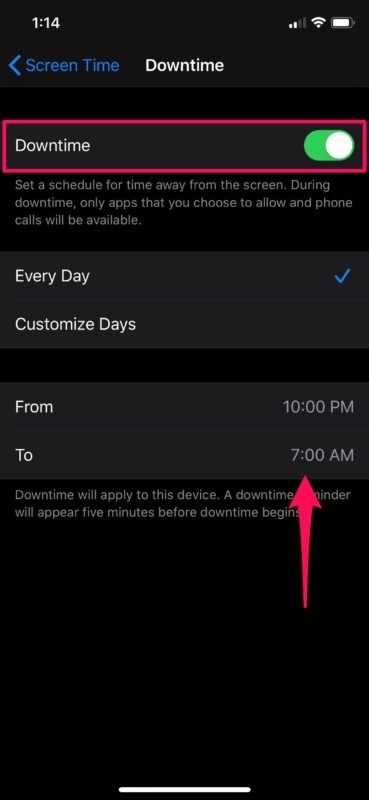
- Now, simply tap on the toggle for Downtime to enable this feature within Screen Time. Here, you’ll be able to set a schedule for time away from the screen. By default, when you turn on Downtime, “Every Day” schedule will be selected. Select the “From” and “To” timings according to your preference.
- However, if you want any further customization with your Downtime schedule, tap on “Customize Days”. As you can see in the screenshot below, you can choose different timings for different days of the week and even disable downtime altogether for specific days.
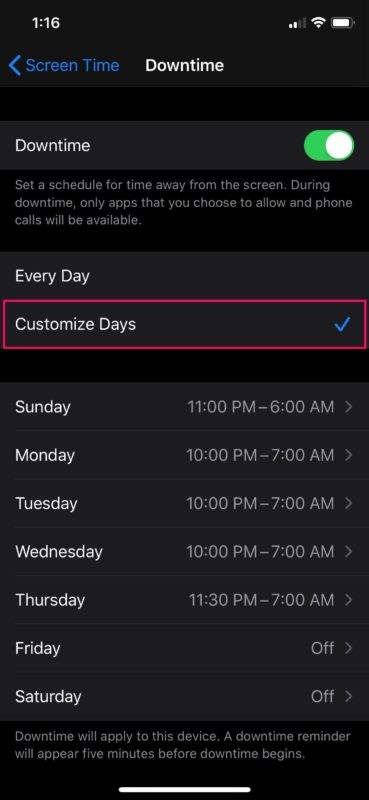
That’s it, you’ve now set up Downtime on either the iPhone or iPad with Screen Time.
Once you’ve successfully set up Downtime on your iOS or iPadOS device, you can further configure it by setting Communication Limits to restrict the contacts the device is able to communicate with during Downtime.
Additionally, parents can also allow or block specific apps during Downtime, to keep their kids’ device usage in check, since smartphone addiction is becoming a huge issue these days with mobile gaming on the rise.
Downtime is just one of the many tools that Screen Time has to offer. In addition to this, users can set time limits for accessing apps and even block sites and inappropriate content using Content & Privacy Restrictions within Screen Time.
When you’re setting up Downtime on your kid’s iPhone or iPad with screen time, make sure you use a Screen Time passcode and keep updating it regularly to avoid unauthorized access to your Screen Time settings.
Did you manage to successfully set up Downtime on your iPhone or iPad without any issues? How do you feel about Apple’s Screen Time functionality in general? Do let us know your thoughts and opinions in the comments section down below.