
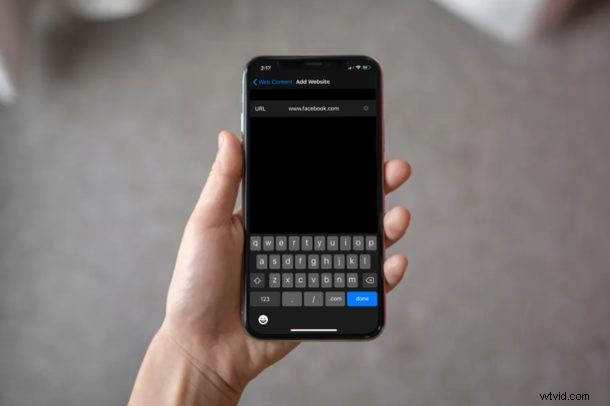
Do you want to restrict access for certain websites on an iPhones & iPads? Thanks to the Screen Time feature, this is very much possible and fairly simple to set up, so whether you want to block websites on your own device, a childs, family members, or another device, it’s easily possible.
Screen Time allows iOS and iPadOS users to keep an eye on their smartphone usage as well as offers a lot of parental control tools to restrict the content that children and other family members are able to access. The ability to block specific websites is one such parental control tool that might come in handy, especially if you don’t want your kids to access adult content, social media, social networking websites, or anything else.
Read on to learn how you can block websites in Safari on both the iPhone and iPad.
How to Block Websites in Safari on iPhone & iPad
Screen Time requires a modern iOS or iPadOS version. So, make sure your iPhone or iPad is running iOS 12, iOS 13, iOS 14, or later, before you go ahead with this procedure. Now, without further ado, let’s take a look at the necessary steps.
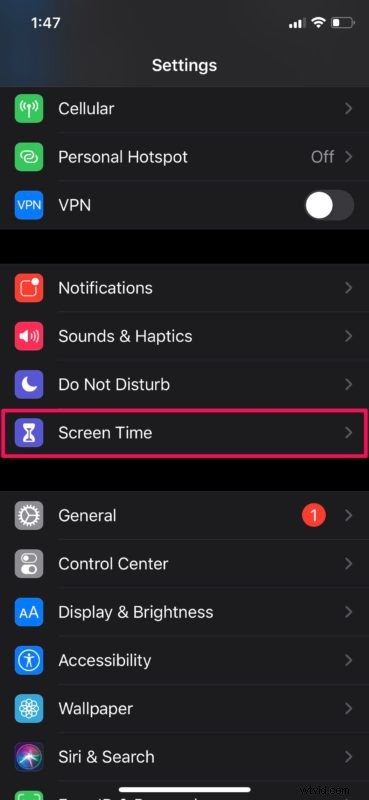
- Head over to the “Settings” app from the home screen of your iPhone or iPad. Scroll down and tap on “Screen Time”.
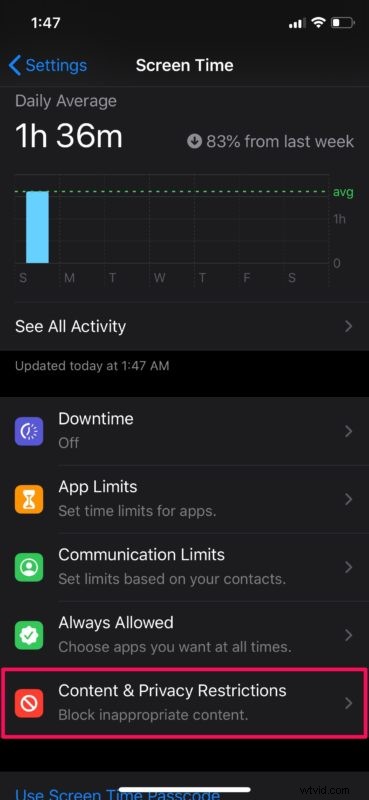
- This will take you to the Screen Time menu in iOS. Here, scroll down and select “Content & Privacy Restrictions”.
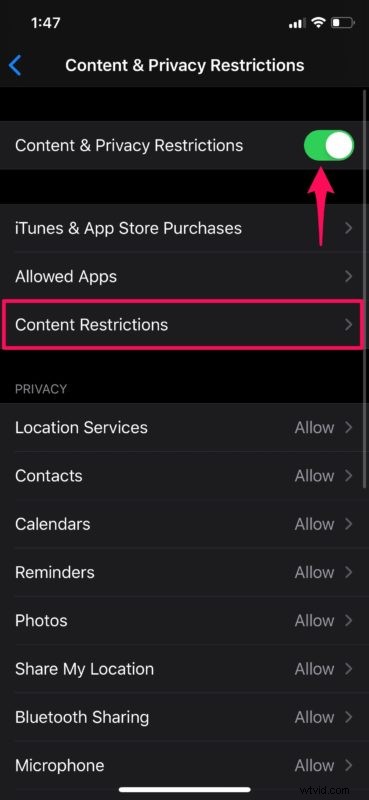
- In this menu, make sure the toggle for “Content & Privacy Restrictions” is enabled and then tap on “Content Restrictions”.
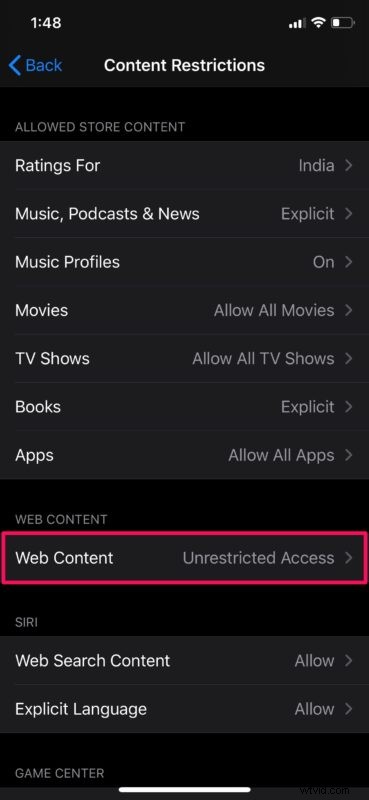
- Now, tap on “Web Content” as shown in the screenshot below.
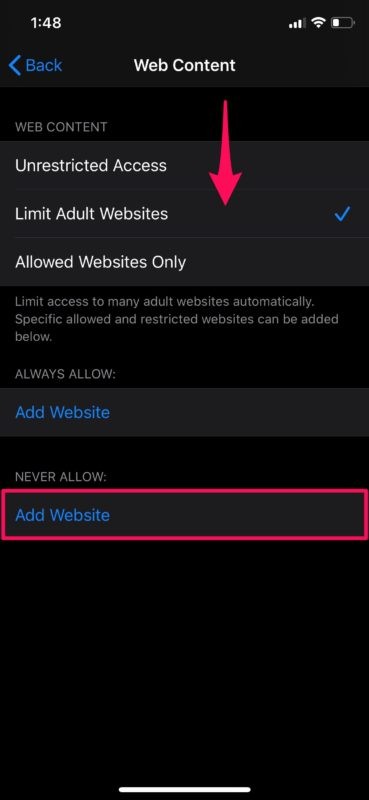
- Select “Limit Adult Websites” under Web Content to restrict adult websites automatically. However, if you’d like to add any specific website manually, tap “Add Website” located below “Never Allow” as shown below.
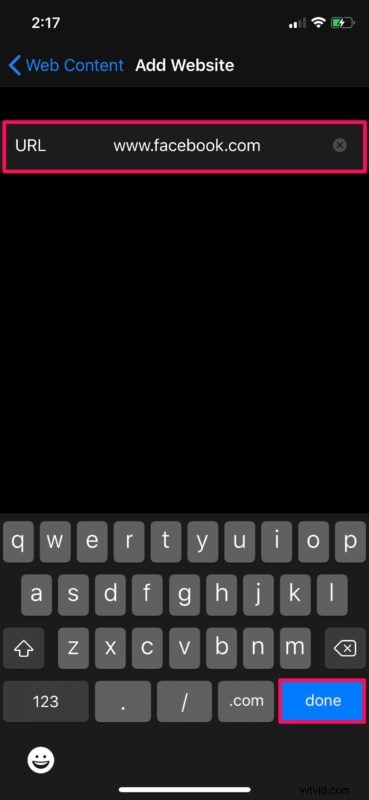
- Now, simply type in the website URL that you want to block and tap “Done” on the keyboard.
Now you know how to block websites in Safari on both the iPhone and iPad with the Screen Time feature.
Apart from restricting websites, Screen Time can also be used to block apps, set time limits on app use, iTunes & App Store purchases, playback of explicit music, limit social networking use, app installations, and a lot more. This functionality has made it a lot easier for parents to keep a check on their children’s device usage.
It’s worth noting here that you can’t access these blocked websites using a different browser either. That’s right, although this article focuses primarily on blocking websites in Safari, this content restriction applies to third party web browsers that are installed on the iPhone or iPad as well, so your family members are out of luck if they were expecting a workaround.
If your iPhone or iPad is running an older version of iOS, you will still be able to block websites by heading over to the Restrictions section in Settings of older devices. So, regardless of what iOS device you use, you shouldn’t have an issue restricting websites, whether for yourself or for your family members.
Did you manage to successfully block websites in Safari on an iPhone or iPad using Screen Time? What other parental control features do you use to restrict your kids’ smartphone usage? Do let us know your thoughts and opinions on Apple’s Screen Time in the comments section down below.