
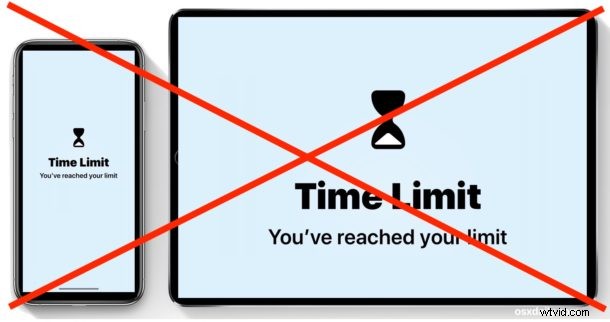
You can easily delete Screen Time limits that have been set for apps or app categories on an iPhone or iPad, allowing unlimited time usage of the app or app category again, or to re-define a more specific Screen Time limit.
For the unfamiliar, Screen Time is a feature of iOS that allows for setting time limits on app usage, either for individual apps or even for entire categories of apps. It’s incredibly useful for iPhone and iPad usage, whether you simply want to reduce your own usage of a particular app or type of app, or perhaps especially for parents and childcare providers who want to limit device time.
This guide will show you how to delete a time limit that has been set on an app, or entire app category, through Screen Time in iOS. This works the same to remove Screen Time limits whether they’re set on an iPhone or iPad.
How to Remove a Screen Time Limit for Apps on iPhone or iPad
- Open the “Settings” app on iPhone or iPad
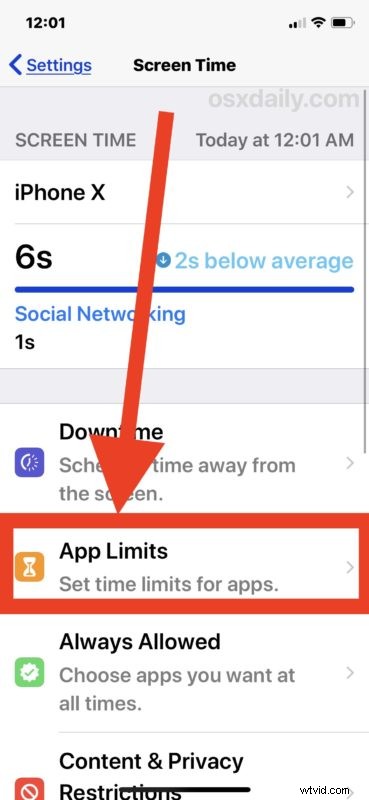
- Go to “Screen Time” in settings *
- Choose the “App Limits” section of Screen Time
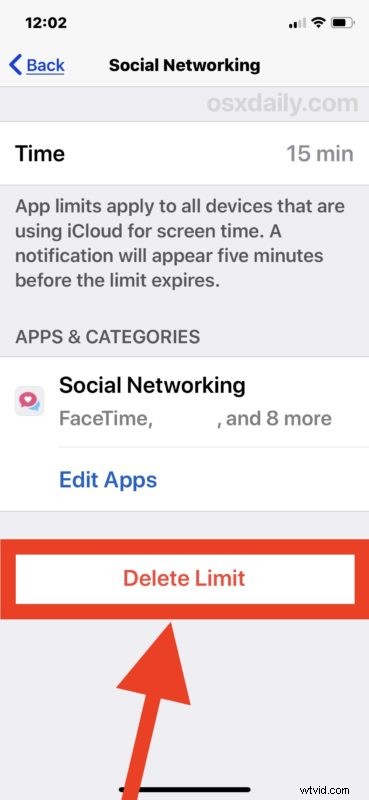
- Tap on the app or category with a set limit that you want to remove and delete the limit for
- Tap on “Delete Limit”
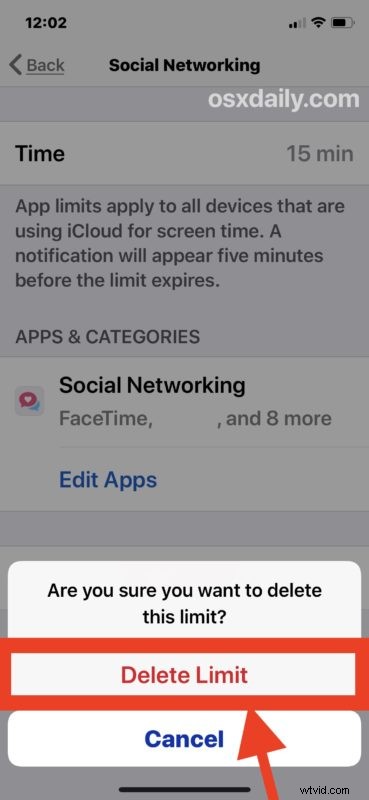
- Confirm that you want to remove the time limit on the app/category by tapping again to “Delete Limit”
- Repeat the steps to delete other Screen Time limits if desired, otherwise exit out of Settings


Once the app limit or category limit has been removed, the app or apps in that category will no longer be limited by whatever time limit had been applied.
For example if you had previously set a Screen Time limit for social networking on an iPhone or iPad and then you removed the limit for the social networking category, then all apps that fall into that category – Facebook, Twitter, Instagram, Snapchat, etc – could be used for an unlimited amount of time again (unless you set another time limit for them anyway).
Of course you can also disable Screen Time in iOS completely if you’d like to go that route as well, but turning off Screen Time also stops the reporting features, which many users like as it shows them how much time they’re spending in various apps and provides insights into their iPhone or iPad device usage.
Screen Time requires iOS 12 or later, so if you don’t have a newer version of iOS on the iPhone or iPad then you won’t find the ability to modify Screen Time usage let alone set it in the first place because the feature didn’t exist in earlier iOS releases.
* Note that if Screen Time has a passcode set in iOS, the proper Screen Time passcode must be set before you can access the specific Screen Time settings. You can always remove or disable the Screen Time passcode as well, but that’s a topic for a different article.
Do you know of any other helpful tips or tricks for removing Screen Time limits or deleting Screen Time settings on an iPhone or iPad? Share with us in the comments below!