
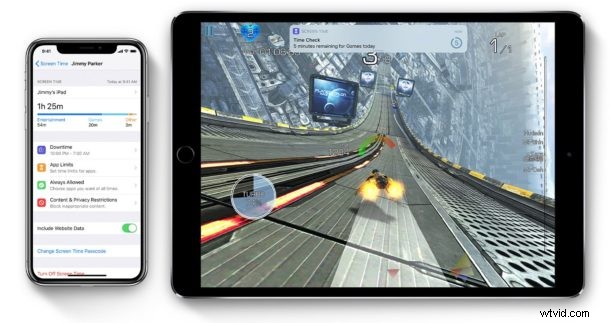
iPhone and iPad users relying on Screen Time can choose to turn off the Screen Time passcode on an iOS device. This makes it so that you or anyone else can override Screen Time restrictions without having to enter a passcode on the device.
Note turning off the Screen Time password is completely different from disabling Screen Time on iPhone or iPad entirely. Turning off the password simply allows interaction with Screen Time without a passcode being entered, whereas disabling Screen Time turns off the feature completely.
How to Turn Off Screen Time Passcode in iOS
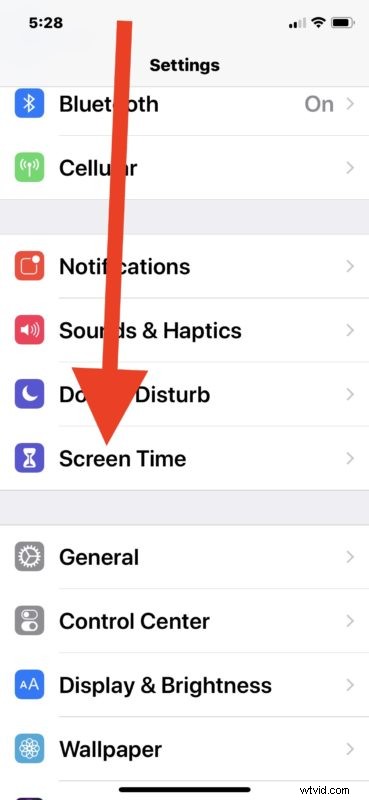
- Open the ‘Settings’ app in iOS
- Tap on “Screen Time”
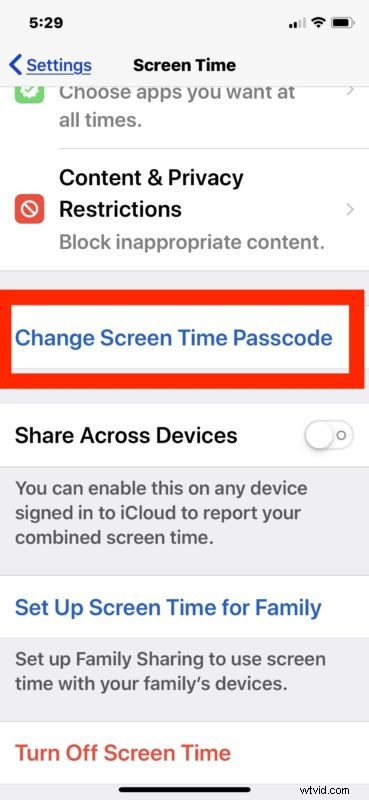
- Scroll down and tap on “Change Screen Time Passcode”
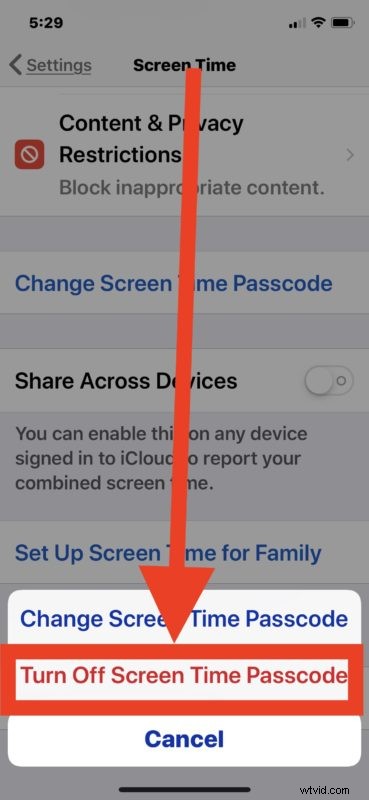
- Tap on “Turn Off Screen Time Passcode”
- Enter the existing Screen Time passcode to turn off the passcode for Screen Time in iOS
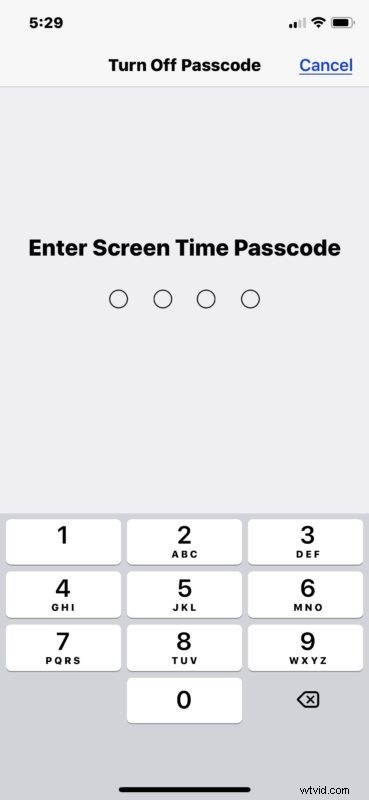
With the Screen Time passcode turned off, when the Screen Time feature runs into a set limit or time limit, anyone can easily ignore it without having to enter the Screen Time passcode to do bypass Screen Time on the iPhone or iPad.
Of course other options are to remove Screen Time limits or to disable Screen Time on iPhone or iPad completely, though both of those may be more extreme than what is desired, depending on the user and how Screen Time is utilized.
Even if you turn off the Screen Time passcode, it can still be helpful to work as a reminder when you hit a time app limit. For example using Screen Time to limit time spent on social network apps like Facebook, Snapchat, Instagram is a very popular solution for many people, but with the passcode off you (or anyone else) can easily ignore the Screen Time limit when it appears on screen. In this case, it kind of serves as a simple reminder that you’ve spent however much time on the device performing whatever the limited activity is. Reviewing the Screen Time Weekly Report can also be informative before you make screen time decisions and set app limits, as it offers a great look in how a device is used, and if you can find better uses of time.
If you have any particular experience, thoughts, tips, or tricks for Screen Time in iOS, share them in the comments below!