
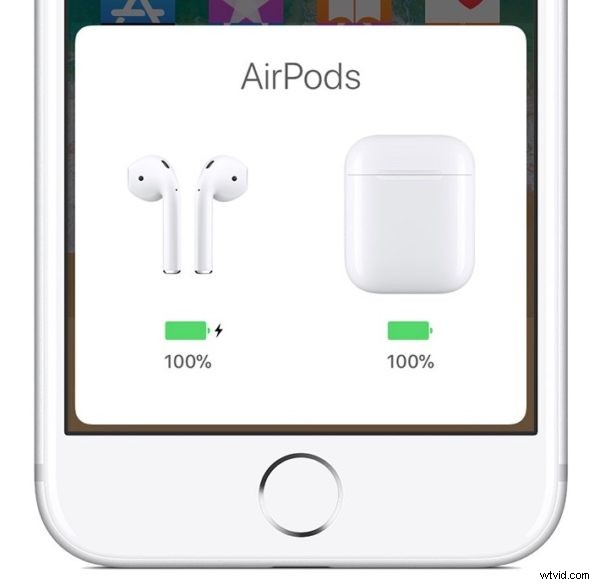
Want to change the name of your AirPods? You can quickly change AirPods name from the Settings app of the synced iPhone or iPad.
Note this is just a simple name change of AirPods, it does not require resetting AirPods nor does it require setting them up again. You simply open the pertinent iOS settings, rename the AirPods, and that’s about it.
How to Rename AirPods
Here is how you can easily rename AirPods, right from iOS:
- Open the “Settings” app on the iPhone or iPad that AirPods are connected to
- Go to “Bluetooth”
- Find the AirPods in the Bluetooth device list then tap on the (i) button next to the AirPods
- In AirPods settings, tap on “Name”
- Enter the new name you’d like to change AirPods name to, then tap the back “<" button to confirm the AirPods name change
- Exit out of Settings as usual
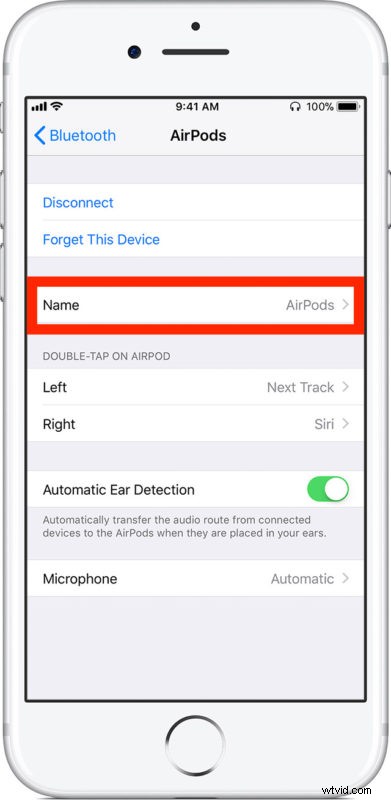
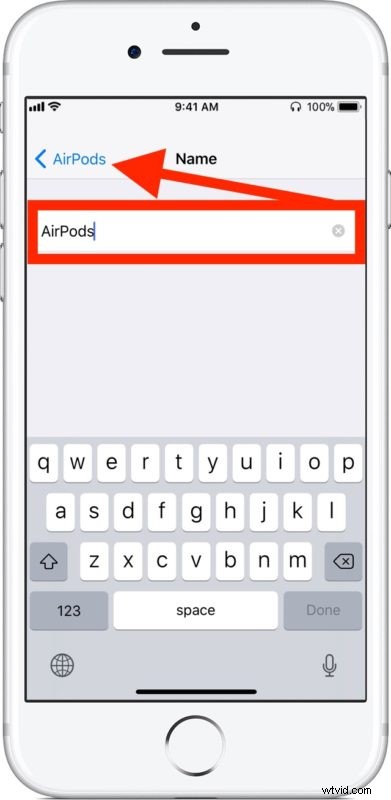
Now AirPods will have whatever name you chose, and that name will be visible anywhere that you can see or access AirPods, including in Bluetooth settings, when you check their battery level, and anywhere else you might see the AirPods from iOS.
You name AirPods whatever you want, whether that’s simply calling them “AirPods” or “Paul’s AirPods” or giving them some other customized name, the choice is yours. You can easily change their name again at any time by simply returning to the settings as covered above.
In a similar manner, you can also easily change the name of iPhone, iPad, or an iPod touch by going to the appropriate Settings in iOS.
This obviously covers iOS, but you can also change the name of AirPods from a Mac, assuming the AirPods are connected to that same Mac anyway, by going to Bluetooth settings in MacOS.
As always, if you have any particularly helpful advice, tips, tricks, suggestions, or general input about renaming AirPods, share with us in the comments below!