
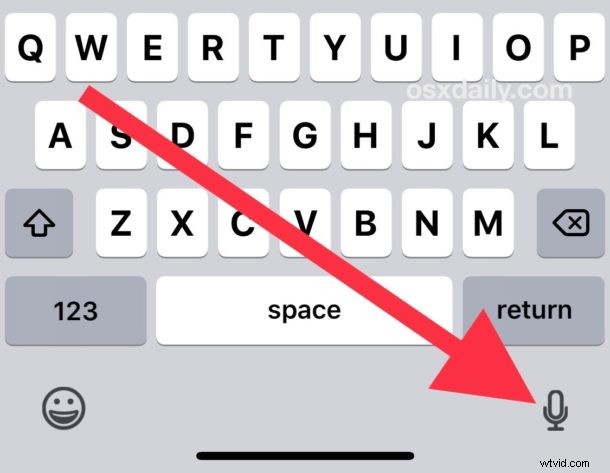
As you may have noticed, a prominent microphone button is visible on the iOS keyboard for iPhone and iPad, which when tapped will use voice-to-text to dictate spoken text to the iOS device in lieu of typing. Some users may never use the microphone button, while others may accidentally tap on the mic button, in which case it can be desirable to remove the microphone button from the keyboard on iPhone and iPad completely.
Note that you can not simply hide and show the microphone button from the keyboard on iOS as needed, but you can remove the microphone button completely by disabling a separate feature. Essentially this means you’ll be removing the microphone button by turning off a text-to-speech capability in iOS, and that’s what we’re going to show you how to do here as a way to hide the mic / dictate button from the onscreen keyboard.
How to Remove Microphone Button from Keyboard on iPhone or iPad
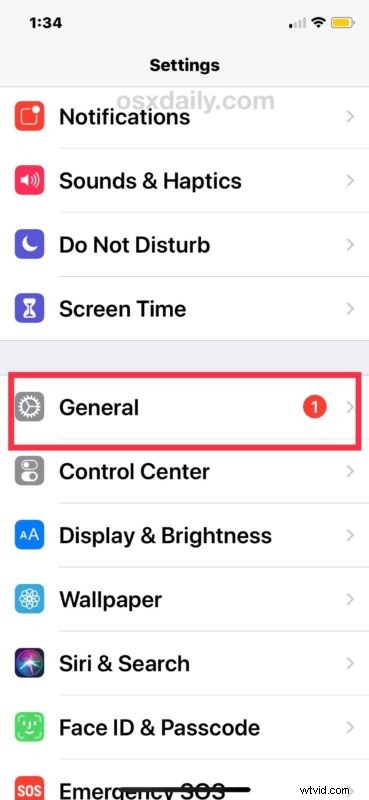
- Open the Settings app in iOS
- Go to “General”
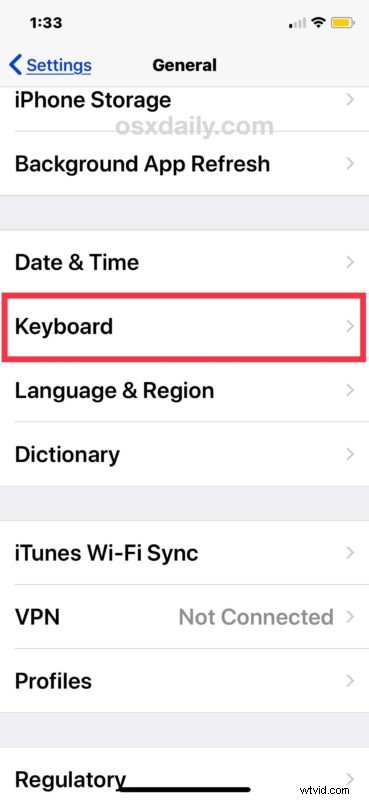
- Now go to “Keyboard”
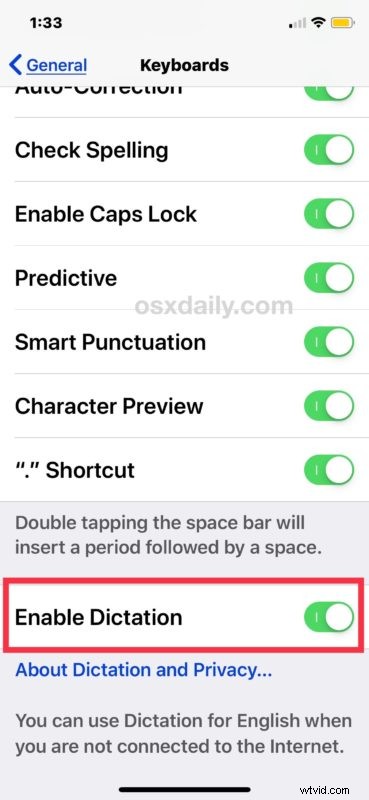
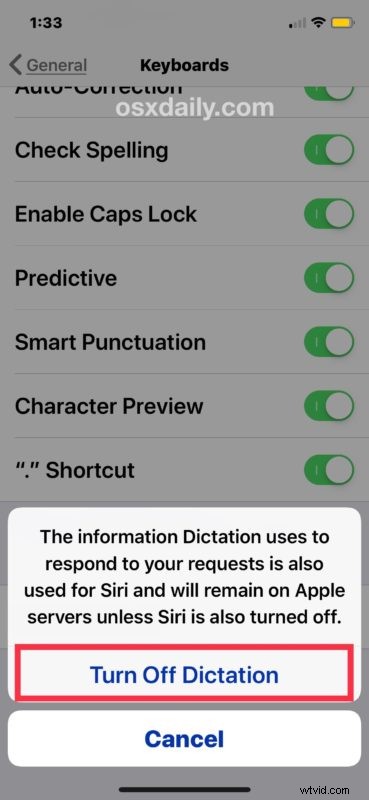
- Scroll down and locate “Enable Dictation” and toggle that button to the OFF position
- Confirm that you want to disable Dictation by choosing ‘Turn Off Dictation’, this will remove the microphone from the iOS keyboard
- Exit out of Settings as usual

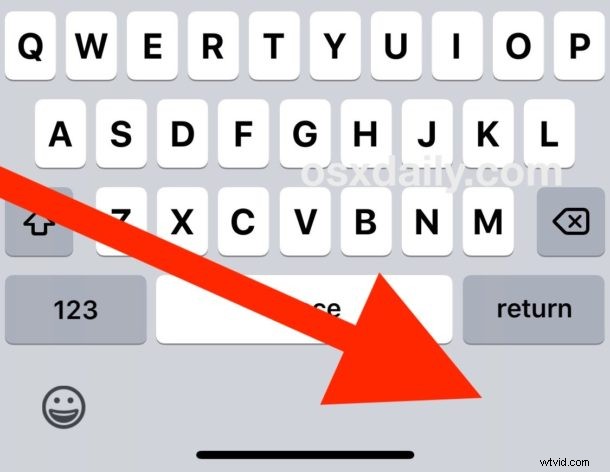
Now anytime you access the keyboard on iPhone or iPad, the prominent microphone / dictation button will no longer be visible, or available.
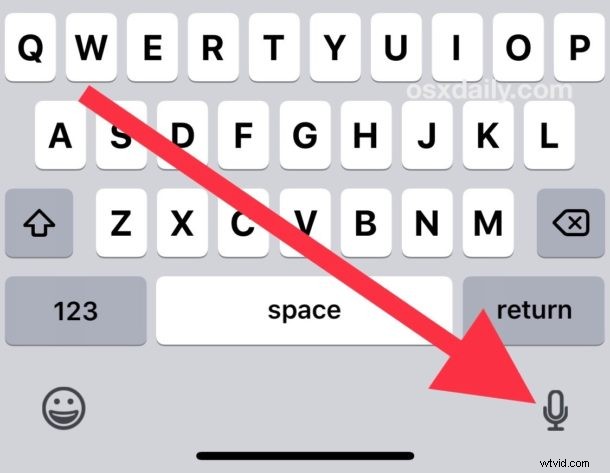
If you decide you want the microphone and dictation button back again on the keyboard of iPhone or iPad, simply toggle the Dictation feature back on again.
Note this settings change will not impact the microphone in the Messages app that is within the text-entry field, a separate feature which allows for sending voice audio messages in iOS. That can be a little confusing to have two microphones on the same keyboard, but they have different functionality.
Most iOS users will likely want to leave Dictation enabled and keep the microphone on the keyboard of iPhone or iPad because it’s useful, but if you don’t find the feature to be helpful or you hit it accidentally, disabling it can be reasonable too.
Why is the microphone button missing from my iPhone / iPad keyboard?
If you do not have a microphone button on the keyboard of iPhone or iPad, it likely means the device does not have dictation enabled to begin with. Another possibility is that the iOS device or iOS version does not support dictation, though that’s less likely given the feature has been around for quite some time.
If you don’t have the microphone button on iPhone keyboard but you want to have it for dictating text, simply reversing the above settings change and enabling Dictation will regain the microphone button the iOS keyboard.
Like nearly all iOS settings changes, these adjustments can be made at anytime, as disabling or enabling Dictation in iOS is just a matter of adjusting the appropriate toggle in the Settings app.
Similarly, the Dictation feature can be enabled or disabled on Mac too.
If you have any particular thoughts, other related tricks, tips, or approaches to removing or hiding the microphone on the keyboard for iPhone or iPad, share with us in the comments below!