
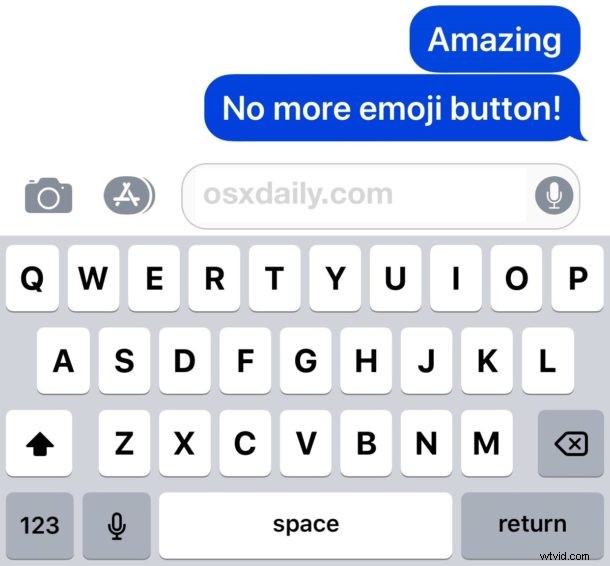
Don’t want the Emoji button on the iOS keyboard and wish it were gone? You can remove the Emoji button from the keyboard on iPhone and iPad, and by doing so you are effectively turning off Emoji in iOS so that it can’t be typed, nor can the Emoji keyboard be accessed. Disabling the Emoji button from the iOS keyboard can be desirable for many reasons, particularly if you accidentally hit the Emoji button and find that annoying, or if you simply never use Emoji and want to get rid of the smiley face button on the keyboard of iPhone or iPad.
We’ll show you how to remove the Emoji button from the iPhone and iPad keyboard, and also how to return the Emoji functionality back to the iOS Keyboard if you decide you want the Emoji button back again.
Note that if you remove the Emoji button from iOS keyboard then you will not be able to type Emoji on the iPhone or iPad because there is no longer any way to access the Emoji keyboard, unless you reverse this settings change.
How to Turn Off Emoji & Disable Emoji Button on iOS Keyboard
To remove the Emoji button from the keyboard, you must disable and remove the Emoji keyboard from iOS in general. Here’s how this is done:
- Open the “Settings” app on iPhone or iPad
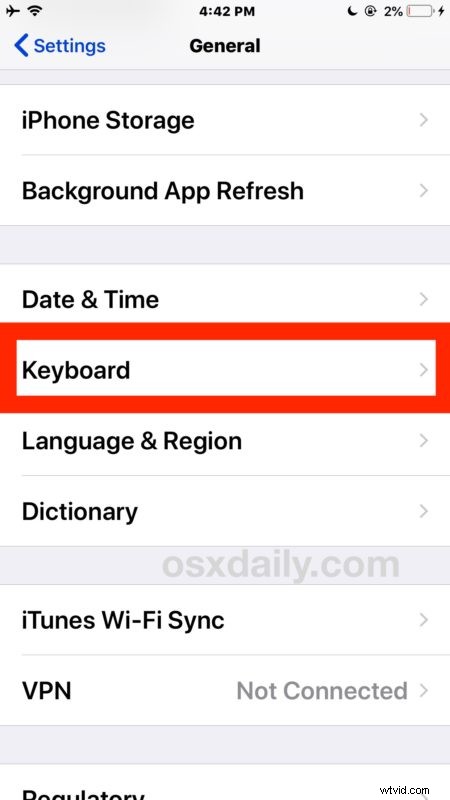
- Go to “General” and then to “Keyboard”
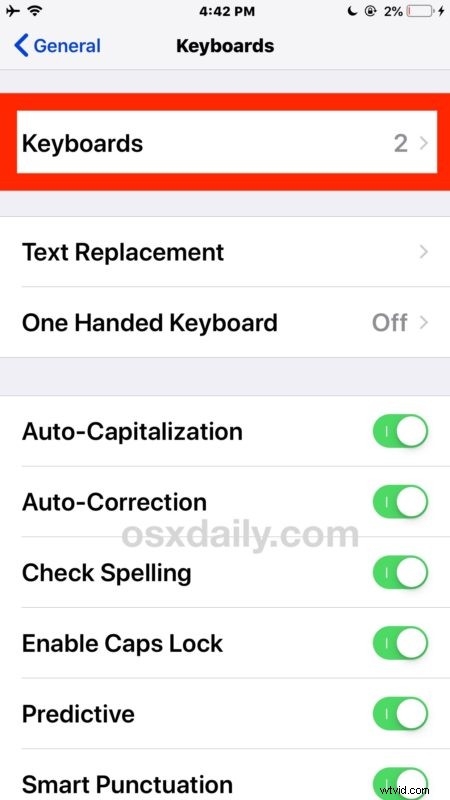
- Choose “Keyboard”
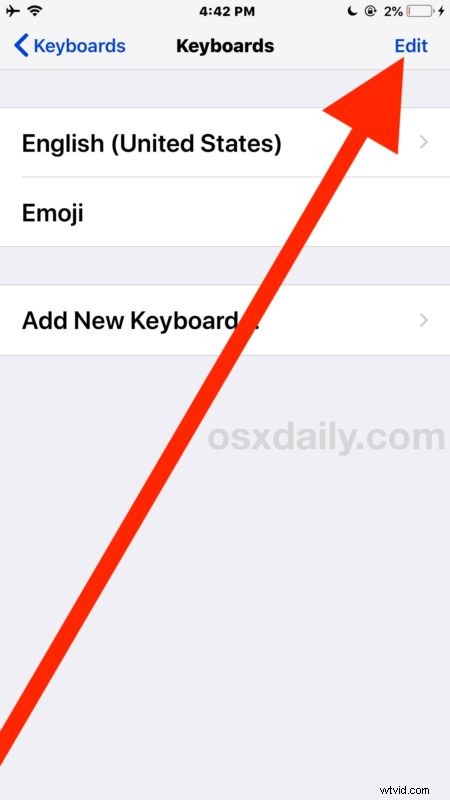
- Tap the “Edit” button in the corner of Keyboard settings
- Now tap the (-) red minus button next to “Emoji”
- Tap on the “Delete” button next to Emoji
- Tap “Done” or exit Settings

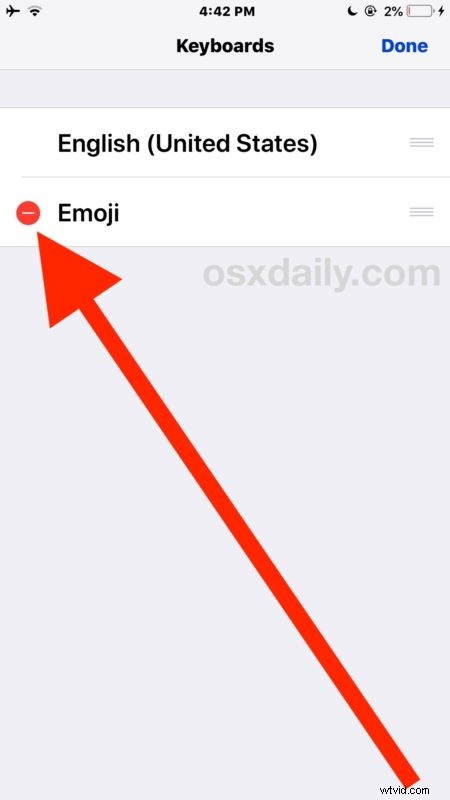
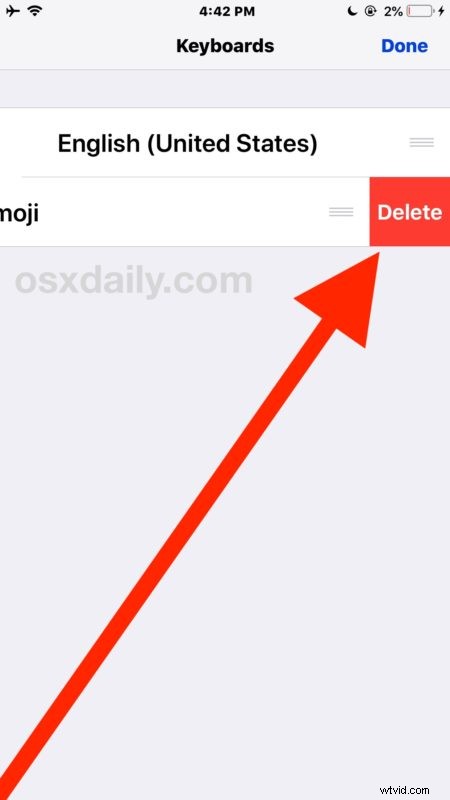
Now if you open any app on iPhone, iPad, or iPod touch that allows you to type and shows a keyboard, like the Messages app, Notes, Pages, or anywhere else where typing in iOS is possible, you will find the Emoji button has been removed.
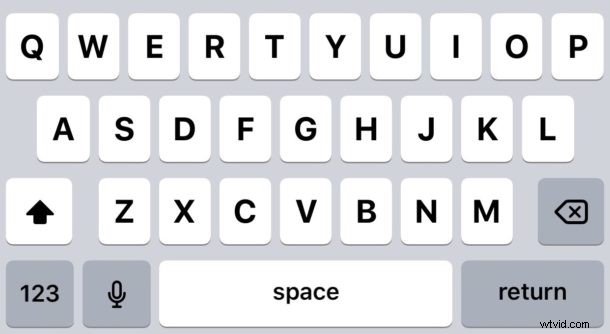
By removing the Emoji keyboard, you no longer have the Emoji button on the iOS keyboard, which means you can’t type Emoji on the device. Currently there is no way to remove the Emoji button from the keyboard without also removing the entire Emoji keyboard itself, which basically disables Emoji completely on the iPhone or iPad (though anyone can continue to send you Emoji, and your iOS device will continue to render and show Emoji).
If you’re turning off the Emoji button on iOS keyboard because you are accidentally hitting it, or because you never use it, or because you find the keyboard too cluttered, you might also appreciate removing the microphone button from the iPhone and iPad keyboard too. If you remove both the Emoji button and microphone button from the iOS keyboard, the space bar takes up the available space, and for some users they may find that easier to type with.
How do I get Emoji button back on the iPhone or iPad Keyboard?
If you disabled the Emoji button and Emoji keyboard but decide you want that smiling face button back so you can type your favorite Emoji again, you can enable the Emoji keyboard on iPhone or iPad again easily with these instructions or by doing the following:
- Open the “Settings” app then go to “General” and “Keyboard”
- Choose “Keyboards” then “Add New Keyboard” and select “Emoji” to add, this will return the Emoji button to the iOS keyboard
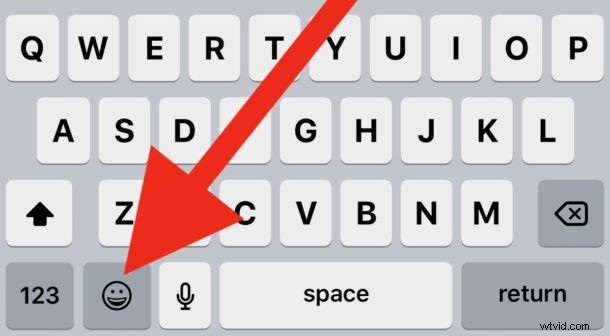
You must re-add the Emoji keyboard to the iOS Keyboard settings in order to regain access to the Emoji button on the keyboard of an iPhone or iPad, as well as to regain access to the Emoji keyboard in iOS and the smiley face button.

Like basically all settings in iOS, these changes are easily reversed and adjusted at anytime.