

Did you know the Messages app has a Search function for iPhone and iPad? Many people don’t realize that you can easily search through iMessages and text messages on the iPhone, you’ll be able to quickly find messages by name, word, phrase, or other search terms.
iOS Message search is fast and easy to use, but like many other iOS features it’s a little hidden so don’t be surprised if you have never seen it before. This guide will show you who to use the Messages search feature for iPhone, iPad, and iPod touch.
How to Search Messages on iPhone
Messages search will look through and find all matching iMessages and text messages on an iPhone or iPad, here’s how this works:
- Open the “Messages” app on iPhone or iPad
- From the message thread screen, tap and hold on a message then pull down on the screen to reveal the hidden “Search” bar
- Tap into the Search bar and type the term, name, or word to search messages for
- Matching messages, conversations, and threads will appear below, tap any of them to open the matching message for the searched term

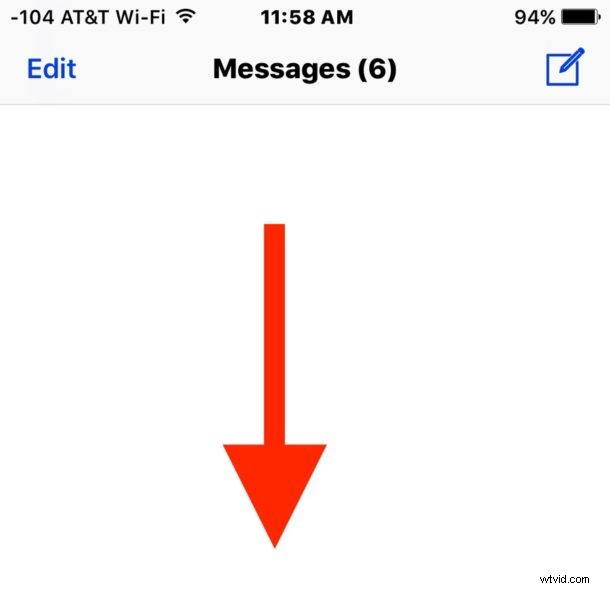


Clearing out the search box will make the message thread screen appear as usual, and you can pull down from the messages screen to search at any time.
You must be searching from the general iOS Messages thread screen, you can not search from within individual message conversations or threads, the search box is only available in the general Messages app screen.
Being able to find matching messages, words, and phrases in Messages is really useful, so if you’re trying to remember what someone said a few months ago, or what a particular topic or answer was, or what a recommendation was, or anything else, you can easily find out just by searching for something for a match. Currently the Messages app does not have an ability to search photos or pictures, but because image search exists in iOS it wouldn’t be surprising to see that feature introduced to Messages too. Note this is completely different from the ability to search for gifs in iOS Messages or the other various sticker features that have their own search functions.
The Messages Search feature could be a little easier to find, and it’s not entirely clear why it’s hidden the way it is, but much of modern iOS requires user discovery in ways that are less than obvious. But as many other iOS features, this one is helpful and handy, once you know that it exists anyway.
If you enjoyed this tip, check out our other Messages tips and tricks here.