

Are you getting unwanted text messages from a random phone number? Or perhaps, it’s just an annoying friend or group who’s sending you constant tests on iMessage? Either way, it’s pretty easy to mute these message threads on your iPhone and avoid all notifications every time they send you a text.
The stock Messages app on your iPhone is the home to both regular text messages as well as iMessage conversations. Unlike most other instant messaging services, iMessage doesn’t offer a blocking feature. Of course, you can block the iPhone contact altogether, but that’d prevent them from making phone calls too. Instead, you can prevent notifications when you feel like you’re getting too many unwanted texts from someone.
Can’t figure out how to do this on your iOS device? We got you covered. In this article, we’ll be discussing exactly how you can mute conversations in Messages on both the iPhone and iPad.
How to Mute Conversations in Messages on iPhone & iPad
First of all, before you get started, make sure you’ve installed the latest version of iOS and iPadOS on your device. Now, without further ado, let’s take a look at the necessary steps.
- Launch the stock Messages app from the home screen of your iPhone or iPad.

- Now, swipe left on the conversation or thread that you want to mute and tap on the bell icon, as shown in the screenshot below.
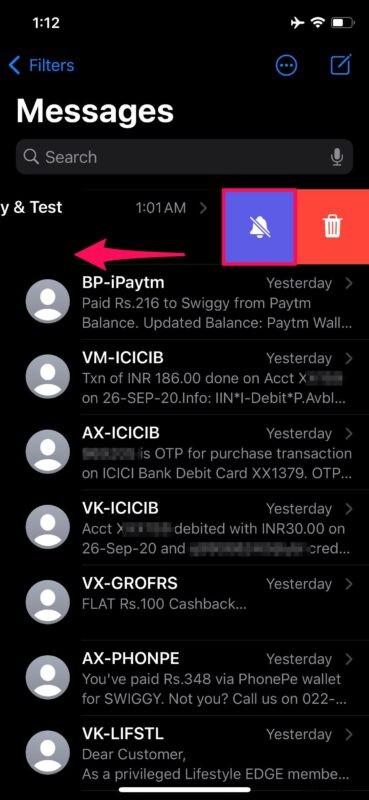
- Now, you’ll see a crescent icon next to the thread indicating that it has been muted.
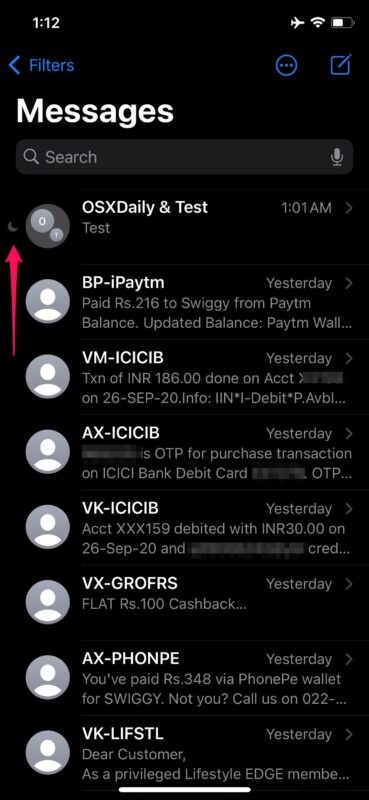
That’s pretty much all there is to it. Now you know how easy it is to mute conversations in Messages on your iOS device.
You can follow these steps again to mute any other thread or even mute a group chat in the Messages app. This is the fastest way to mute conversations, but if you want to make things complicated, you can also do this by heading over to the “Info” section of a conversation. Here, if you scroll down, you’ll find the toggle to “Hide Alerts”.
Another way to stop receiving unwanted messages from random people is by filtering unknown senders for iMessages. This turns off notifications from people who’re not in your contacts and sort them into a separate list.
Do you use a Mac? If you send and receive iMessages on your Apple computer, you might be interested in learning how you can mute conversations from your Mac too. The procedure is fairly similar and straightforward.
We hope you managed to mute SMS messages and iMessages from troublesome people in your contacts list. What are your thoughts on this feature? Do you think Apple should just add a blocking feature to match competing services? Do share your thoughts and opinions in the comments section down below.