
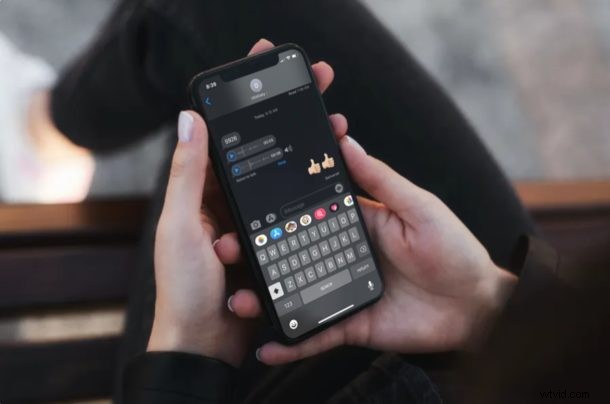
If you send and receive audio messages with the Messages app on iPhone or iPad, you might be interested in saving those audio messages, which must be done manually. Unlike photos and videos, the stock Messages app does not automatically save the audio messages on your iPhone or iPad, but with a a simple trick, you can save the audio messages you want to keep.
Apple’s iMessage service which is baked into the Messages app is extremely popular among Apple users, as it offers a free and convenient way to send text messages, attachments, animojis, etc. to iOS, iPadOS, and Mac users. If you receive a lot of audio messages from your friends and family, you might be interested in saving them to your device and keep them organized, just like how you’d manage your other media.
By default, the audio messages that you receive are automatically removed 2 mins after you listen to them. Do you want to avoid this and instead keep them forever? In this article, we’ll be discussing exactly how you can save audio messages on your iPhone and iPad.
How to Save Audio Messages on iPhone & iPad Automatically
Here, we’ll be going through the necessary steps to prevent automatic deletion if audio messages, as well as permanently saving them to your iOS device. Let’s see how this works.
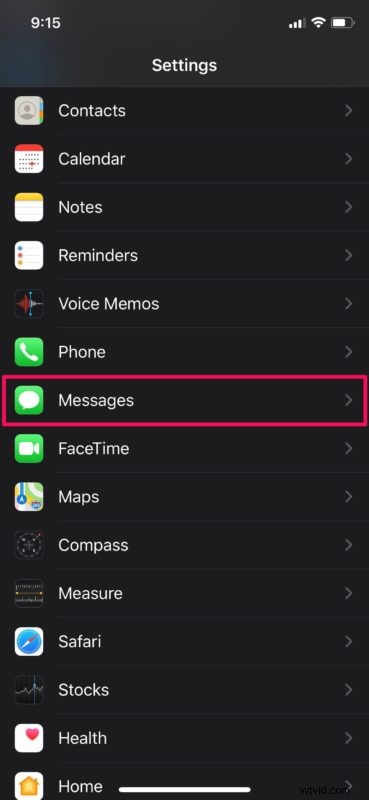
- Head over to Settings on your iPhone or iPad. In the Settings menu, scroll down and tap on “Messages”.
- Here, scroll down and select “Expire” located right under Audio Messages.
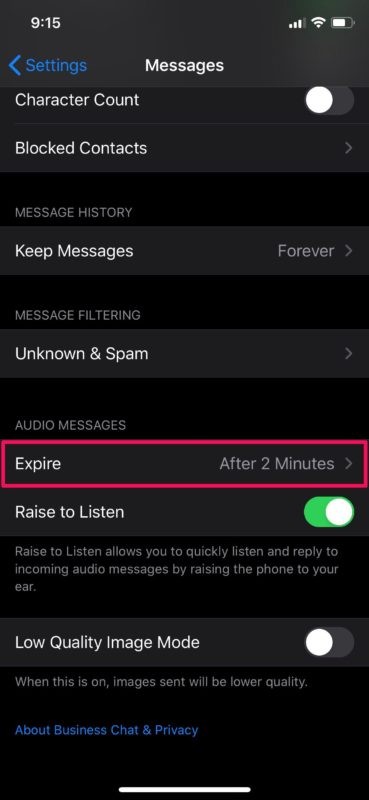
- You’ll notice that it’s set to expire after 2 minutes by default. Change this to “Never” as shown in the screenshot below.
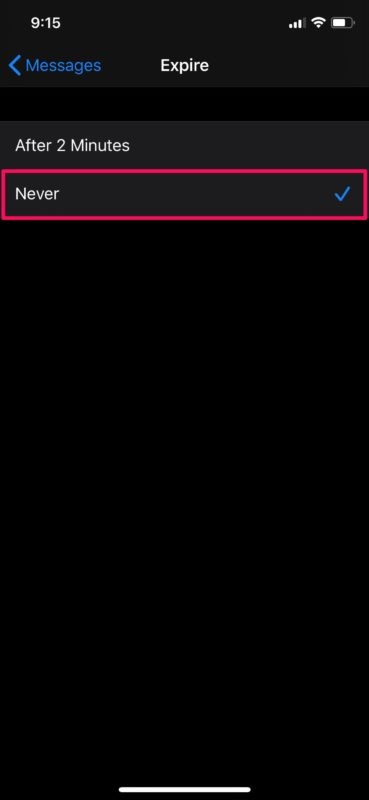
This will cause the iPhone or iPad to no longer automatically delete the audio messages, instead letting them stay within the Messages app and whatever their context is.
But what if you want to save a particular audio message as a file, that you can then use later or reference later? You can do that too.
How to Manually Save Audio Messages on iPhone & iPad
Alternatively, you can also manually prevent the audio messages from being deleted from your iPhone or iPad.
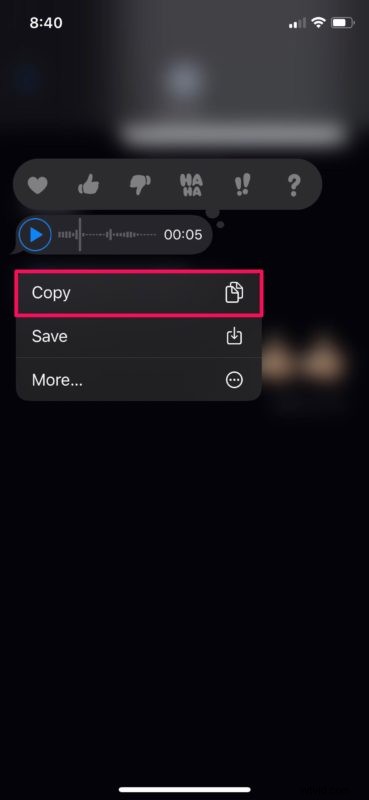
- When you receive an audio message that you’d like to keep in the conversation, tap on the “Keep” option located right below the message bubble. However, if you want to save an audio message to your device, long-press on the audio message you sent or received.
- Now, tap on “Copy” option. (We understand there’s an option to “Save” right below, but that doesn’t consistently work for all users).
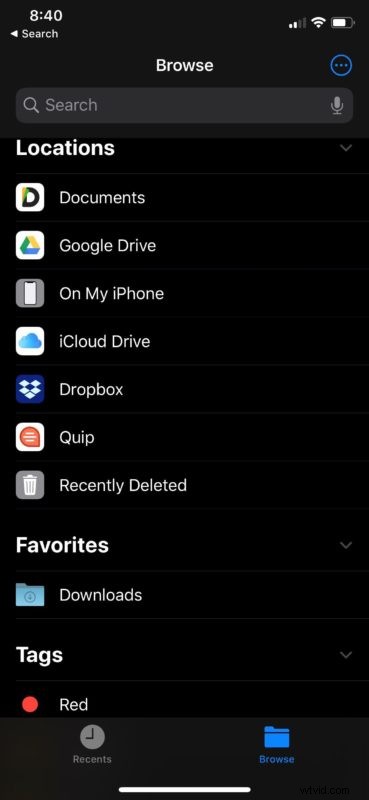
- Now, open the Files app on your iPhone or iPad. Select a directory or folder to store the audio message.
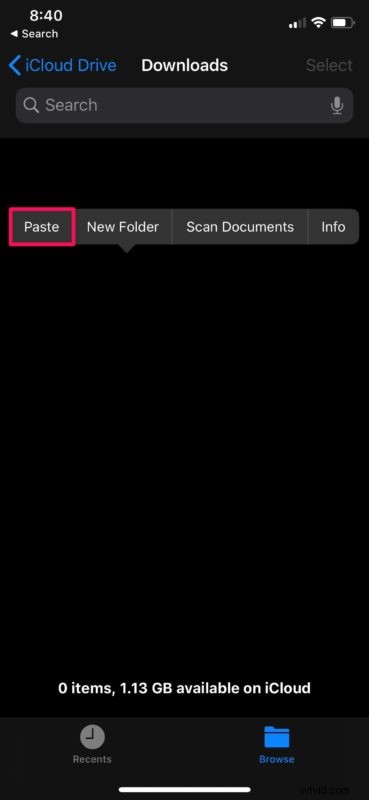
- Now, long-press on an empty area within a folder. Tap on “Paste” to save the message in this location.
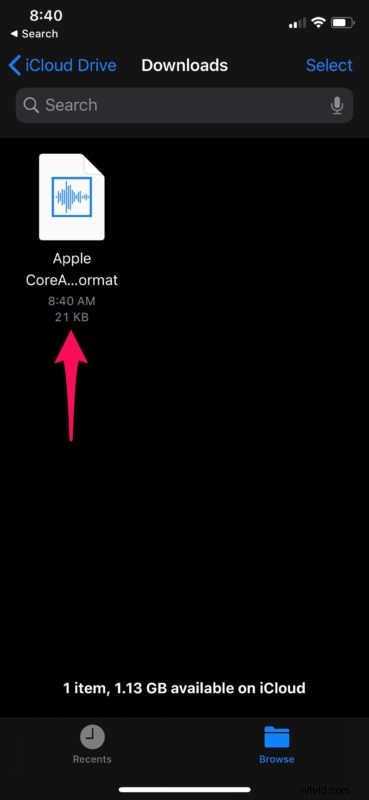
- As you can see here, the audio message has been saved. You can play it back right here.
Now you understand the process of keeping audio messages, as well as saving them on both the iPhone and iPad.
The audio messages are saved as .caf files, which is Apple’s Core Audio Format. So, if you’re trying to transfer these audio files to a Mac or Windows PC, you may be able to play them within Finder, or you might need to use Apple’s QuickTime player, or third party software like Audacity to play it back on your computer. It’s also worth nothing the Mac Messages app can send and receive audio messages too, and save them directly from there, but obviously this article is focused on iPhone and iPad.
Before the iOS 12 update, selecting the “Save” option exported the audio message to the Voice Memos app that’s preinstalled on iOS devices. However, this option doesn’t seem to be functioning as intended currently for all users. Hopefully this is just a bug that Apple can resolve with a software update.
Regardless, this copy/paste workaround to save an audio message works just as good, if not better. You could easily create a separate folder within the Files app for keeping all your audio messages organized.
Were you able to save the audio messages you sent and received over iMessage to your iPhone or iPad? Do you prefer to keep audio messages within the Messages app and their original context, to use this copy/paste method, or do you want to be able to export these audio files to Voice Memos? Let us know your thoughts, experiences, and opinions in the comments section down below.