
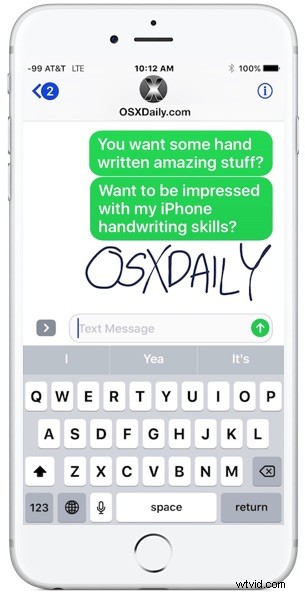
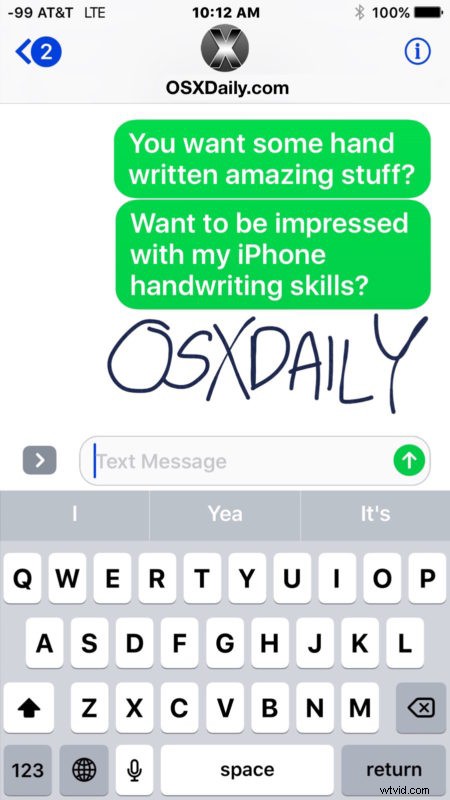
Did you know you can handwrite messages and notes in Messages for iOS 10 on your iPhone? With this feature you can scribble out a little note or sketch a simple drawing and send it along to any recipient.
Unlike some of the more obvious new Messages features in the latest versions of iOS that have buttons and toggles immediately visible in the Messages app, the handwriting ability is a little hidden. We’ll show you how to reveal the handwriting option so that you can send doodles and notes over iMessage.
You’ll need a modern version of iOS to have this feature, any iPhone or iPad running anything beyond iOS 10.0 contains handwritten messaging support along with the many other new Messaging features, like iMessage stickers and effects.
Access & Use Handwriting in Messages for iOS
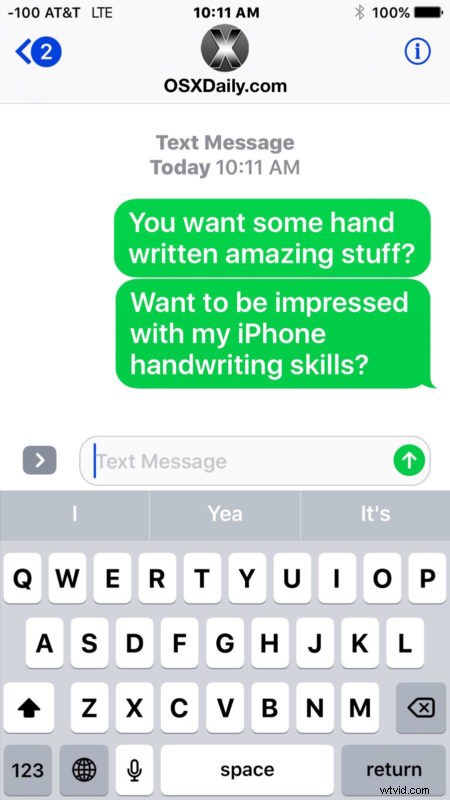
- Open the Messages app and then go into any message thread, or send a new message
- Tap into the text entry box, then rotate the iPhone into the horizontal position
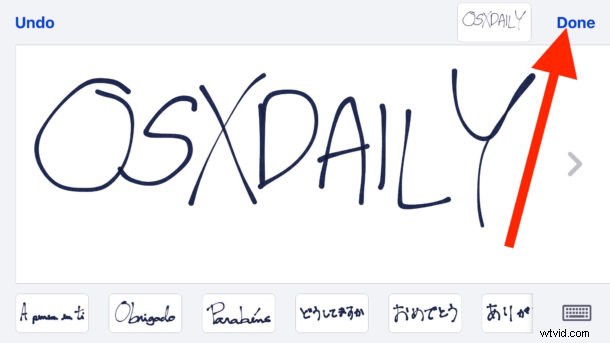
- Write your handwritten message or note, then tap on “Done” to insert it into the conversation
- Tap on Send as usual to send the handwritten message to the recipient
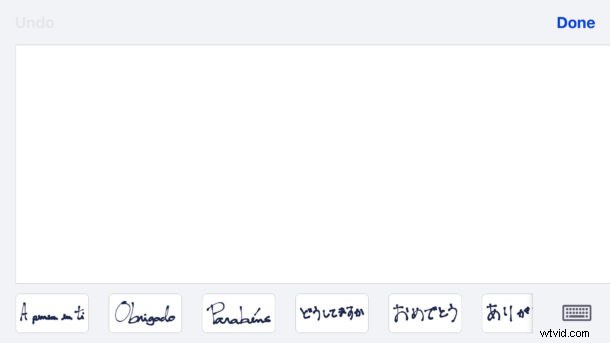
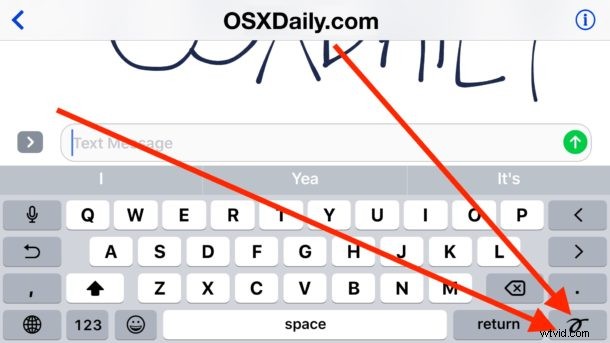
If you rotate the iPhone and don’t see the handwriting option automatically, you will need to keep the iPhone in the sideways position and then tap on the little squiggle button, it’s in the corner of the keyboard and kind of looks like a cursive ‘o’ or a tailed loop of some sort.
You’ll also want to make sure that orientation lock is not toggled on and preventing rotation.
Enter & Exit Handwriting Mode on iPhone
You can enter and exit handwriting mode simply by rotating the iPhone between horizontal and vertical mode while in any Message thread. The recipient does not need to be on a modern version of iOS or even an iPhone, the message will just arrive as a picture iMessage or MMS if applicable.
By the way, if you want rotate the iPhone and you want just a wider keyboard like in earlier versions of iOS, tapping the keyboard button in the corner will hide the handwritten messages panel and reveal the keyboard as usual within iMessages.
On the receiving end of the handwritten messages, they come across to other iPhone and iPad users as animated initially, as if they are being written out on the device, which is a nice effect. You can even save the messages as a picture file if you want to.
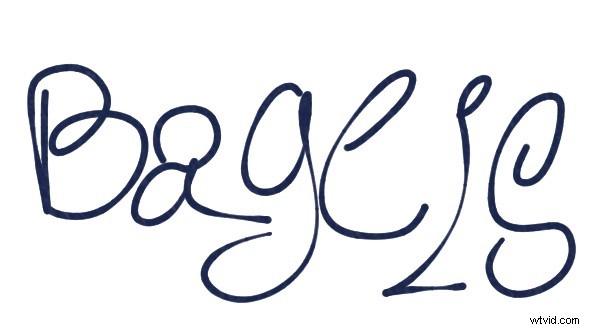
And if you’re on a Mac, you get to see the handwritten messages too, unlike many of the other iOS message effects. It’s a fun feature overall, and though it’s intended for handwriting you can also scribble drawings and anything else as well.