

Want to declutter your Messages app on iPhone and iPad? One way to do that is to delete iMessages, either the entire conversations, or even a specific message. And let’s face it, most of us have sent a message or two that we regretted, or perhaps we don’t want to see reminders of any more. Although you can’t unsend those messages, you can still delete them from your iPhone or iPad.
Apple’s iMessage is extremely popular among iPhone, iPad and Mac owners, since the service is baked right into the default Messages app. If you use it regularly for texting your friends, family and colleagues who own Apple devices, there may be situations where you want to delete certain messages. They could be something mistaken, secretive, silly, or embarrassing, but no matter what your reason is, it’s fairly simple to get rid of those messages from the Messages app.
So be it for privacy, or for tidying up, let’s learn how you can delete iMessages and even regular text messages from your iPhone and iPad.
How to Delete iMessages on iPhone & iPad
First of all, keep in mind that you’re only deleting the messages from your iOS device. Once you’ve sent an iMessage, it will be delivered to the recipient unless it fails due to some network error, or if someone was blocked. There’s no option to delete the messages on both ends with the Messages app.
- Open the “Messages” app on your iPhone or iPad.

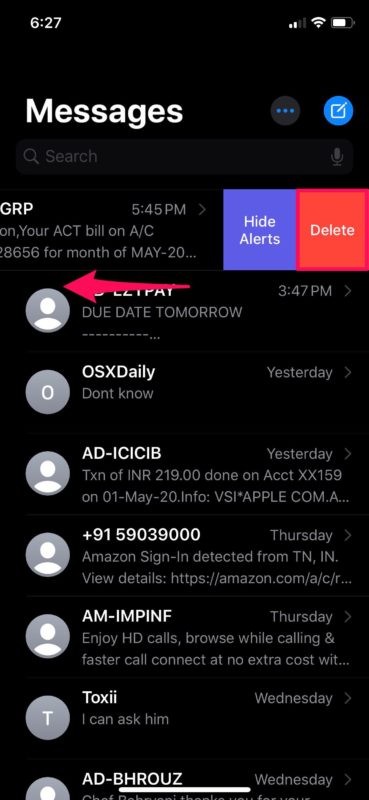
- If you want to delete an entire conversation, you can swipe left on any of the message threads within the app and tap on “Delete”.
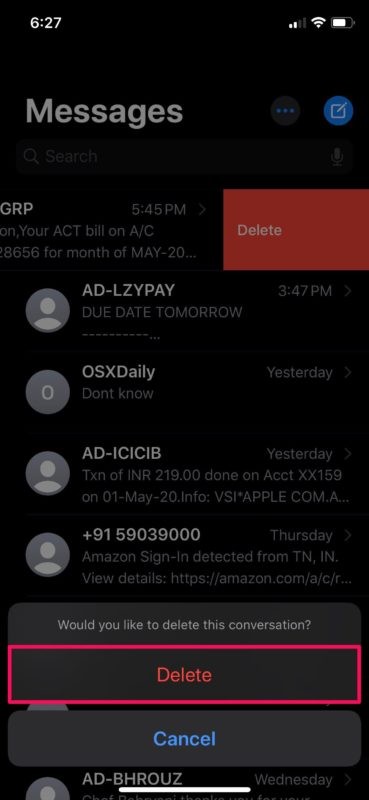
- When you’re asked to confirm your action, tap on “Delete” again.
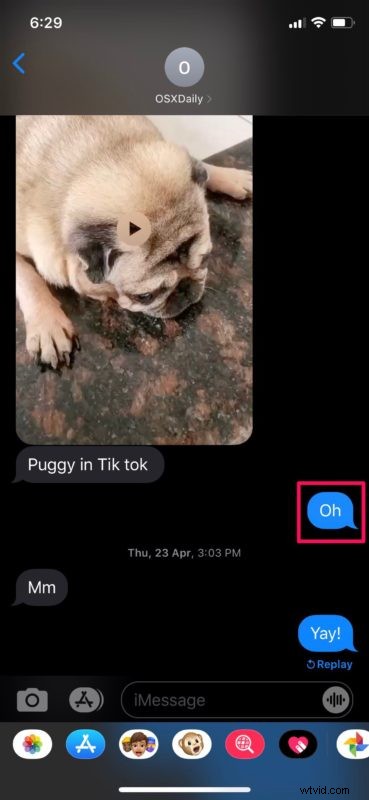
- Next, if you want to delete messages individually, open a conversation and long-press on a message bubble.
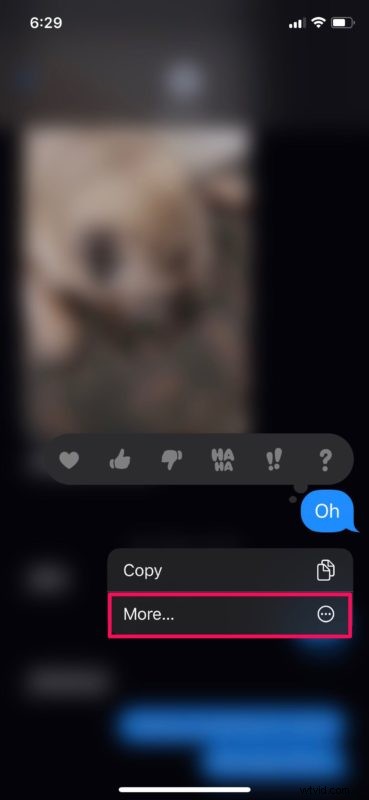
- Tap on “More” to access the selection menu.
- Now, you’ll be able to select the messages you want to delete. Once you’re done with the selection, tap on the “delete” option as shown in the screenshot below.
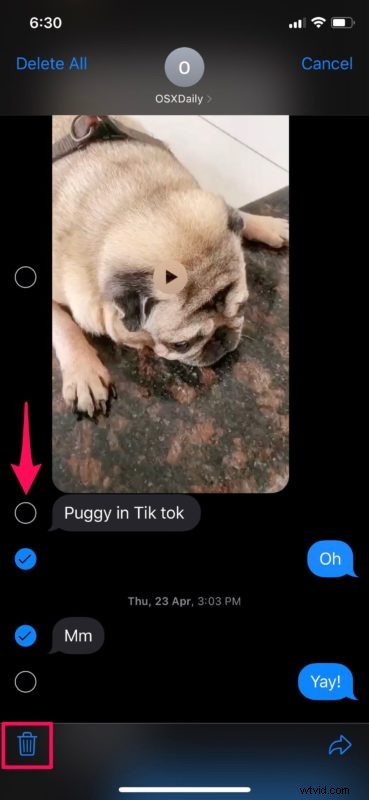
- When you’re prompted to confirm, choose “Delete Messages” to permanently remove them from your device.
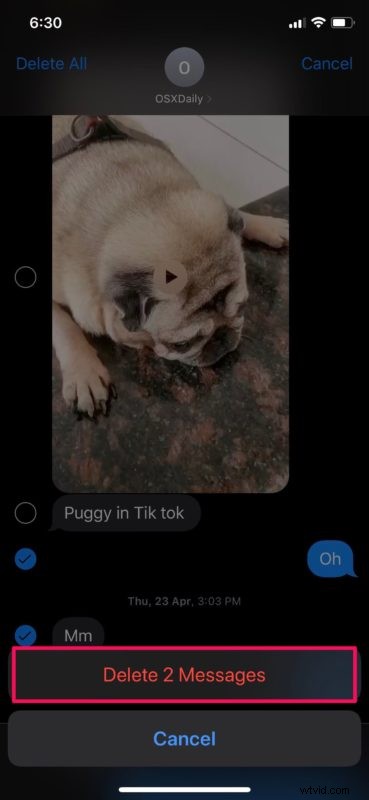
That’s pretty much all you need to do in order to delete any particular iMessages from your iPhone and iPad.
Messages that are deleted cannot be retrieved easily on your iOS device. However, by restoring from a previous iCloud or iTunes backup prior to that messages deletion, you could still recover these deleted messages potentially.
If you’re a frequent iMessage user, the Messages app can grow to take up considerable amount of storage space on your device, particularly if you send and receive a lot of video. In such cases, you might want to set Messages to automatically delete old conversations from your iPhone or iPad. This can be done by heading over to Settings -> Messages -> Keep Messages and changing it to 30 days instead of storing it forever. Similar features exist for other messaging apps too, like Signal with disappearing messages.
Today, many other popular messaging platforms have the ability to unsend messages, but Apple has yet to introduce such a feature, and may never do so (for what it’s worth, you can’t unsend SMS texts either). It’s always possible a future version of iOS, iPadOS, and MacOS will allow users to unsend a message, but for now it’s just not possible.
Is your device running an older version of iOS? If so, you might be interested in taking a look at how you can delete messages in iOS 12, iOS 11 and older versions, regardless of what device you’re using.
Were you able to delete any iMessages or text messages from your iPhone and iPad? Do you wish there was an unsend feature, or a mutual disappearing messages feature native to Messages? Let us know your thoughts and opinions in the comments section, as always.