
The stock Messages app on iPhone and iPad lets you send iMessages and SMS text messages too. But the great thing about iMessage is that you can communicate endlessly with other Apple users with iPhone, iPad, Mac, and Apple Watch, entirely for free, through the encrypted iMessage protocol. But what if Messages is not working on your iPhone or iPad? That’s when you’ll want to try out some troubleshooting steps to resolve the problem, and get iMessages working again as intended.
When you send a text message to an Android user or any non-Apple device, it’s sent as an SMS, which is indicated by a green text bubble and when you send a text to an iMessage user, you’ll notice a blue text bubble instead. Although the Messages app works fine for the most part, you could occasionally run into situations where you’re unable to send text messages, whether it’s iMessage or regular SMS, for any number of reasons.
If you’re facing issues with sending SMS or iMessages on your device, don’t fret. In this article, we’ll guide you through the necessary steps to troubleshoot and resolve Messages on your iPhone and iPad.
Troubleshooting Messages on iPhone & iPad
Although we’ll be focusing primarily on the iPhone, you could use the following troubleshooting methods to try and resolve iMessage-related issues on your iPad and iPod Touch as well.
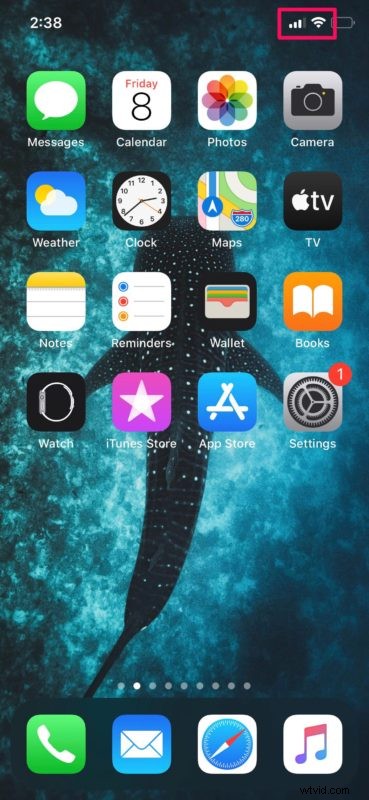
1. Make Sure Your iPhone / iPad is Connected to a Cellular or Wi-Fi Network
This is the first thing you need to check if one of your text messages fail to send. If you’re attempting to send an SMS message, check the top-right corner of your screen to see if you have a cellular signal. On the other hand, if it’s iMessage, make sure you’re connected to a stable Wi-Fi or LTE network.
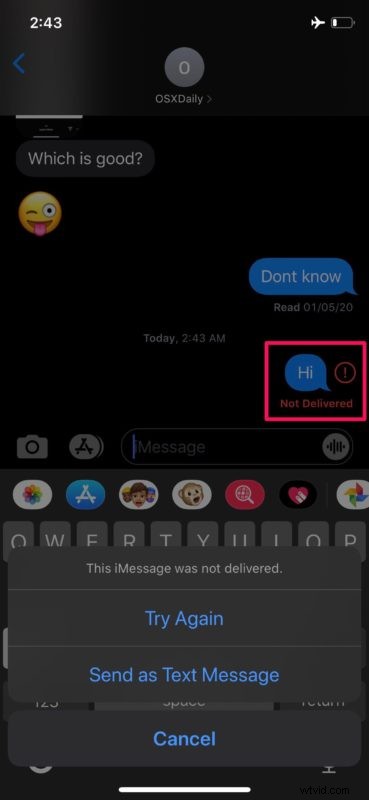
2. Not Delivered Error
If you see the red “not delivered” error when you send a text message, tap on the text and choose “Try Again” to resend the message. If your iMessage fails to deliver, you’ll have the option to resend it as a regular SMS message as shown below.
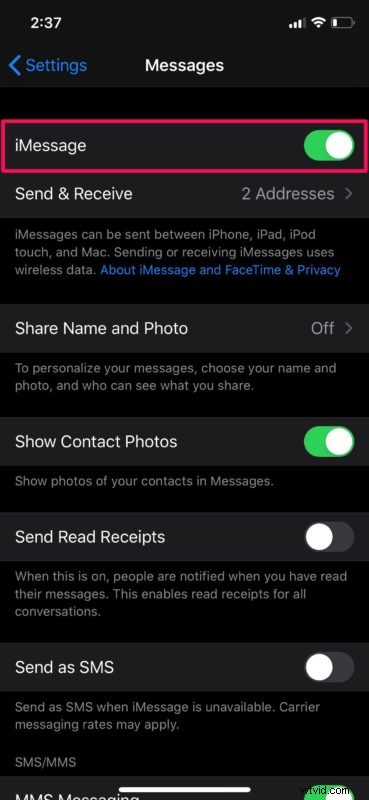
3. Reactivate iMessage Service
This troubleshooting step is for people who’re just facing issues sending iMessages to other Apple users. By simply toggling iMessage on and off, you’re essentially reactivating the service on your device. In order to do this, simply head over to Settings -> Messages -> iMessage and tap on the toggle to disable and re-enable it.
4. Enable Send as SMS
The stock Messages app can automatically send a text message as SMS, whenever iMessage is unavailable. This reduces the occurrence of “Not Delivered” errors. However, this feature is not enabled by default on your device. In order to turn this on, head over to Settings -> Messages -> Send as SMS and tap on the toggle.
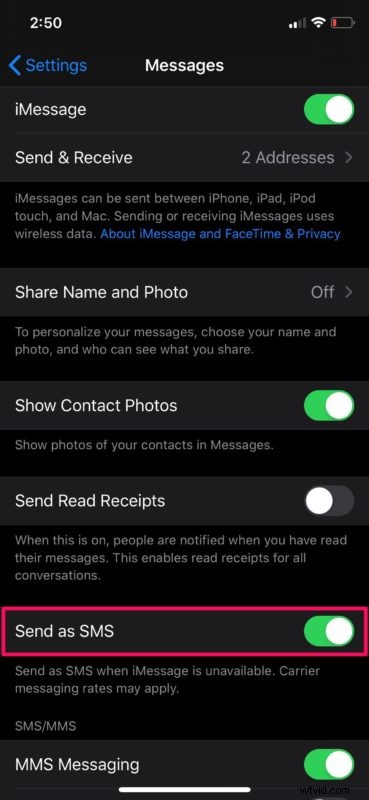
You can also follow some specific SMS troubleshooting steps here if you continue to have problems with SMS texts in general, but not iMessages.
5. Reset Network Settings
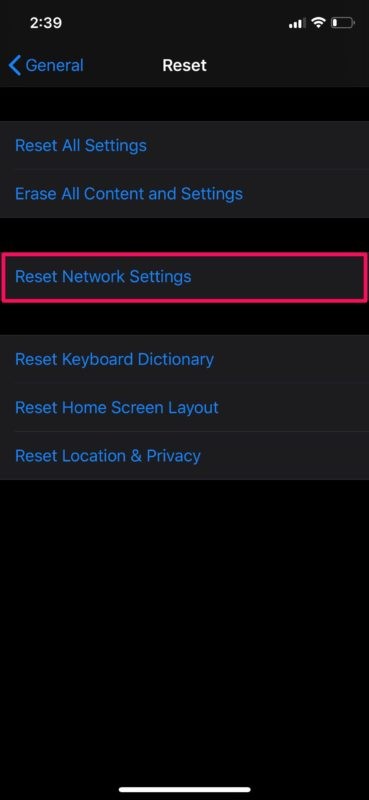
In rare cases, common networking issues with your iPhone or iPad could likely be the reason why you’re unable to send text messages. However, this can be easily resolved by resetting your network settings. Be mindful that you’ll lose your saved Bluetooth connections, Wi-Fi networks and passwords once you reset these settings. In order to do this, go to Settings -> General -> Reset -> Reset Network Settings on your iOS device.
6. Reboot Your iPhone / iPad
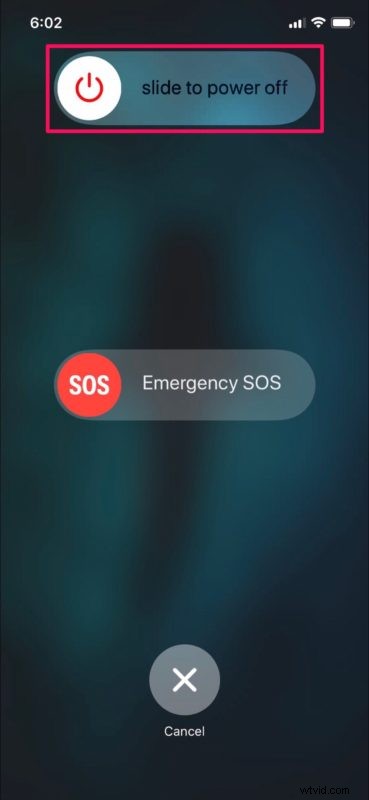
The last thing you’d want to try is simply to restart your iOS device. This can be done by just turning off your device and turning it back on again. If you’re using an iPhone or iPad without a physical home button, hold the side button and the volume up button to access the shut down menu. However, if you’re using an iPhone or iPad with a physical home button, you just need to hold the power button. You can shut down your iPhone or iPad through Settings too.
These are pretty much all the basic troubleshooting steps. By now, you should have resolved the issues you were facing with the Messages app on your iPhone and iPad.
If none of these methods worked in your instance, it’s also possible that the issue is on the recipient’s end. Try sending a text to a different contact and see if it works. If it does, ask the contact who you are facing issues with to also follow these troubleshooting steps and fix the issue on their end.
Sometimes, and this is quite rare, but Apple’s servers could go down temporarily and services like iMessage and iCloud could get affected, as a result. You can check if iMessage service is up and running at Apple.com’s system status page.
Are you unable to send text messages from your Mac? Whether you’re using a MacBook, iMac or Mac Pro, you can try out these various troubleshooting methods to fix iMessage on your macOS device.
Did you fix the issues you were facing with Messages app on your iPhone and iPad? Which of these troubleshooting methods we discussed here worked for you? Did you find another solution? Share with us in the comments your experiences and thoughts!