

Modern versions of iOS have all sorts of fun new Messages app features, including the “Tapback” function which allows you to insert an inline response as a visual icon to any message with a quick action.
Much like using iMessage Stickers, the Tapback message icons are applied atop a message, appearing inline within the conversation.
To use Tapback in Messages, you’ll need a modern version of iOS on the iPhone or iPad. This means anything beyond iOS 10.0 will support the feature, so be sure you have updated if you want to use Tapback.
How to Tapback iMessages on iPhone and iPad
- Open any iMessage thread in Messages app
- Tap and hold on any message, picture, or video
- Tap on one of the Tapback icons to append it to the iMessage: Heart, Thumbs Up, Thumbs Down, “Ha Ha”, “!!”, “?”
- Repeat with other messages to apply a Tapback message to additional messages
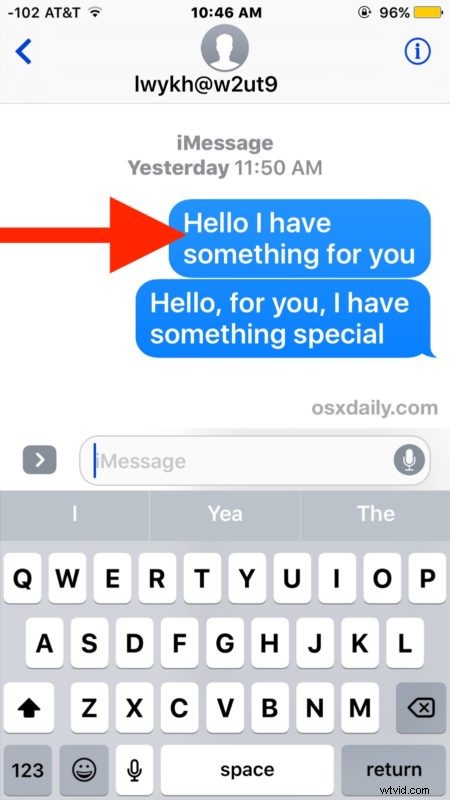
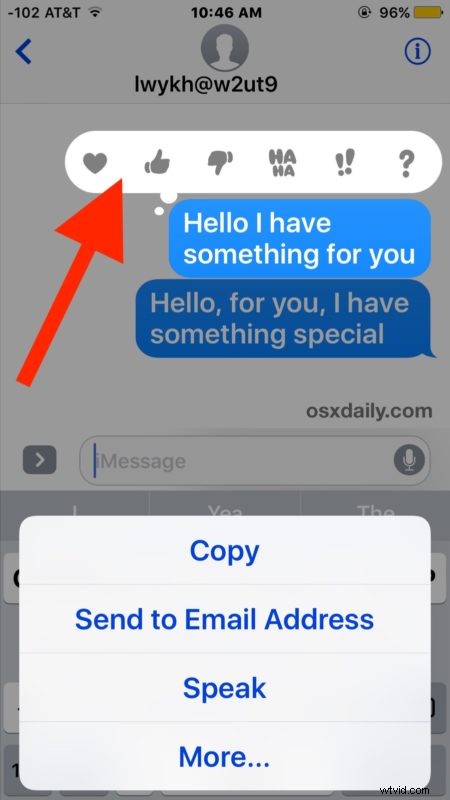
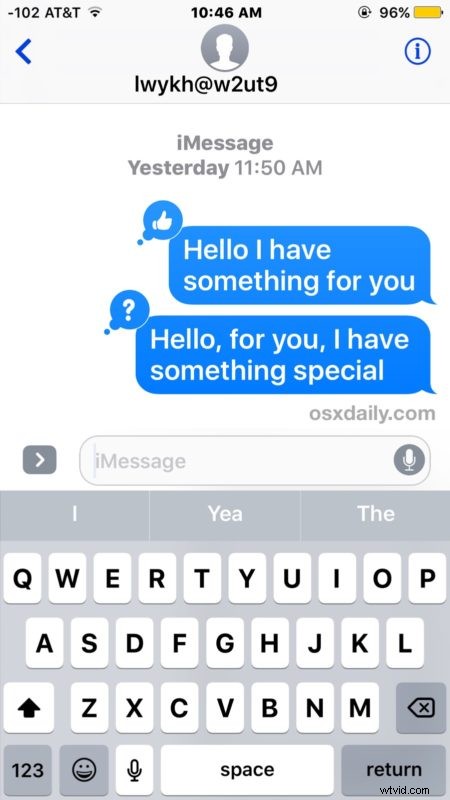
The entire process of applying a tapback response to an iMessage can be seen in this animated GIF, which demonstrates giving the Thumbs Up tapback response inline to a message:
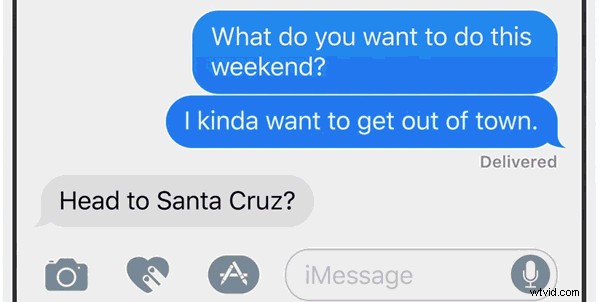
If you can’t get the tapback message effects to work at all, first you should be sure that you are on a modern version of iOS, and then you can try some troubleshooting tips if iMessage effects are not working, which tend to apply to the tapback and broader effects as well.
Interestingly, the Tapback feature is one of the only new Messages app features that spans across platforms and has complete functionality and support both on iOS and MacOS. This means you can send and reply with Tapbacks on either Apple OS platform.
This is just one of a variety of fun new iMessage features introduced with iOS 10 for iPhone and iPad users to have fun with, others include the ability to search and send GIFs in Messages, create handwritten messages, and even an ability to slap Stickers on imessages. Have fun and explore the features, they’re a real joy!