

If you’re a regular iMessage user, you may have come across a situation where you’d like to reply to a specific message sent from somebody, and have it be obvious that is the message you are responding to. This is where inline replies come in, which allow you to specify a message you are replying to from Messages on iPhone and iPad.
Inline message replies are useful for any iMessage conversation, but they may be particularly handy for group chats, or where you find yourself catching up to a conversation or wanting to reply to a specific message from some time ago. If you haven’t tried out the inline replies feature of iMessages yet, then read along to see how the feature works on iPhone and iPad.
How to Send Inline Replies to Group Messages on iPhone & iPad
Using inline replies requires iOS 14/iPadOS 14 or later, and to work properly the recipients should also be on modern iOS/iPadOS versions (otherwise the message just comes across as usual).
- Launch the stock “Messages” app from the home screen of your iPhone or iPad.

- Open the Messages conversation you wish to use inline replies with
- Find the specific message you want to inline reply to, and long-press on the text message that you want to respond to. Now, choose “Reply” from the list of options available.

- Next, simply type in your response and tap on the blue arrow icon to send the message.
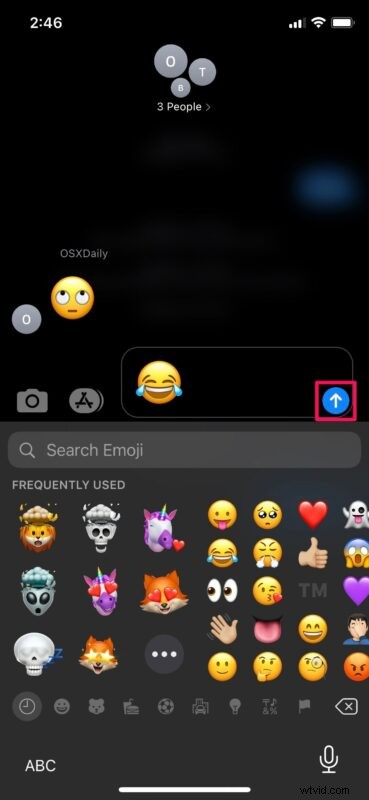
- The message that was sent as an inline-reply will be indicated as shown in the screenshot below.
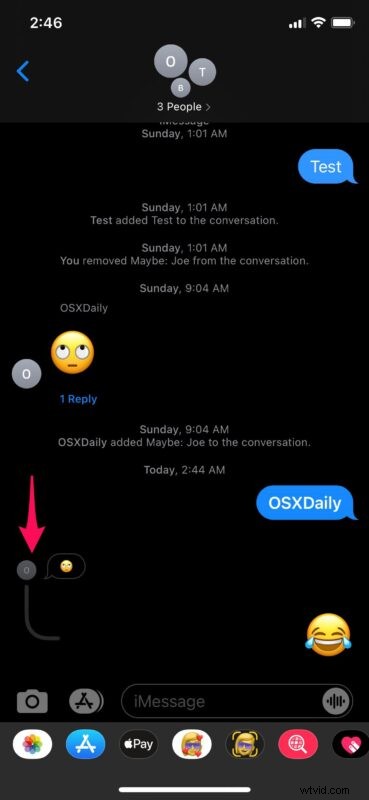
That’s how easy it is to take advantage of inline replies on your iOS and iPadOS device.
Although we were primarily focusing on the advantages in group messages in this article, you can send in-line replies in regular one-on-one conversations as well. If you reply back and forth in a message thread whether it’s a group or individual conversation, you can tap on the Replies count right below the text bubble to view all the responses to the message and even reply from here easily.
Another handy feature, especially in group messages, are mentions, which allow you to directly mention a person in the message thread, which notifies that person if they were mentioned.
Many of these features have been around on other messaging platforms for a while, but are coming to iOS and iPadOS as native iMessages features.
Do you use in-line replies in Messages on iPhone, iPad, or Mac? What do you think of this feature? Do you have any tips or experiences with it? Let us know in the comments.