
Have you ever sent a message from your iPhone and quickly regretted it? Or maybe you sent a message and you realize it didn’t convey what you intended, or it’s full of typos, or it was even sent to the wrong person? That’s where Undo Send comes in, a feature that is now available on iPhone that allows you to unsend messages.
Undo Send allows the unsending of messages, but only for iMessages, which means this feature only works between other iOS, MacOS, and iPadOS users, and there’s a time limit of 5 minutes. Additionally, it only works for users running modern system software, running at least iOS 16 or later or macOS Ventura or later. If the recipient is using an Android, or an older version of iOS or MacOS system software, the Undo Send feature will not be available.
How to Undo Sending of Messages on iPhone
Note: the ability to undo sending of messages is available for only 5 minutes after a message is sent.
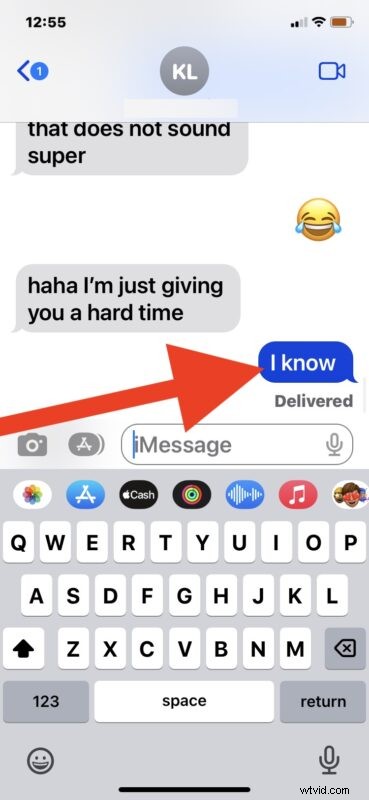
- Open the message that you wish to unsend on iPhone
- Tap and hold on the message
- Choose “Undo Send” to retract and unsend the message
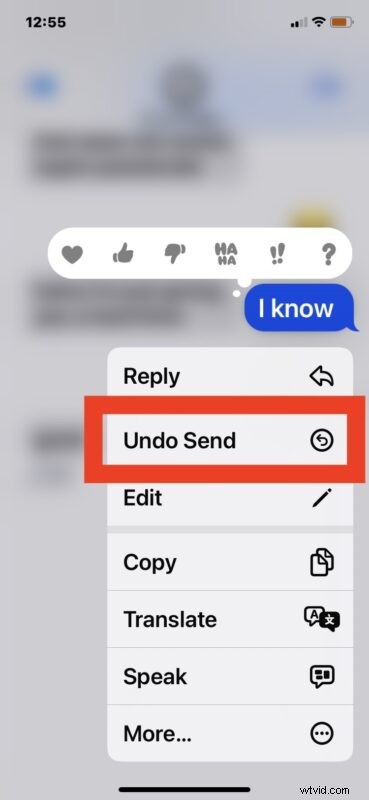
The message is immediately retracted and unsent.
You may see a little notice that says “You unsent a message. (Contact name) may still see the message on devices where the software hasn’t been updated.” which means basically if the person is running on an older iPhone model, the message still gets sent to them, but it disappears on your end, which is a little awkward. Perhaps in a future iOS version Apple will figure that out and simply not offer the undo send feature when communicating to older iOS versions.
And while we’re covering iPhone here with iOS 16 or later, this feature also works exactly the same on iPad with iPadOS 16.1 or later too. And it’s also available on macOS Ventura, available by right-clicking messages, but we’ll cover that in a separate article.
Enjoy the undo send feature and unsending messages, it is pretty handy!