
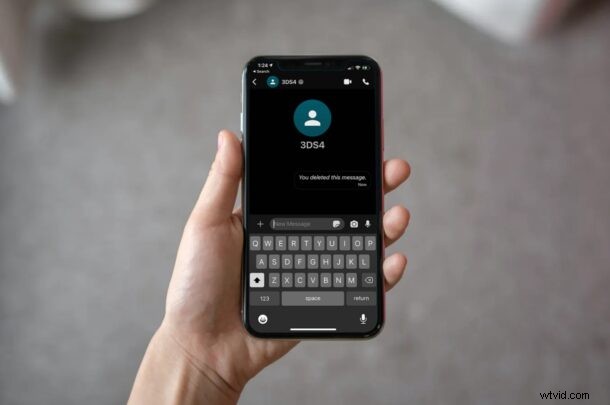
Started using the popular Signal messenger app for iPhone to safeguard your user data and privacy? Considering you’re new to the platform, you may have trouble getting a hang of all the messaging features that the app has to offer. One key feature that you wouldn’t want to miss as a new user is the ability to delete sent messages – in other words, to unsend a message.
Most messaging platforms lets their users delete a message after sending it, for both the sender and the recipient. For those who aren’t aware, Apple’s iMessage does not fall under that category and this may be one of the reasons why some people switched to a third-party app like Signal in the first place. Signal’s Unsend feature works in a similar way to WhatsApp which indicates to the recipient that you’ve deleted a message.
Looking to delete a sent Signal message you accidentally sent before the other person sees it? Quick, read on below to learn how you can unsend text messages in the Signal app on your iPhone and iPad.
How to Unsend a Message in Signal
First of all, make sure you’ve installed a recent version of Signal from the App Store since the feature isn’t available on old versions of the app. Now, without further ado, let’s get started:
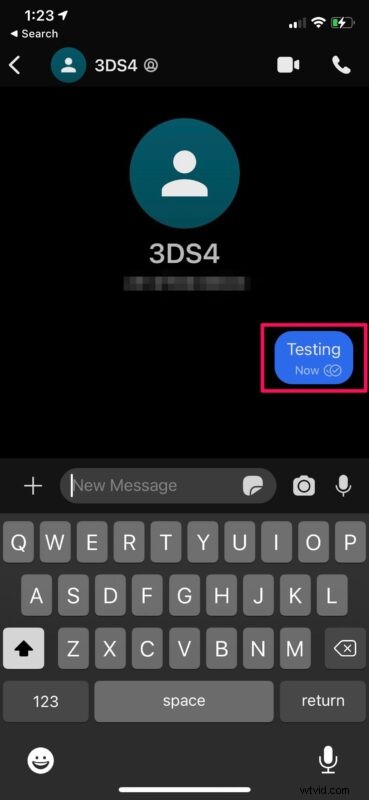
- Open the chat and find the text message that you want to delete. Long-press on the text bubble to access more options.
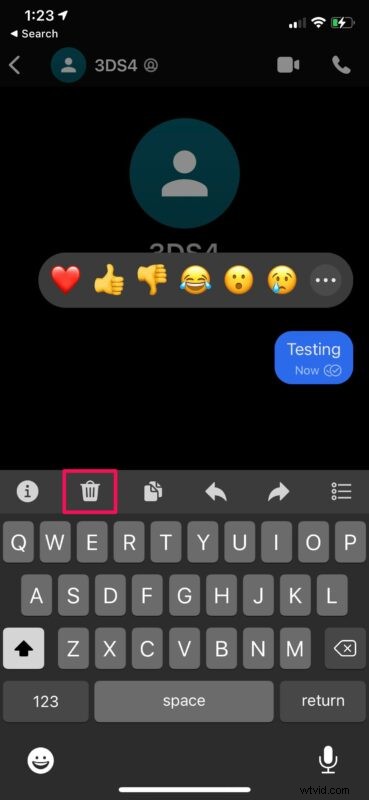
- Next, tap on the trashcan icon that shows up above your onscreen keyboard. This is the delete option.
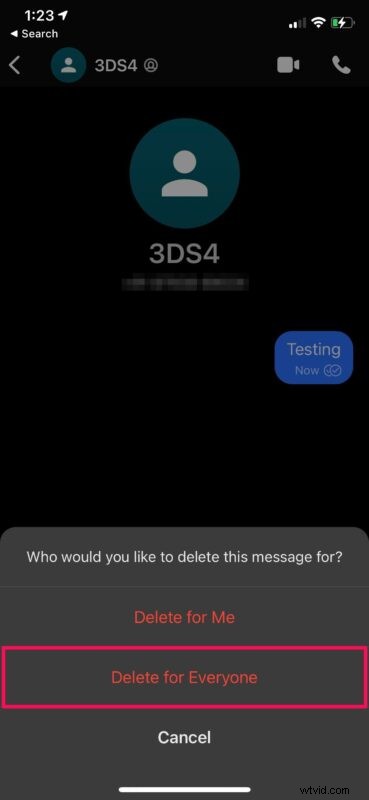
- Now, choose “Delete for Everyone” and confirm when you’re prompted.
That’s it. The message has been successfully retracted from Signal.
There are two important things to remember here. The recipient will still know that you’ve deleted some message. Also, if they have notifications enabled for Signal, they may still be able to see the deleted message from the Notification Center if the notification was delivered as soon as you sent the message.
Likewise, you can select multiple messages and unsend them all at once if needed. Additionally, if you want to remove the text bubble from your chat, you’ll need to choose the “Delete for Me” option after unsending it. These steps may seem very familiar if you’re someone who switched from WhatsApp.
Hopefully, you were able to unsend the accidental messages on time before the recipient read them (which you can determine by Read Receipts, unless they disabled those). What are your thoughts on this nifty feature? How do you feel about the vast array of privacy settings that Signal offer? Share your relevant thoughts and experiences in the comments.