
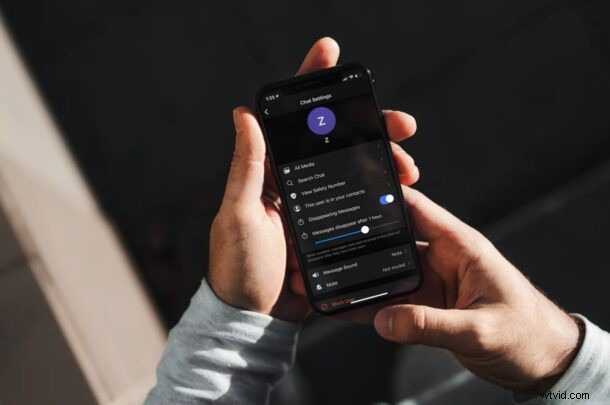
Signal messenger has an interesting privacy feature that allows messages to disappear after a set amount of time. It’s a handy feature that is compelling to some privacy advocates, so if you’re interested in checking it out read along.
Many users have switched to Signal app due to privacy and security concerns. The Disappearing Messages feature may be particularly desirable to some users, and if you’re coming from an app like Snapchat it’ll feel right at home, since it allows you to send and receive messages that self-destruct after a certain duration. It’s a feature that’s not available in Apple’s own iMessage service either, but it’s undoubtedly compelling to some iPhone and iPad users anyway.
How to Send Disappearing Messages in Signal
This feature has been around for years now, so it doesn’t really matter if you’re not using the latest version of the app. So, without further ado, let’s get started:
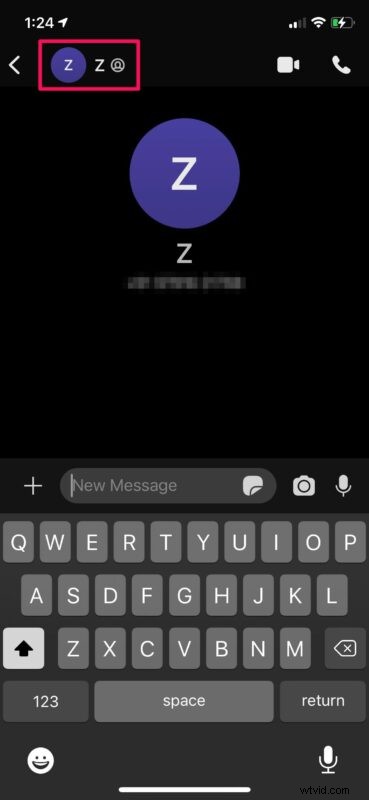
- Launch the app and open the chat where you want to use this feature. Tap on the contact’s name to access the chat settings.
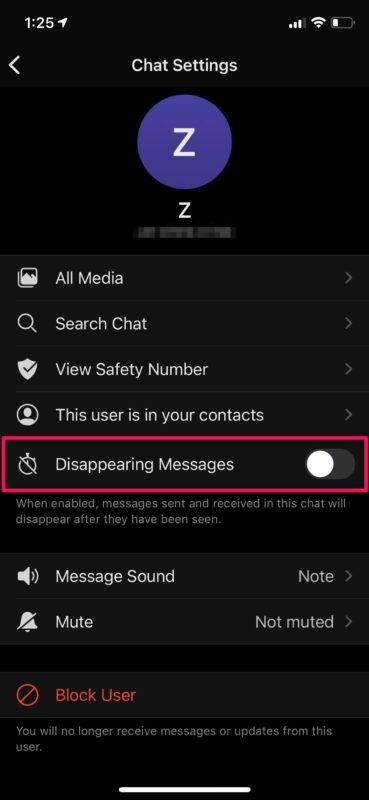
- In this menu, you’ll find the toggle for Disappearing Messages. Tap once on the toggle to turn it on for the particular chat.
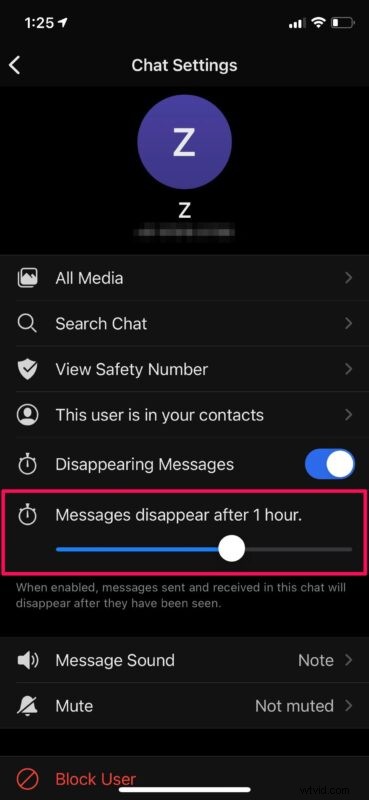
- As soon as you enable it, a new slider will show up below. This will allow you to set the expiry time for incoming and outgoing text messages. By default, this is set to 1 day.
There you go. Now you know how to make your conversations extra private with disappearing messages.
Although the default setting for disappearing messages is one day, you can reduce it to as low as five seconds or increase it all the way to a maximum of seven days.
Unfortunately, this feature can only be turned on individually on a per-chat basis, since there’s no global setting as of this writing.
Disappearing Messages is a feature that’s available on WhatsApp as well, but the 7-day expiry limit cannot be changed.
There may be some sort of confusion regarding this feature and you may be looking for further clarification. For outgoing messages, the timer starts ticking as soon as you’ve sent them. On the other hand, the messages that you’ve received will be unaffected until you see them. The second you open the chat, the expiry timer will be activated.
In addition to this, Signal offers other privacy-oriented features like being able to disable read receipts like most other messaging services. There’s also a unique Typing Indicator setting that can be disabled if you want the app to stop indicating to the recipient once you start typing.
Hopefully, you were able to set up a private self-destructing conversation in Signal with this handy feature. What are your impressions on the Signal app and how does it fare against the competition? Let us know your valuable opinions and share your experiences in the comments section down below.