
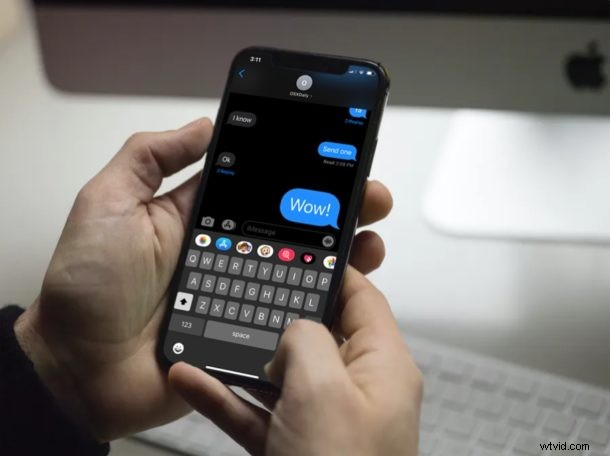
How would you like to try some iMessage special effects? Emojis are great and all, but what if you want some of your messages to stand out when you’re texting your friends and family? Thanks to iMessage, you can use various bubble effects like Slam, Loud, Gentle, etc. to express yourself in flashy and fun ways when messaging from iPhone or iPad.
Apple iMessage service is baked into the Messages app that comes pre-installed on iOS and iPadOS devices. It’s extremely popular among Apple users, as it offers a free and convenient way to text other iPhone, iPad, and Mac owners. Apple has constantly tweaked and added features to the Messages app in order to keep users engaged over the past several years. Bubble effects is one such feature that you might find silly at first, but it’s really fun to use.
If you’re unfamiliar, you might not know how to use or even to access this feature within the iMessage app of your device. In this article, we will show how you can send bubble effects from the Messages application from an iPhone, iPad, or iPod touch.
How to Send Bubble Effects with Messages from iPhone & iPad
Before you get started, it’s worth noting that bubble effects will will only work if the recipient is also an iMessage user. If you’re adding effects to a regular SMS, you’ll be able to view it within the Messages app, but the recipient will just receive a plain text.
- Open the default “Messages” app on your iPhone or iPad.

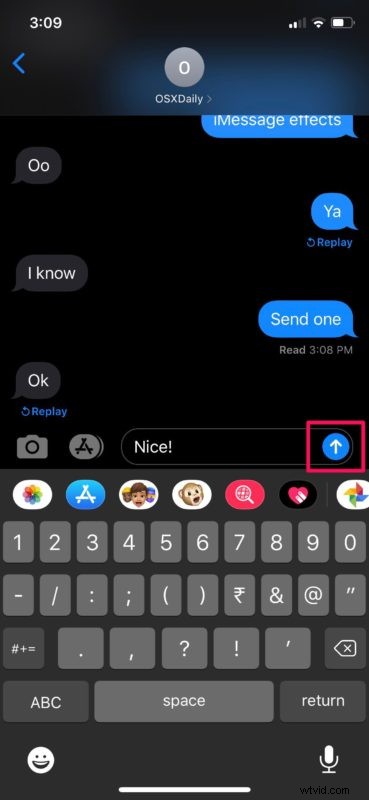
- Open a conversation with an iMessage user and type something in the text box. Now, long-press on the “arrow” icon for more options.
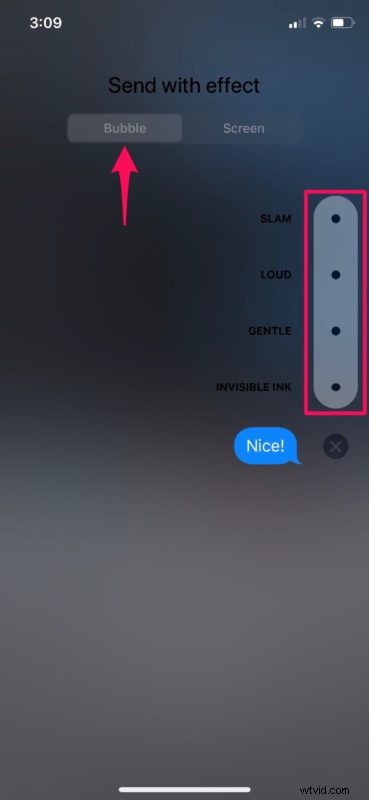
- You’re now in the effects menu. Make sure you’re in the “Bubble” section to see a list of all the four bubble effects that iMessage has to offer. Tap on any of the grey dots to get a preview of the effects.
- In this instance, we’re choosing the Loud effect. Once you’ve selected your effect, tap on the “arrow” icon to send the text.
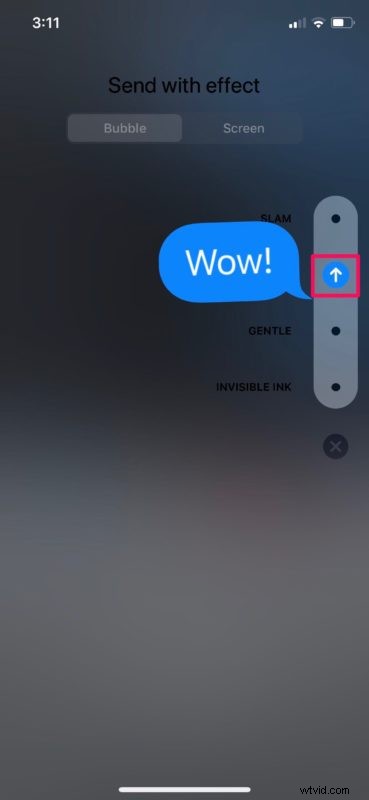
- As you can see here, the effect starts playing back right after you send the message. On the recipient’s end, the bubble effect will appear as they open and read the message.
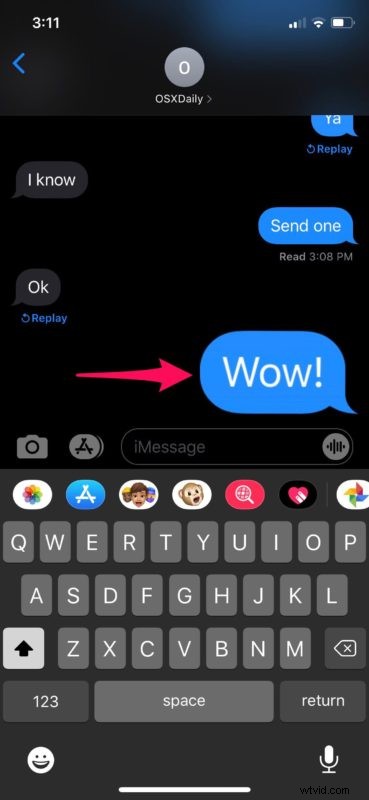
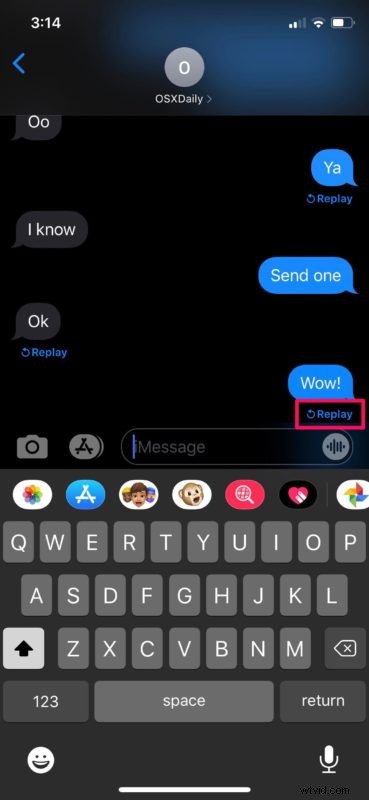
- If you want to play the effect again at a later time, tap on the “Replay” option located right below the text.
That’s all there is to it. Now you know how to use bubble effects with iMessages on your iPhone and iPad.
If you change your mind and want to exit the effects menu at any time, simply tap on the “x” icon.
The Messages app automatically plays these bubble effects when you receive them by default. However, if it’s not functioning properly for you, check your device settings to ensure auto-play is turned on.
Apart from bubble effects, iMessage is also capable of sending full-screen effects like confetti, balloons, fireworks and more. These effects can also be triggered by using keywords and phrases. For example, you could send someone a “happy birthday” message for the balloon effect. Or you could congratulate someone for the confetti effect.
Of all the four bubble effects that are currently available, the Invisible Ink effect is the most interesting one as it allows you conceal not just texts, but also photos and videos.
iMessage also packs other fun features like being able to mirror your facial expressions using Animoji for making conversations more enjoyable, and of course there’s also iMessage Apps, iMessage stickers, and more too.
Are you having fun with the various bubble effects that iMessage brings to the table? Which is your favorite effect and why? What other iMessage features do you use to express yourself while texting your friends? Let us know your thoughts and opinions in the comments section down below.