
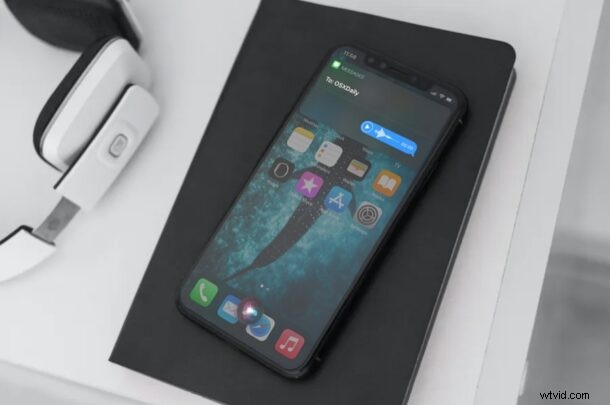
You may be already aware of how Siri can be used to send text messages from your iPhone, but did you know that you can send audio messages with Siri too? This is possible with any modern iPhone or iPad, and it’s quite handy if you’re a fan of audio messages.
Using Siri to send audio messages is convenient, and it could come in handy while you’re driving, when your phone’s being charged, if your hands are busy, you can’t touch the phone for any reason, or if you’re simply feeling lazy to type.
Let’s take a look at sending audio messages with Siri from your iPhone or iPad.
How to Send Audio Messages with Siri from iPhone
Sending voice messages using Siri is actually pretty simple and straightforward. Just make sure your device is running iOS 14 or later, then do the following:
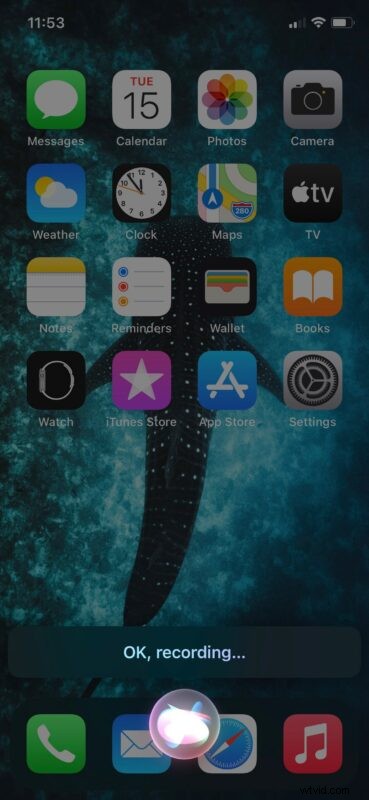
- Activate Siri using the voice command “Hey Siri”. If your device doesn’t support “Hey Siri” unless it’s connected to power, you can long-press the home button to activate Siri. Now, say “Send an audio/voice message to (Contact’s Name)”. Siri will inform you that the recording has begun.
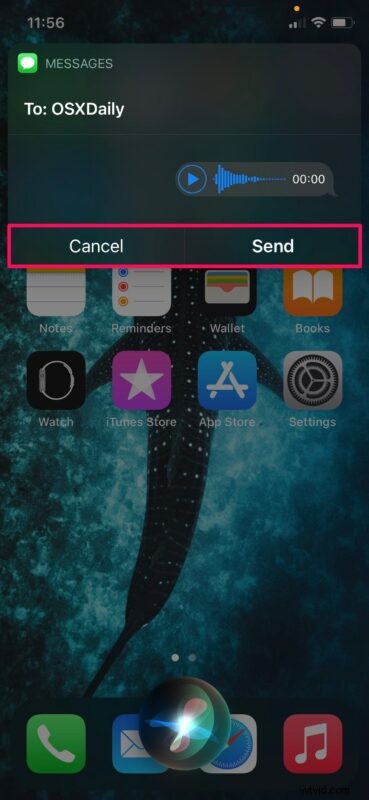
- Once you’ve recorded the audio, simply pause for a brief second and you’ll get a pop-up on the screen, as shown below. You can either tap on “Send” or “Cancel”. Of course, you can ask Siri to do it for you. If you want to listen to the recorded clip, say “play it back”.
- If you’re not satisfied with the recorded audio, you can say “Can you record the audio again” and Siri will let you know when it starts recording again.
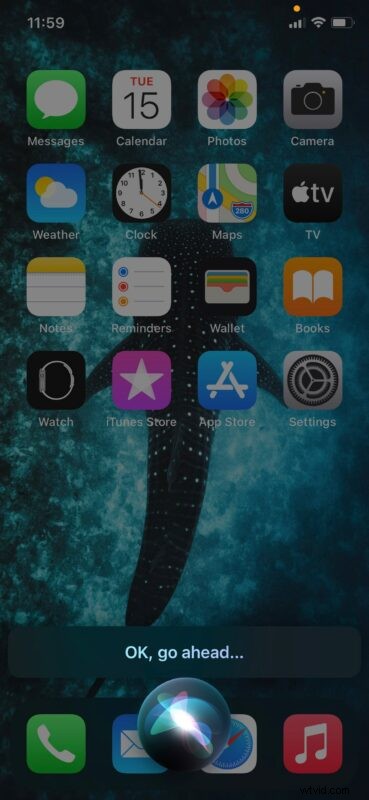
- Once the recording is complete and you ask Siri to send, you’ll see the following screen on your device along with a confirmation from Siri that the message has been sent.
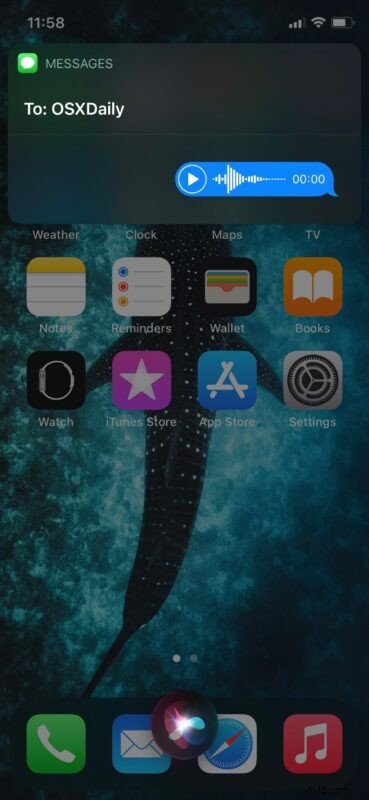
- You can now open the conversation in the “Messages” app and find the audio message that was sent using Siri.
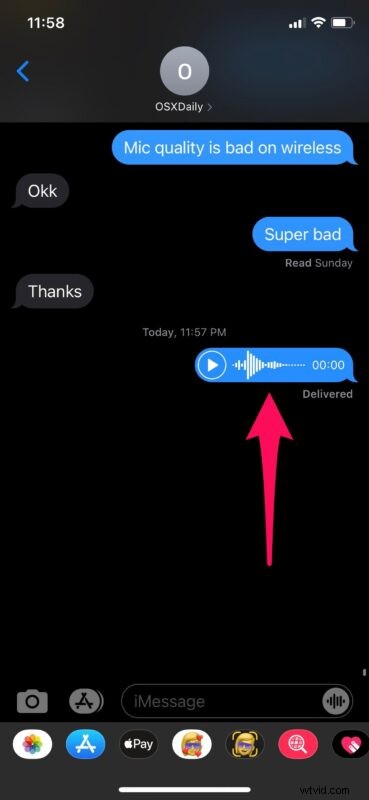
There you go, you’re sending audio messages with Siri, nice huh?
If Siri is not certain about the contact you’re referring to while sending the audio message, you will be prompted to choose one from a bunch of contacts shown on the screen.
Although we were focusing primarily on the iPhone in this article, you can use Siri on the iPad to send audio messages to your iMessage contacts, provided it is running iPadOS 14 or later too. Apple Watch on the other hand has always had this feature since it first came out back in 2015.
It’s worth keeping in mind that your iPhone automatically deletes an audio message 2 minutes after the receiver listens to it by default. However, you can avoid this and save and keep all your audio messages by adjusting your settings for Messages if you want to.
What do you think of using Siri to send audio messages from iPhone? Do you use audio messages and what do you think of this hands-free capability? Share your experiences and thoughts in the comments.