
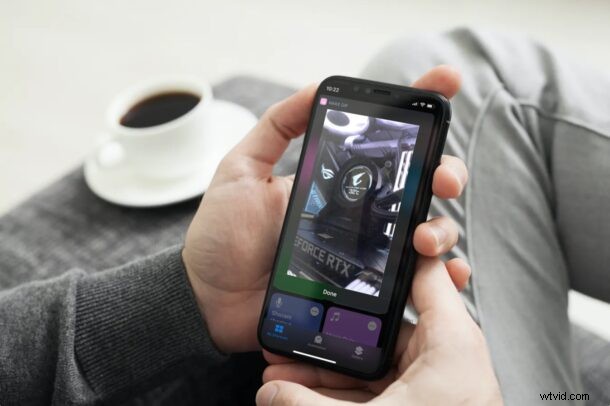
We’ve all wanted to turn a part of a video into a GIF at some point to make a meme out of it, create an animated picture, or anything else really. If this is something you still like to do, you’ll be pleased to know that you can now make GIFs from videos on your iPhone and iPad without relying on a third-party app.
There are several third-party apps available on the App Store that allows you to create GIFs from videos. You may have tried one or more of them already on your device. What’s different about this particular technique is that we’ll be making use of the built-in Shortcuts app on your iPhone or iPad. If you aren’t aware, Shortcuts gives you access to certain tools that aren’t natively available in iOS and iPadOS.
How to Convert a Video to GIF on iPhone & iPad with Shortcuts
Shortcuts app comes pre-installed on iPhones and iPads running iOS 13/iPadOS 13 or later. However, if you deleted Shortcuts or if yoour device is running iOS 12, you’ll need to download it from the App Store. Now, let’s check out the necessary steps:
- Launch the Shortcuts app from the home screen of your iPhone or iPad.

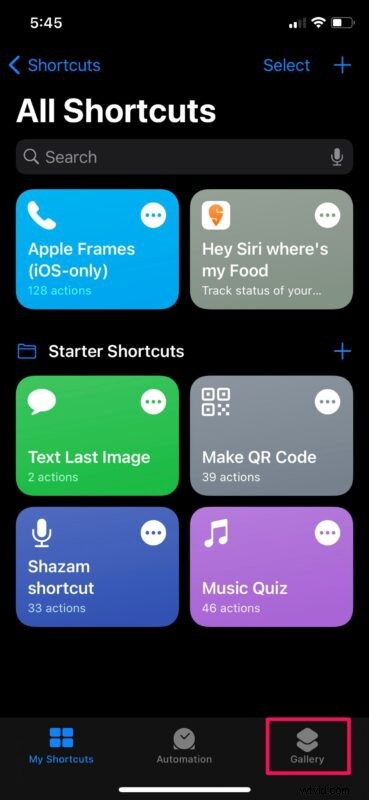
- Upon launch, you’ll normally be taken to the My Shortcuts section of the app. Head over to the “Gallery” section from the bottom menu to proceed.
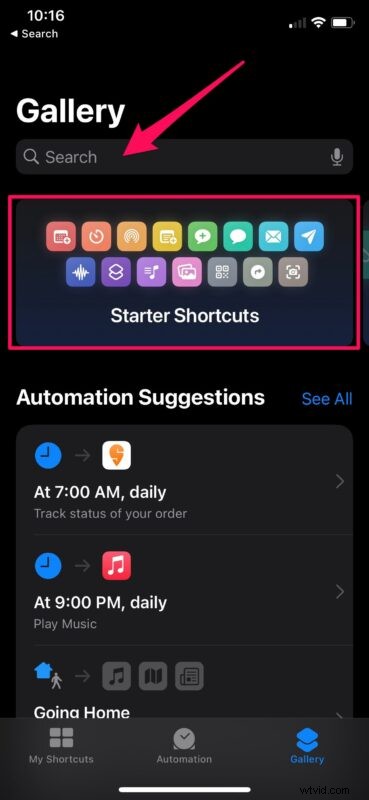
- Here, you’ll find a “Starter Shortcuts” banner just below the search bar. Tap on this banner to find the necessary shortcut you need to install.
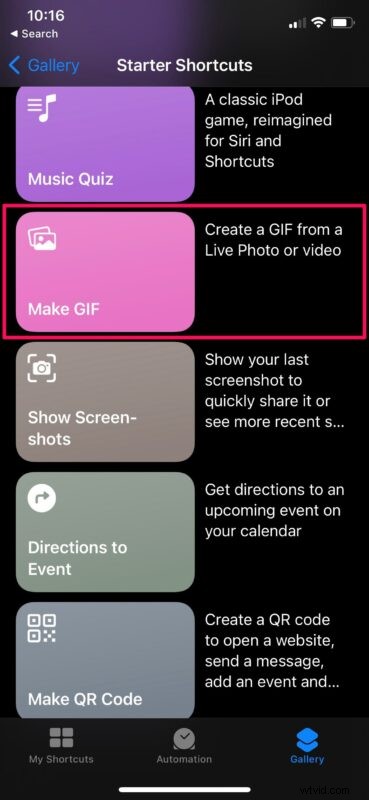
- Now, scroll down below and tap on the “Make GIF” shortcut as shown in the screenshot below.
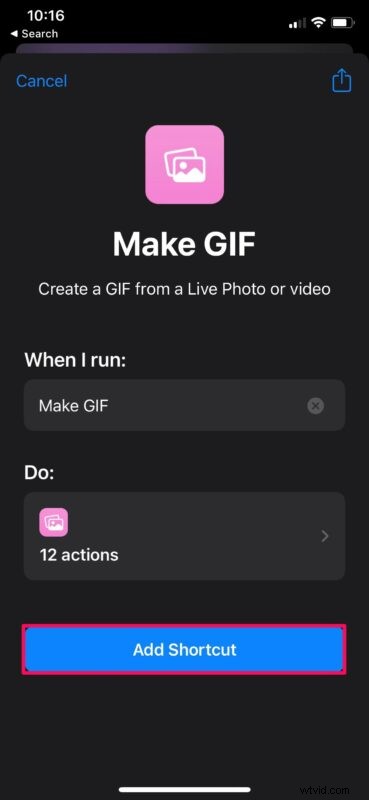
- Next, tap on “Add Shortcut” to install this shortcut and add it to the My Shortcuts section.
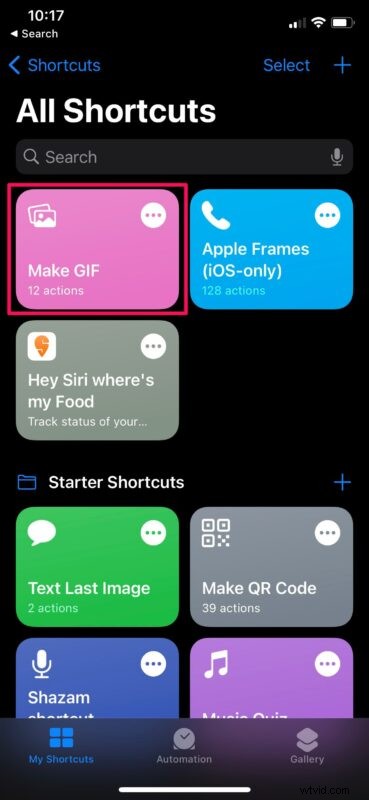
- Once installed, head back to the My Shortcuts section and tap on the “Make GIF” shortcut to start using it.
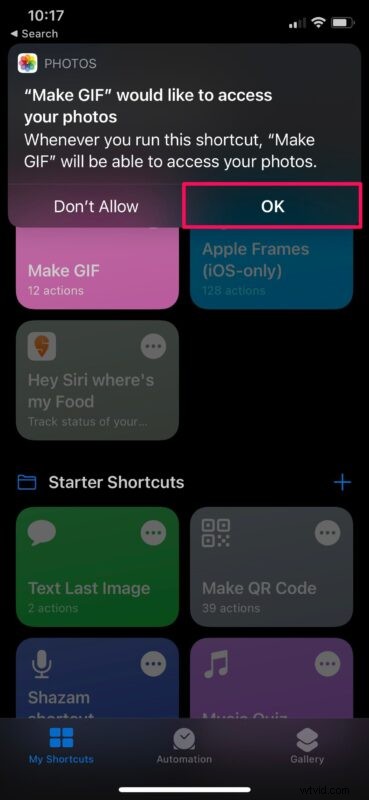
- The shortcut will now request permission to the Photos app. Tap on “OK” to continue.
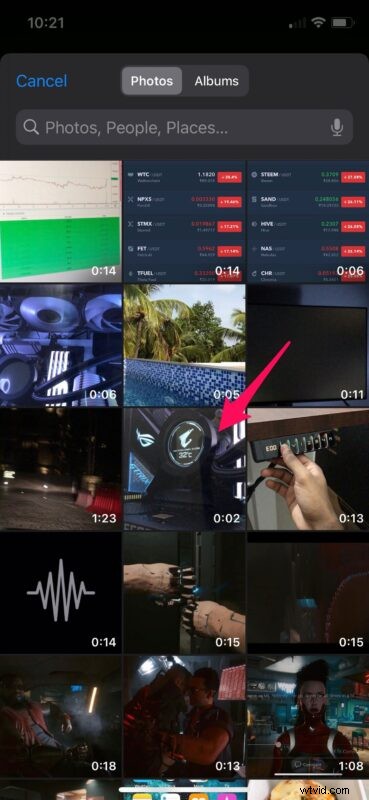
- Once done, you’ll be shown all the videos that are in your Photos library. Select the video that you want to make a GIF from.
- Now, you can use the sliders to crop out the portion of the video where you want to create the GIF from. Once you’ve made the selection, tap on “Save”.
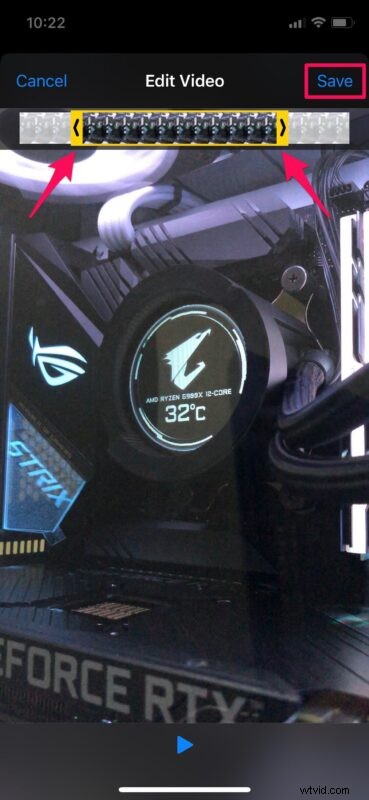
- The GIF will now be saved to the Photos app on your iPhone. You’ll be able to view the GIF preview within the Shortcuts app itself. Tap on “Done” to exit.
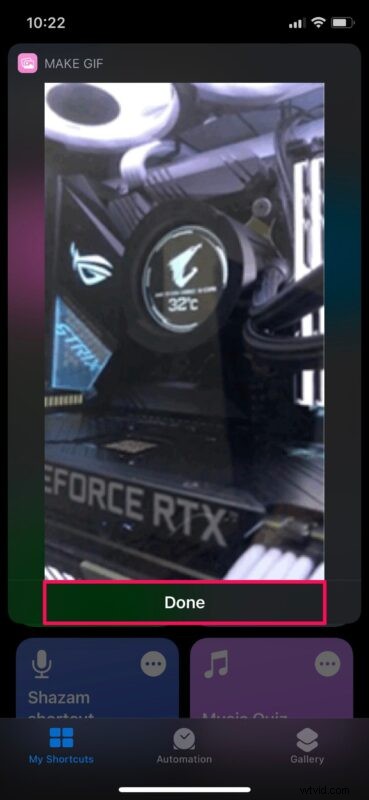
There you go. You’ve successfully made a GIF from a video stored on your iPhone and iPad.
We’d like to inform you that this particular shortcut can not only be used to convert videos to GIFs, but also make GIFs from Live Photos that you’ve captured using your iPhone or iPad’s camera. That’s right, unlike live photos that require you to press on it to play it, you can convert it to a GIF that automatically plays back even on non-Apple devices.
One particular thing to note here is that this shortcut is available in the Apple Shortcuts Gallery, which means that this is a trusted shortcut. You’re not required to install untrusted third-party shortcuts on your device just because you want a feature that isn’t natively available in the operating system.
This is just one of the many interesting tools that the Shortcuts app gives you access to. Likewise, there’s another shortcut that’s available in the gallery called “Burst to GIF” which as the name suggests converts burst photos to GIFs. If you’re interested in using it, you can learn more about it right here.
We hope you were able to make a lot of GIFs from the videos stored on your iPhone and iPad without running into any issues. How often do you find this particular shortcut useful? Would you rather use a third-party app instead? Feel free to share your personal thoughts and opinions in the comments section down below.