
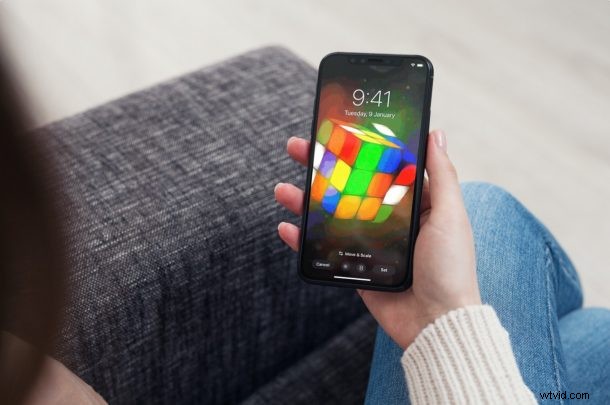
Did you know that you can set a GIF as your iPhone or iPad wallpaper that animates with a press? Sure, Apple doesn’t make it possible for you to use them as they are, but you can make use of a workaround to enjoy your favorite animated GIF right on your iPhone lock screen.
The workaround that we’re about to discuss here involves a feature that has been available on iPhones and iPads for years now. We’re talking about Live Photos, and some of you may already know how Apple allows you to set Live Photos as wallpapers that animate on the lock screen. The only change here is that we’ll be using a GIF instead of an actual Live Photo. But first, you’ll have to do a little conversion before you can set the GIF as a wallpaper.
How to Set a GIF as Wallpaper on iPhone & iPad
We’ll be making use of a free third-party app to convert your GIF to a Live Photo first before you proceed to set it as the wallpaper. So, let’s check out the necessary steps:
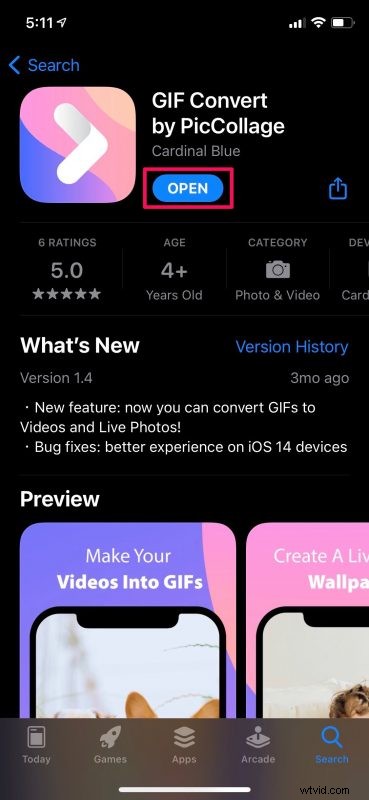
- Go to the App Store and install GIF Convert by PicCollage on your iPhone or iPad. Open the app to get started.
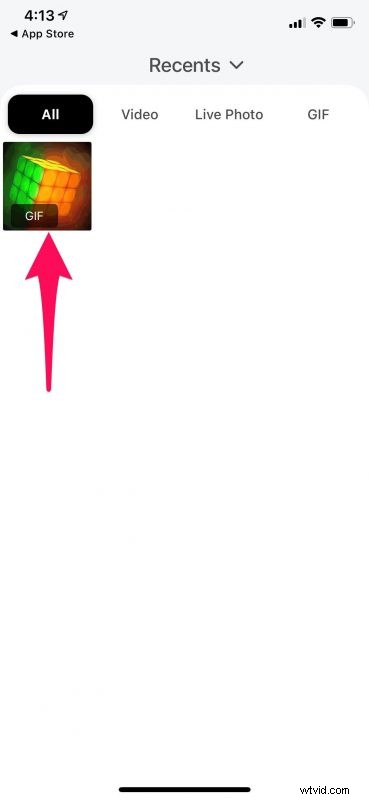
- Next, you need to select the GIF from your photo library.
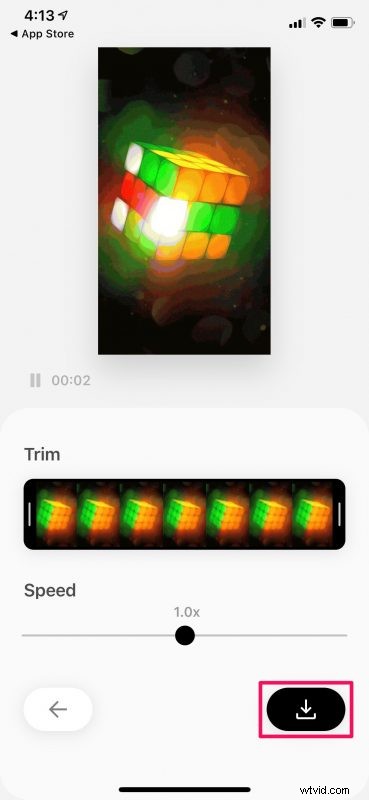
- Here, you’ll be able to trim the GIF if needed. Tap on the download icon at the bottom-right corner to proceed with the conversion.
- Now, select “Live Photo” for the Save as type, set the Resolution to “High” for maximum quality, and then tap on “Save” to add the converted image to your library.
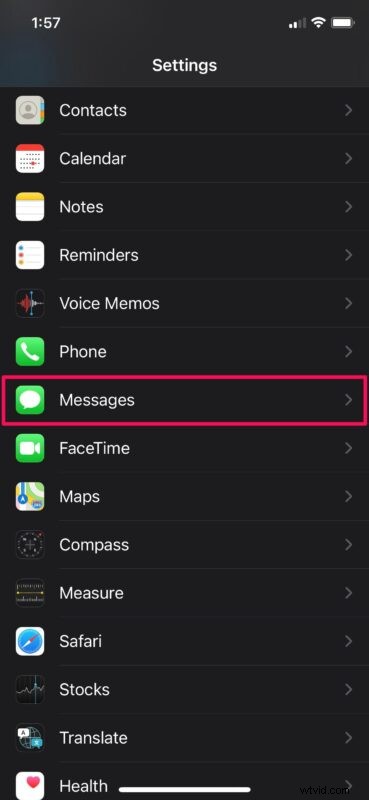
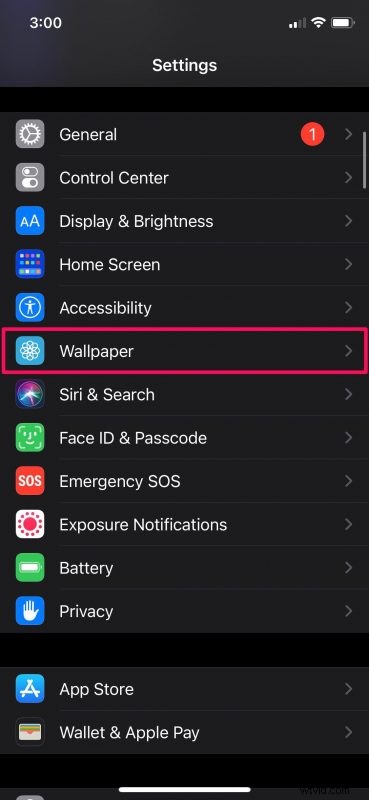
- Head over to “Settings” from the home screen of your iPhone or iPad. Scroll down below and tap on “Wallpaper” to proceed.
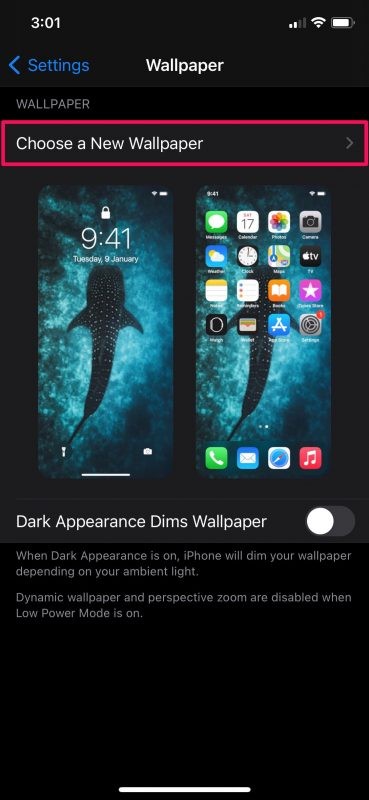
- Here, tap on the “Choose a New Wallpaper” option located right at the top.
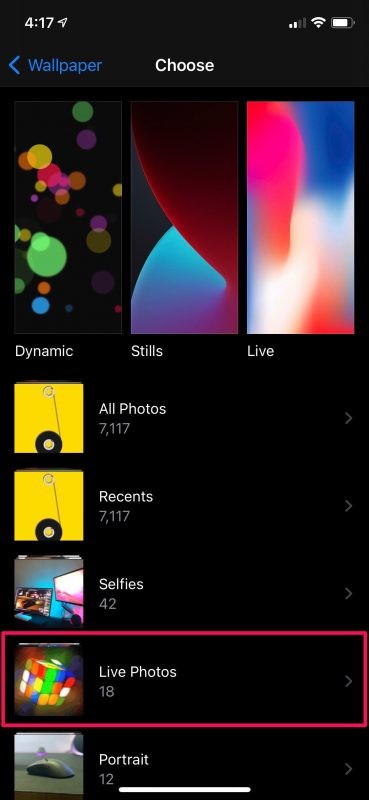
- Now, select the “Live Photos” album and choose the live photo that you just converted using the app.
- Once selected, you’ll be able to preview your new live photo by simply long-pressing on it. Tap on “Set” to access more options.
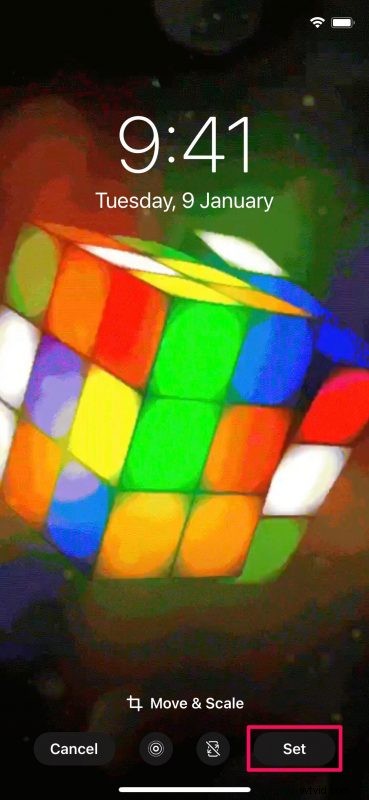
- You can set it either as your home screen wallpaper, lock screen wallpaper, or both. Choose your preferred option to complete the procedure.
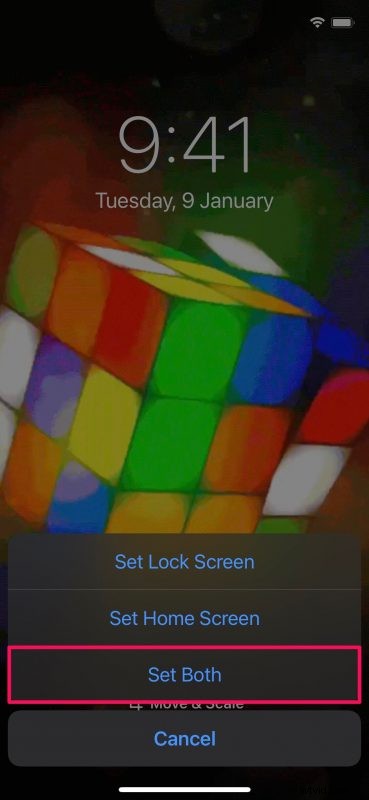
That was the last step. You’ve successfully learned how to use GIFs as wallpapers on your iOS/iPadOS device, just make sure to convert them to Live Photos first.
One important thing to note here is that your new wallpaper will only animate in the lock screen, it will stay as a still image on the home screen. You’ll also need to long-press on the display for the wallpaper animation to play. Therefore, if you were expecting your GIF to loop automatically whenever you’re on the lock screen, we hate to break it to you that this is as close as you can get for now.
Some of you may have tried to set a GIF as your wallpaper directly from the wallpaper selection menu. Unfortunately, doing this will only set a still version of your GIF as the wallpaper and it doesn’t animate when you press on the screen. Only Live Photos do the animation thing and that’s exactly why it’s important to convert the GIF first. Similarly, you can set videos as wallpapers on your iPhone and iPad too.
Considering you went through all this just to personalize your device according to your liking, you may also be keen on learning how to automatically change your iPhone wallpaper with the Shortcuts app. You can select a bunch of your favorite photos and set your iPhone to switch between them on a timely basis.
This is obviously geared towards iPhone, but if you’re a Mac user you can gain a similar effect by using an animated GIF as a screen saver on the computer, except that on the Mac it will loop constantly.
Did you convert your GIFs to Live Photos for use as animated wallpapers?. What’s your take on this useful workaround? Do you wish iOS would just support animated GIFs directly as wallpaper? Do you know any other ways to set a GIF as the wallpaper? Share your knowledge and thoughts in the comments.