

Do you regularly engage in group conversations over iMessage on your iPhone or iPad? If so, you may be excited to know that you can set a custom photo for your iMessage group chats with ease.
Apple has made some significant changes to improve group conversations with the newer iOS and iPadOS updates, and setting group photos is one of them. So, let’s check out how you can set a picture for group conversations on both the iPhone and iPad.
How to Set a Group Message Photo on iPhone & iPad
Before you get started, make sure your device is running iOS 14/iPadOS 14 or later, since this feature isn’t available on older versions.
- Launch the stock “Messages” app from the home screen of your iPhone or iPad.

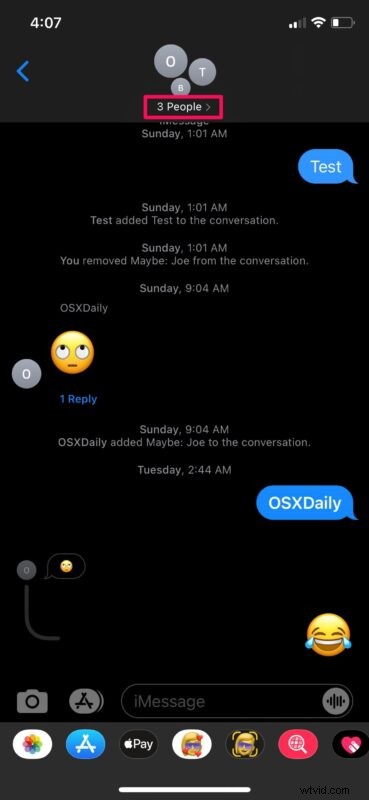
- Open the group conversation for which you want to set a custom picture and tap on the group name or people count, as shown below.
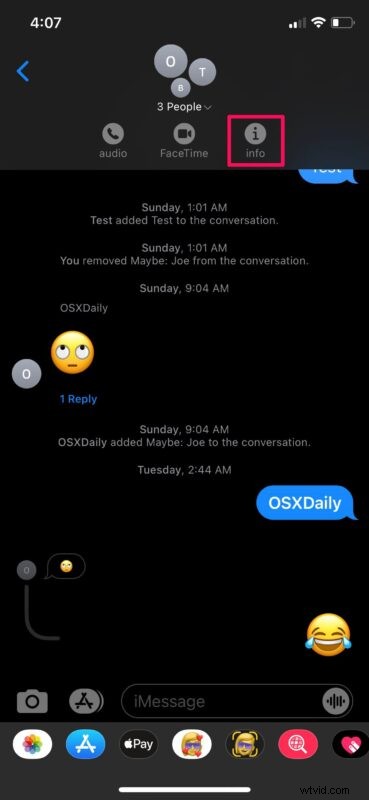
- Next, tap on the “Info” option from the expanded menu to proceed.
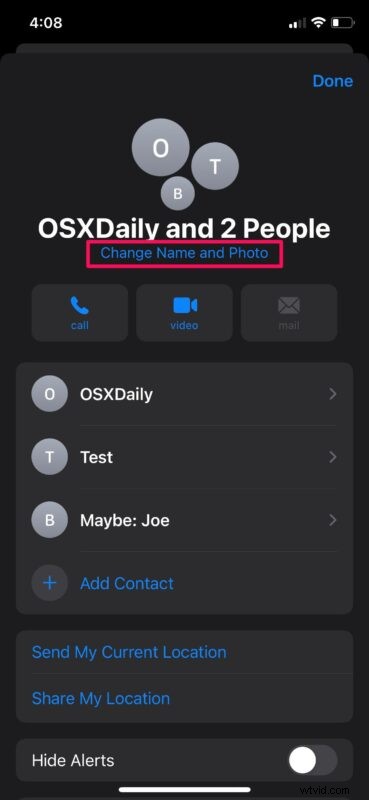
- Now, tap on the “Change Name and Photo” option located just below the group’s name to get started.
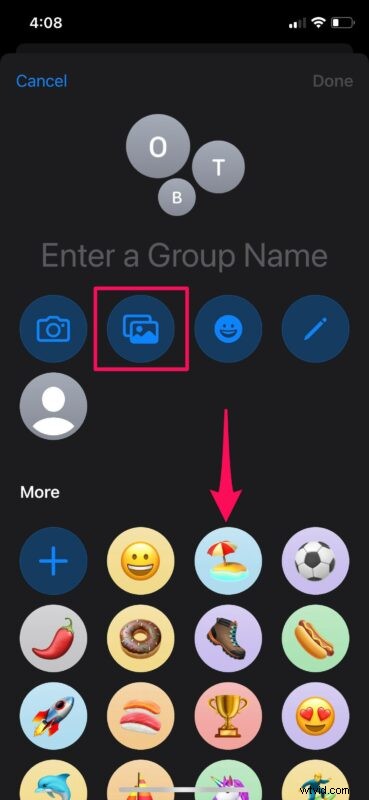
- Here, you can tap on the photo icon to set any picture from your Photos library as the group photo. Or, you can choose any of the stock images available. Select the picture you want to use to move on to the next step.
- In this menu, you’ll be able to choose a style for the photo you selected. Once you’re done customizing, tap on “Done”.
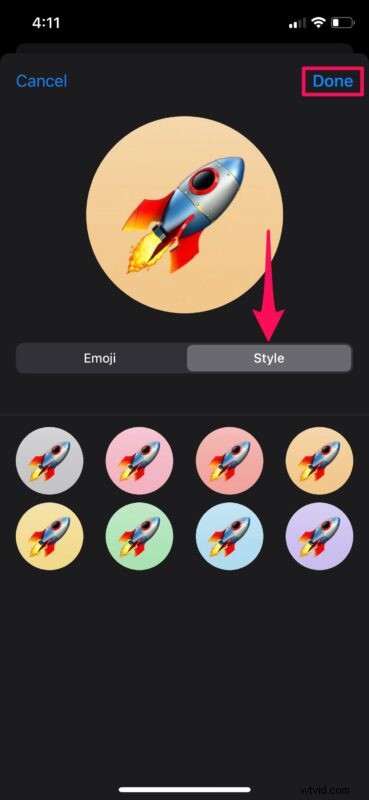
- Now, tap on “Done” located at the top-right corner of the menu once again and you’re good to go.
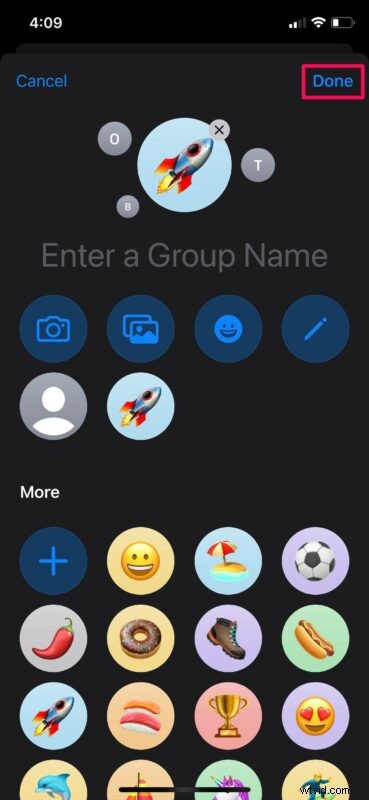
That’s pretty much all there is to it. You’ve managed to set a custom picture for your iMessage group conversation on your iPhone and iPad.
With custom pictures, you’ll be able to easily identify a particular group while scrolling through all your conversations in the stock Messages app. If you can’t find a suitable picture for your group, you can set emojis or memojis as the group photo using the above steps as well.
Although we were primarily focusing on the iPhones and iPads in this article, if you’re a Mac user, you’ll be excited to know that you can set iMessage group photos from your Mac as well, provided it’s running macOS Big Sur or later.
Apart from this valuable addition, iMessage has received some other improvements as well, especially in group conversations. For the first time, you can now send inline replies and respond to specific messages in your groups. Plus, there’s also Mentions which could come in handy for group chats when you want to direct a specific message at someone.
Did you use a custom photo for a group message? What do you think of this feature? share your valuable thoughts and opinions in the comments section down below.