
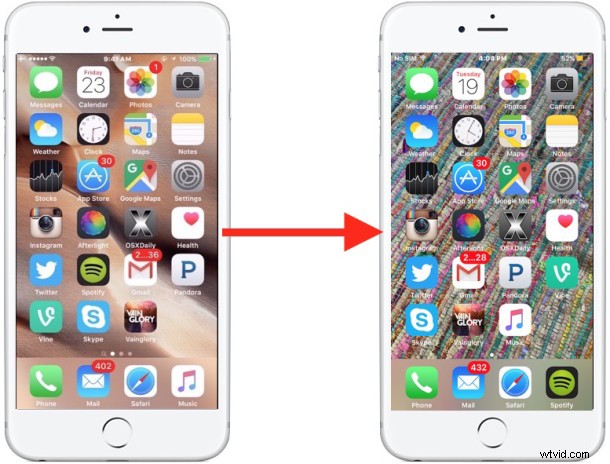
“How do you change the picture on the background?” is one of the more common questions heard from newcomers to the iPhone, iPad, and iPod touch. This is all the more true when you took a great picture with the devices camera and you want to set that picture as the wallpaper on the iOS device, or when someone sends you a nice photo that saved to the device from Mail or found with Safari, and now want to set as the background image of your iPhone or iPad.
We’ll show you how to quickly set the background wallpaper on the iPhone, iPad, or iPod touch, you can choose any picture on your device to use as the wallpaper picture this way.
Changing the Wallpaper Background to Any Photo on iOS
The process of how to change the wallpaper image is the same on any iPhone, iPad, or iPod touch:
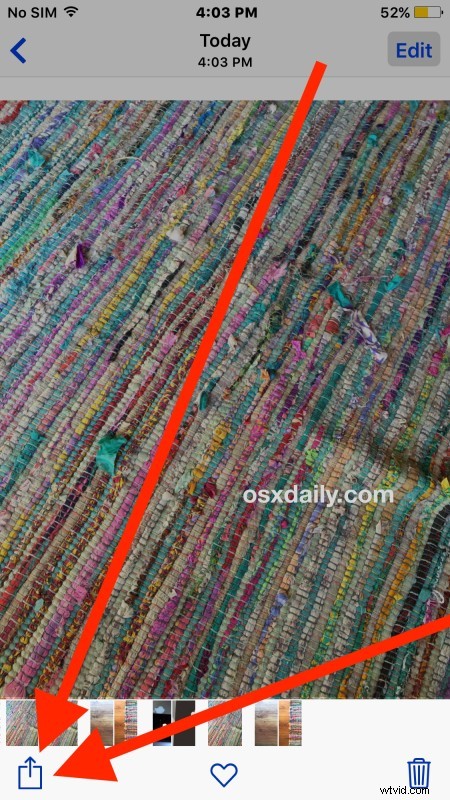
- Open the “Photos” app and browse to the picture you want to set as the background wallpaper image
- Tap on the sharing button, it looks like a box with an arrow flying out of it
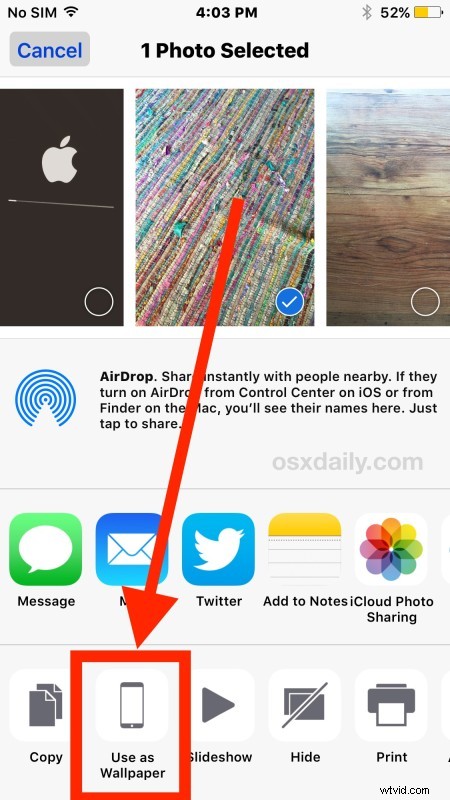
- Tap on the “Use as Wallpaper” button option
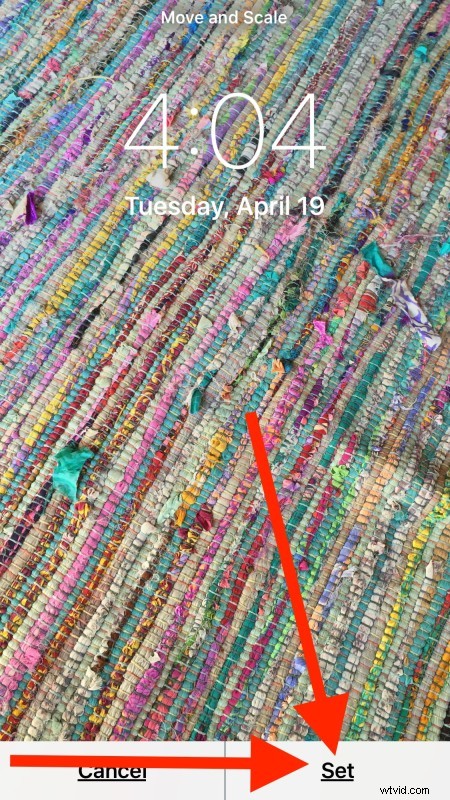
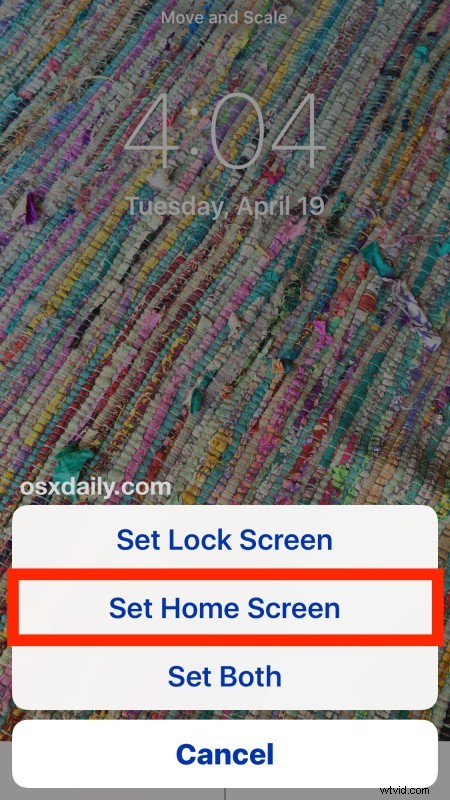
- Arrange the picture as desired, then click on “Set”
- Choose “Set Home Screen” to set the picture as the background image of the device (or choose ‘Set Lock Screen’ set it as the picture on the locked device where the clock shows)
- Exit out of Photos app and return to the Home Screen by pressing the Home button, you’ll see the background of the iOS device has been set as the picture you chose
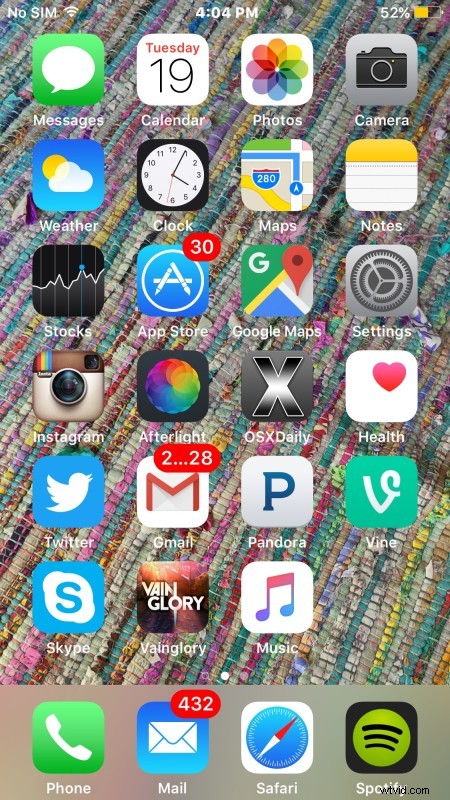
That’s all there is to it, now the picture you chose will be the Home Screen wallpaper.
If you chose “Set Both” during the setting process, the background wallpaper of both the lock screen and the Home Screen will have been changed to the image in question. That’s also a popular choice.
You can do this with any picture that is in the Photos app of your iPhone or iPad, whether it was taken with the camera, emailed to you, or saved from the web from one of our excellent wallpaper roundup collections. Happy wallpapering!