
Wondering about enabling and using iCloud Photos on iPhone and iPad? If you have a lot of photos and own multiple Apple devices like iPhones, iPads, and Macs, enabling iCloud Photos could be one of the more convenient features available to you. iCloud Photos enables the seamless and automatic syncing of all your photos and videos across all of your devices, including iPhone, iPad, Mac, and more, and it works flawlessly (most of the time anyway, but always backup your photos and important stuff separately from the cloud).
Enabling iCloud Photos on an iPhone or iPad is a simple affair, so long as you know where to look.
Note: Once you enable iCloud Photos your device will begin syncing everything by uploading all photos to iCloud, so things might slow down a little while it catches up. Ideally you’ll have a very fast broadband connection available to take care of this part. The larger number of photos you have, the longer this process may take. Don’t worry though, iCloud Photos will handle the whole process itself and it’s worth the wait if you’re interested in using the feature.
How to Enable iCloud Photos on iPhone & iPad
Here’s how to set up iCloud Photos and get everything syncing between the devices:
- Open the Settings app on your iPhone or iPad.
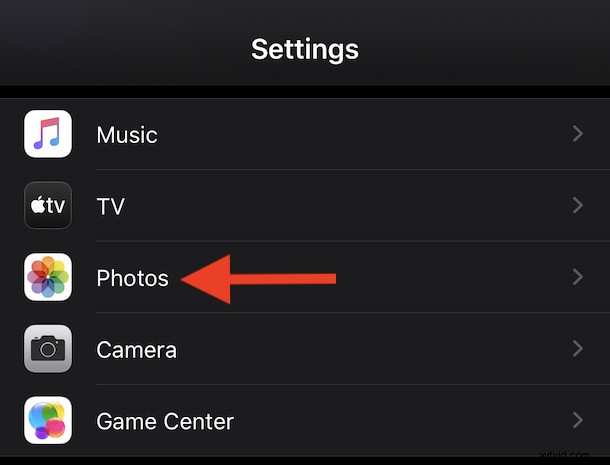
- Scroll down and tap “Photos.”
- Flick the switch beside “iCloud Photos” to the “On” position.
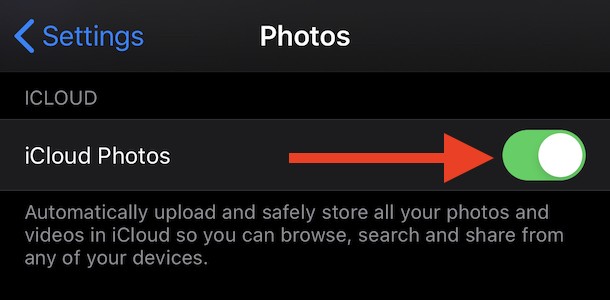

That’s all you need to do to enable iCloud Photos, easy. The syncing of iCloud Photos data will begin immediately, so make sure your devices are connected to the internet.
You might need to upgrade to a paid tier iCloud plan to use iCloud Photos, particularly if you have a lot of photos and images that will be syncing, uploading, downloading, and spread across your hardware.
Customizing iCloud Photos Options on iPhone & iPad
Going further than simply enabling the feature, there are a couple more settings you might want to consider changing, too.
1: Consider Using iCloud Photos Storage Optimization
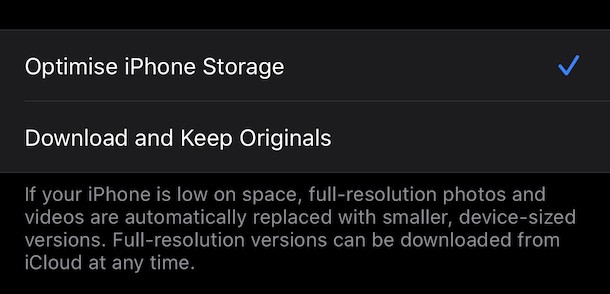
The first is just below the setting you just altered and controls whether your device will download full-sized images or not.
If you have a large number of photos and videos you can save space on your device by enabling “Optimize iPhone Storage.” That way the device will save space by using lower quality versions of your files and then download the full quality version as needed.
2: Consider Using Mobile Data to Sync iCloud Photos
You can also control whether your device uses mobile data to sync iCloud Photos, too. Tap “Mobile Data” and enable or disable the toggle as required on the next screen.
You can limit the amount of data by deselecting “Unlimited Updates” if data usage is a concern.

iCloud Photos Works Best with Good Internet Service
A huge tip here that will make this feature better for you: be sure you have the iPhone, iPad, Mac, and any other device using iCloud Photos on a fast and stable internet connection. The feature is entirely dependent on being able to use the internet regularly so if you don’t have a reliable or high speed internet connection, iCloud Photos may not be ideal for you. For example, users in rural locations with slower internet connections or people with unreliable mobile or internet service may not want to use the feature.
Note that iCloud Photos is a separate feature from iCloud backups and other iCloud options, and you can use many of these iCloud features independently or together if desired. Regardless of whether or not you use iCloud Photos, you’ll want to continue to backup your devices to iCloud, iTunes, Mac Finder, or your backup method of choice.
Not everyone wants to use iCloud Photos however, perhaps because they don’t want to sync their photos between their devices, or they don’t want their photos stored in the cloud, or perhaps they don’t trust iCloud to properly sync their photos – whatever the reason you use or don’t use the service is entirely up to you.
Do you use iCloud Photos on iPhone, iPad, Mac, and your other Apple devices? What do you think of the service? Share your experiences in the comments.