
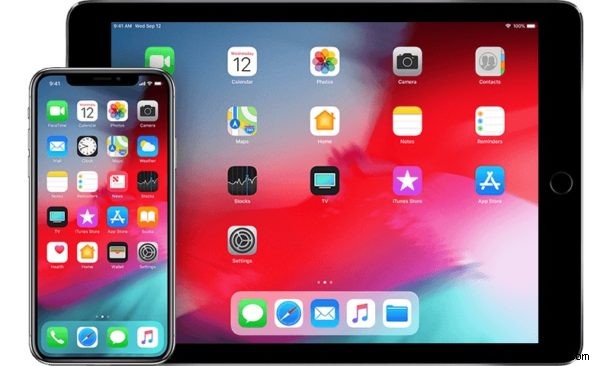
Both the iPhone and iPad have an easy to use timer mechanism that allows you to time events and tasks, playing an alarm sound when the timer completes. The timer functionality is convenient for many obvious reasons, whether you need a simple reminder for something in an allotted time, be it for cooking, exercise, childcare, meetings, phone calls, service work, or any other number of reasons you might want to set a timer.
With the iOS Timer feature you can set a timer for as few as 1 second to up to 23 hours 59 minutes and 59 seconds, anything beyond that and you’d probably want to use Reminders or the Calendar instead.
How to Set a Timer on iPhone or iPad
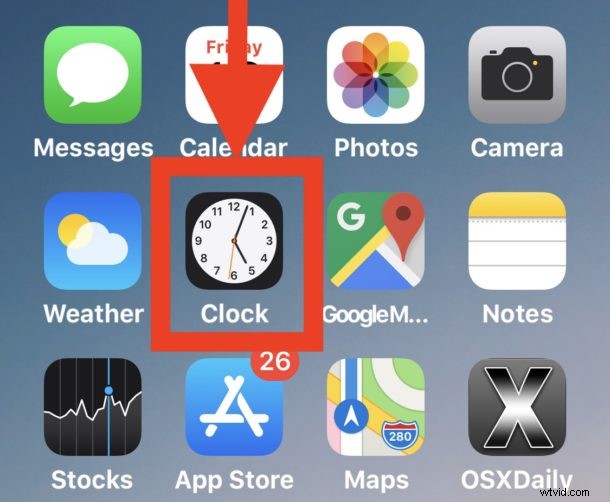
- Open the Clock app in iOS
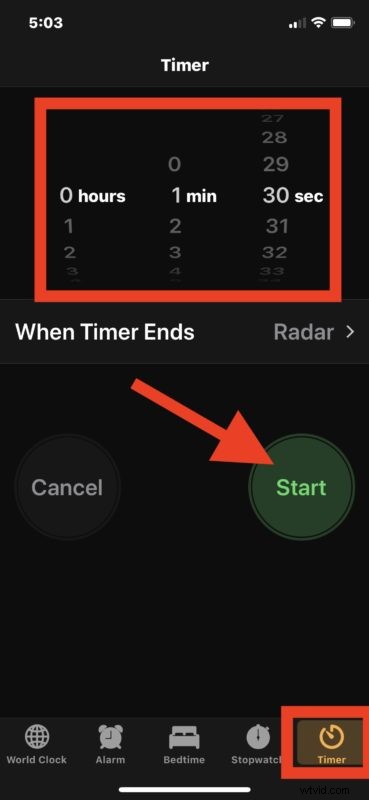
- Tap on the “Timer” tab at the bottom of the Clock app
- Set the timer by swiping up and down on the hours, minutes, and seconds
- Optionally, tap on “When Timer Ends” to adjust the sound effect of the timer completion alarm
- Tap on “Start” to begin the timer
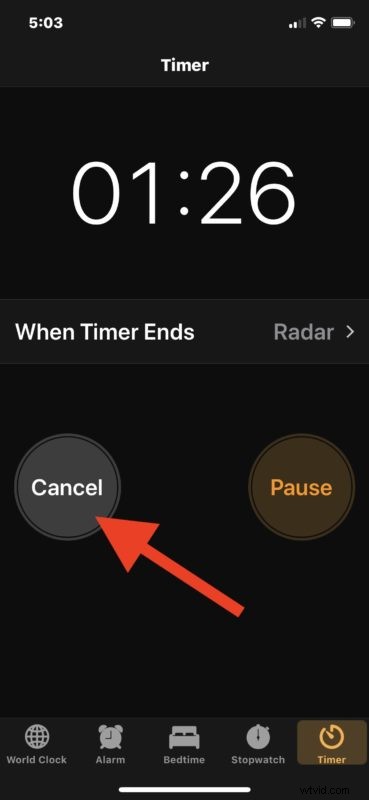
- Optionally, you can cancel the timer at any time by tapping on “Cancel” or pause it with “Pause”
When the timer completes, the alarm will sound. You can stop the timer alarm within the Clock app, or by interacting with the notification that pops-up on screen.
This obviously covers setting a timer in iOS through the Clock app, but there are other options available too.
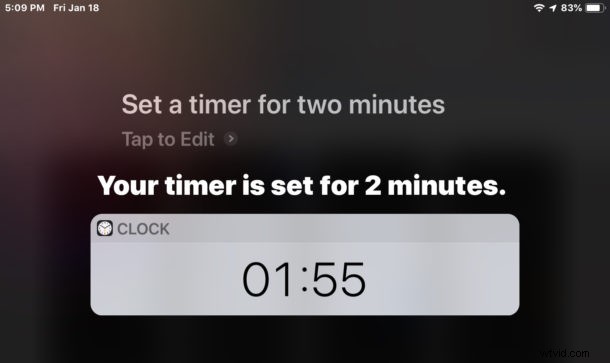
One of the more convenient timer tricks is to start a timer with Siri on the iPhone or iPad if you want a voice activated approach, and you can do that without ever touching the device by using the ‘Hey Siri’ feature. A great use for the hands-free approach to this with using “Hey Siri” for starting a timer that way is if your hands are occupied or dirty and you don’t want to interact with the iPhone or iPad, for example if you’re gardening, painting, cooking, changing a cars oil, taking a bath or shower, or any other number of tasks where it wouldn’t be appropriate to be interacting with a device.
By the way if your purpose of setting a timer on the iPhone or iPad is for cooking or some other kitchen work, recall that putting an iPad into a plastic zip-lock bag is a great way to keep the device clean while cooking and it still allows the touch screen to work. So even if your hands are covered in raw egg, meat, batter, or anything else, you’ll still be able to follow a recipe on the screen and interact with he device.
On a related note, two other particularly cool timer related features include setting a sleep timer in Podcasts or setting a sleep timer for Music in iOS, both of which allow you to listen to audio like a podcast or song or album, for an allotted amount of time.
If you know of any other helpful or interesting timer tricks for iPhone or iPad, share with us in the comments!