
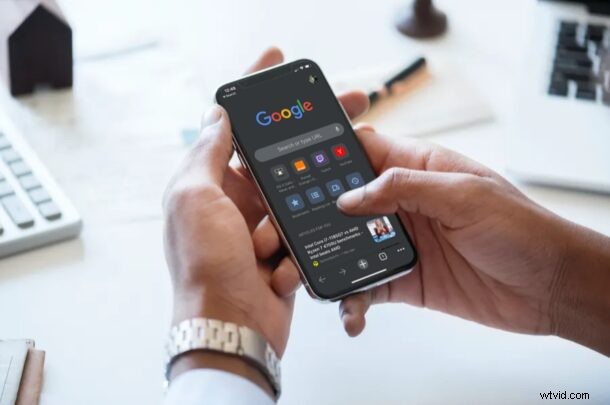
You can now change the default web browser app on iPhone and iPad to be Chrome, so if you’d rather use Chrome instead of Safari, that’s now an easy option, as long as your device is running iOS 14 or iPadOS 14 or later.
For the longest time, no matter what third-party browser you used on your iPhone, Safari was still the default web browser. This meant that whenever you click on a web link within apps, the page opens up in Safari, even if you’d rather use another browser like Google Chrome. You would then have to pass the link over to Chrome manually. Given Google Chrome is perhaps the most popular cross-platform web browser today, it’s understandable why some users would want to make it their default browser on iPhone, iPad, or iPod touch.
Are you ready to set it as the default web browser to Chrome on your iPhone and iPad? Let’s get to it then:
How to Set Google Chrome as Default Browser on iPhone & iPad
Before you go ahead with the procedure, make sure you’ve updated to the latest version of Google Chrome from the App Store. And of course your device must be running iOS 14/iPadOS 14 or later. Now, without further ado, let’s get started.
- Head over to “Settings” from the home screen of your iPhone or iPad.

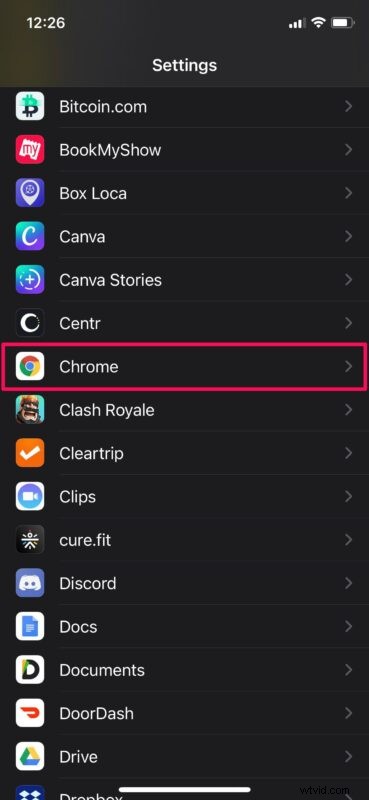
- In the settings menu, scroll down until you find “Chrome” and tap on it.
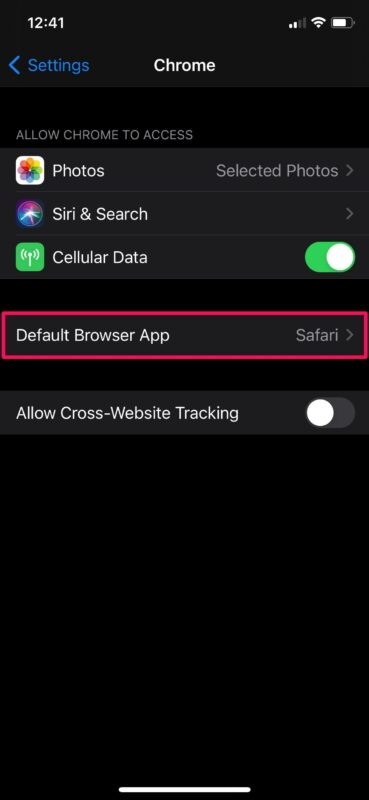
- Next, you’ll find the option “Default Browser App” as shown below. Tap on it to continue.
- Now, simply select “Chrome” instead of Safari and you’re good to go.
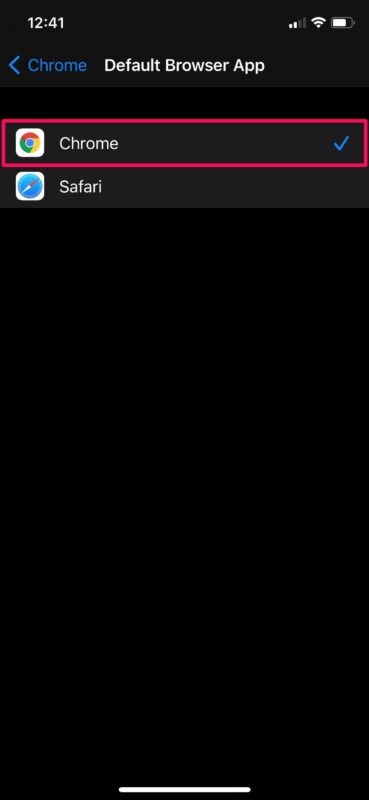
That’s pretty much all there is to it. Now iPhone or iPad will recognize Chrome as the default browser.
If you couldn’t find the default browser option in your Chrome settings, it’s likely that Chrome hasn’t been updated, or that you’re not on the most recent version of iOS or iPadOS. Therefore, update the apps and system software, and you should gain this capability.
You could even set Gmail as your default email app on iPhone or iPad too, amongst other email apps, but have some patient as developers update their respective apps to support the new features and changes.
This is a feature that iOS users have been wanting for a long time, so it’s good to see the capability available now.
This is obviously for iPhone and iPad, but you can also change the default web browser on the Mac to Chrome or others too.
Enjoy using Google Chrome as the default web browser on your iPhone and iPad! What do you think of this feature? Did you switch your default browser on your device? Let us know your experiences and thoughts in the comments.