
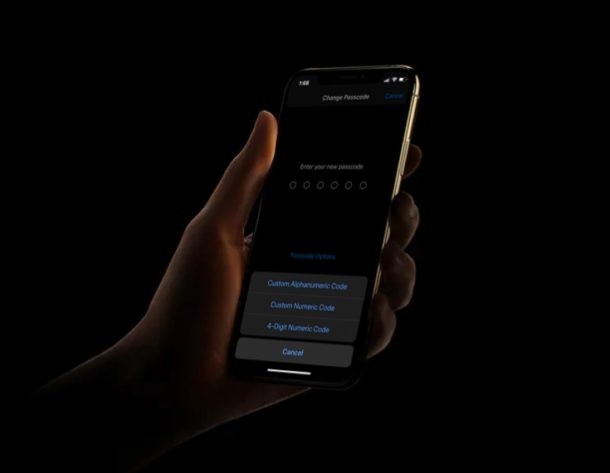
Do you want to set a complicated passcode on your new iPhone or iPad to prevent unauthorized access? You’re in luck, because iOS and iPadOS lets users create a custom alphanumeric passcode if that’s what they prefer, allowing for significantly more complex device passcodes that are harder to guess and crack.
By default, when you’re setting up a new iPhone or iPad, iOS asks you to enter a 6-digit numeric passcode to secure the device. Although this is adequate for a vast majority of the users, some security conscious users might be interested in using a more advanced passcode consisting of both letters and numerals. This is exactly where alphanumeric passcodes come in handy.
Interested in securing your iPhone, iPod touch, or iPad device with a far more complex password? Read on to learn about configuring alphanumeric passcodes on both the iPhone and iPad.
How to Set an Alphanumeric Passcode on iPhone & iPad for Higher Security
Setting up a custom alphanumeric passcode rather that the traditional 6-digit numeric code on your iOS and iPadOS device is a fairly simple and straightforward procedure. So, without further ado, let’s take a look at the necessary steps.
- Open the “Settings” app from the home screen of your iPhone or iPad.

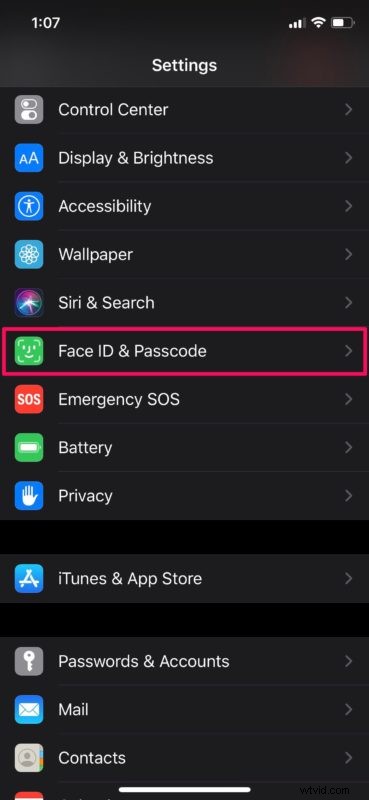
- In the Settings menu, scroll down and tap on “Face ID & Passcode”. If you’re using an iPhone or iPad without Face ID support, you’ll see the option “Touch ID & Passcode” instead.
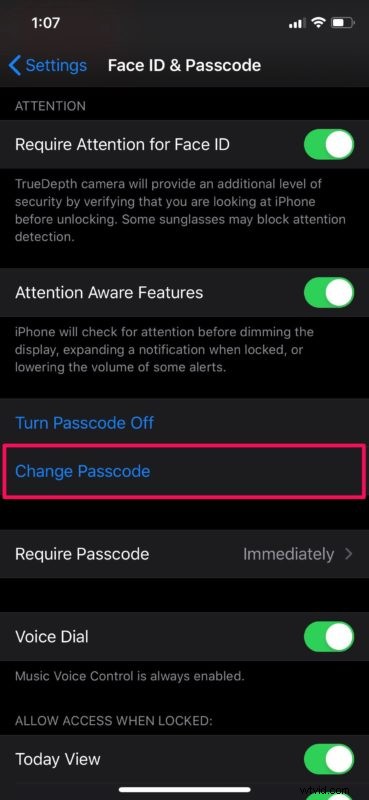
- Here, scroll down and choose “Change Passcode” as shown in the screenshot below. You’ll be asked to enter your current passcode before you’re taken to the next screen.
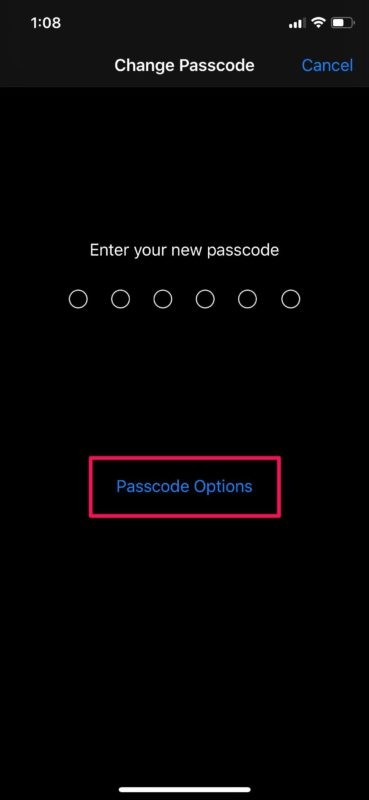
- Now, you’ll be asked to type a new passcode. Ignore that and tap on “Passcode Options”.
- A menu will pop up from below, where you can choose between three different passcode types. Simply select “Custom Alphanumeric Code”.
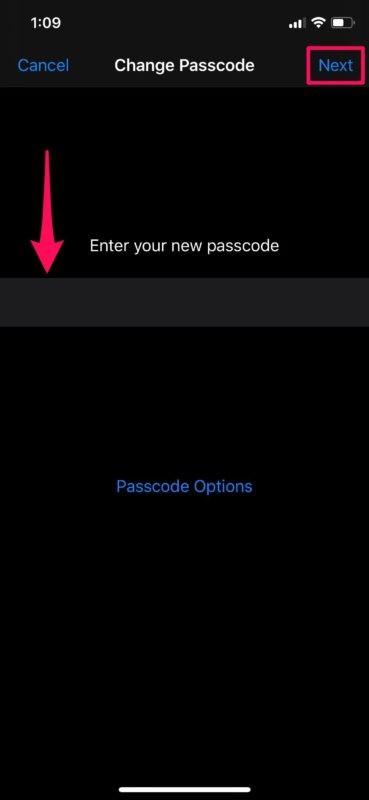
- Type in your new alphanumeric passcode that contains a mix of letters and numerals. Once you’re done, tap “Next” located at the top-right corner of the screen.
- As for the last step, you’ll have to verify your new passcode by retyping it. Once complete, tap “Done” to save the new passcode.

That’s it, you’ve now set an alphanumeric passcode on either the iPhone or iPad.
This procedure is targeted towards people who wants the absolute highest level of security on their iOS or iPadOS device, where a conventional 6-digit passcode is just not good enough. To make sure your device gets unlocked only with an alphanumeric passcode, you’ll need to disable Touch ID or Face ID on your iPhone or iPad for as long as you see fit.
Although this type of passcode makes your phone a lot more secure, it comes at the cost of convenience, especially if you have Touch ID / Face ID disabled. That’s right, unlocking your iOS device becomes a tedious process when you have to type in a full password every single time you take the phone out of your pocket.
That being said, regardless of what type of passcode you’re using at the moment, we highly recommend you to keep changing your passcode on a regular basis to keep your device secure.
Did you manage to secure your iPhone and iPad with a strong alphanumeric passcode? What do you think about this hidden passcode type that Apple has to offer? Are you planning to use it in the long run? Do let us know your thoughts and opinions in the comments section down below.