

When we think of search engines, the first thing that comes to mind for many is Google. Rightfully so, since it’s by far the most widely used search engine in the world. But, if you’re one of those people who use Ecosia, you’ll be happy to know that you can now set it as a default search engine for Safari.
For those who aren’t aware, Ecosia is a unique search engine in the sense that the company plants trees using the profits they get from search ads. As of this writing, over 116 million trees have been planted by Ecosia so far. Apple, on the other hand, has been trying to be environment-friendly by removing wall chargers from their iPhone packaging. So it makes sense that Apple would be adding support for the Ecosia search engine.
How to Set Ecosia as the Default Search Engine on iPhone & iPad
Make sure your iPhone or iPad is running iOS 14.3/iPadOS 14.3 or later, since earlier versions do not support this.
- Head over to “Settings” from the home screen of your iPhone or iPad.

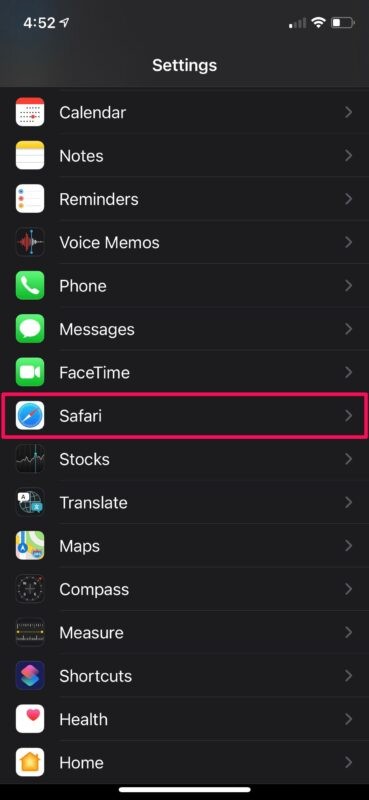
- In the settings menu, scroll down and tap on “Safari” to access your browser settings.
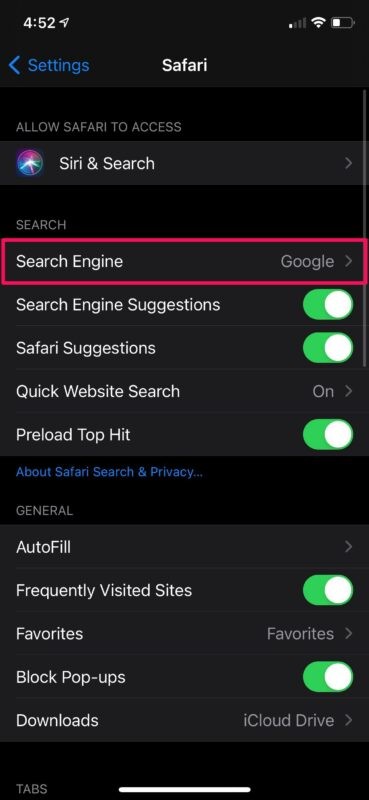
- Here, under the Search category, you’ll find the Search Engine setting. It’s set to Google by default. To change it, tap on it.
- Now, simply select “Ecosia” which is the last search engine in the menu, and you’re all set.
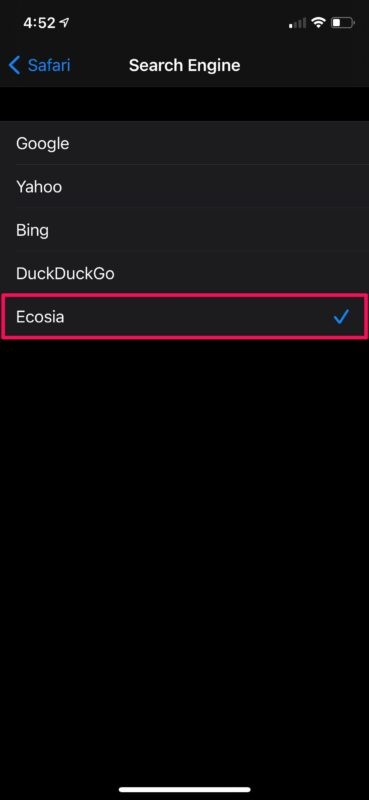
Ecosia will now be used for all the search queries you type into Safari’s address bar.
On average, you’ll need to make around 45 searches for Ecosia to be able to plant a single tree.
Ecosia does return relevant search results since it makes use of Yahoo and Bing’s algorithms. The company even has its own web browser that’s downloadable for free on the App Store, if you’re interested in trying that out as well.
If you’re not really invested in Ecosia, but use a different search engine like Yahoo, Bing, or even DuckDuckGo for privacy reasons, you can use these exact steps to set them as the default search engine in Safari. Likewise, if you use Google Chrome, you can change the default search engine from Chrome’s in-app settings as well.
Do you use a Mac as your primary computing device? In that case, you’ll be able to set Ecosia as the default search engine for Safari on macOS as well, assuming the Mac is running a modern version of macOS since earlier versions don’t have Ecosia support. If you use Chrome on your Mac or PC, you can install the Ecosia extension to set it as your search engine.
Do you use Ecosia as your default search engine on iPhone or iPad? Do you feel better using Ecosia over other search engines? Let us know your thoughts in the comments.