
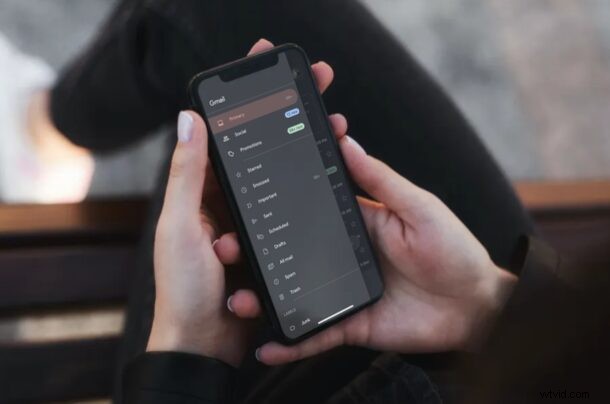
Do you use the official Gmail app on iPhone or iPad, and you’d rather Gmail be the default mail app for sending and receiving mails? If so, you can make this change rather easily on iOS and iPadOS.
While we’re focusing on Gmail here, you can set any supported third-party email client like Gmail, Outlook, or any other email app as the default Mail app. If this sounds like something that interests you, read along and you’ll be using Gmail as the default mail app on iPhone or iPad in no time.
How to Make Gmail the Default Mail App on iPhone & iPad
Make sure the device is running iOS 14/iPadOS 14 or newer, since this feature isn’t available on older versions. You’ll also need the latest version of Gmail app installed on your device.
- Head over to “Settings” from the home screen of your iPhone or iPad.

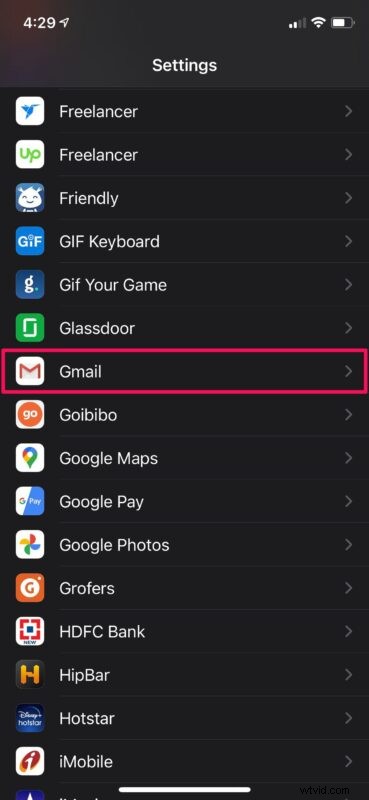
- In the settings menu, scroll down until you find the Gmail app and tap on it to continue.
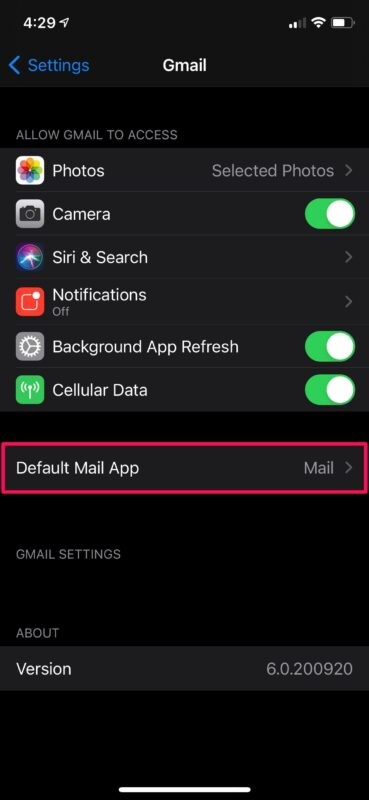
- Here, under all the permissions for the Gmail app, you’ll find the Default Mail App option. You’ll see that Apple’s Mail app is currently the default app. Tap on “Default Mail App” to change it.
- Now, simply select Gmail instead of the Mail app and you’re good to go.
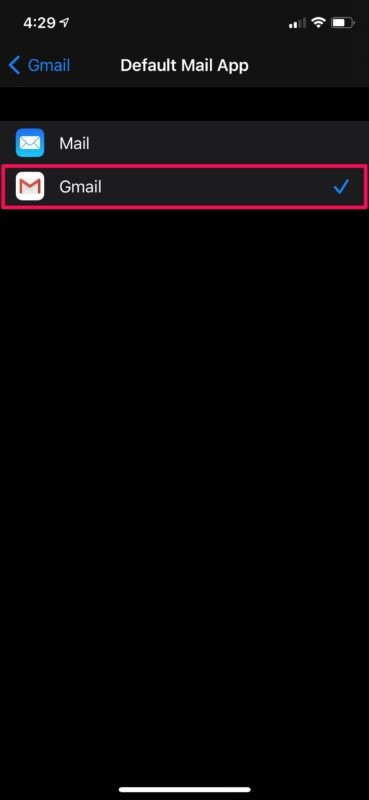
The default mail app on your iPhone or iPad has been successfully changed to Gmail. New email links and behavior will now open the Gmail app instead of Mail app.
Although the stock Mail is preferred by most iOS users, there are still plenty of people who rely on third-party apps like Gmail, Outlook, etc.
Remember, this is focusing on changing the default mail application, and not the default email address used by Mail app, which is a separate procedure that still relies on the Mail app.
Of course this is about email, but you can also change web browsers too. If you use Google Chrome instead of Safari on your device you may be interested in learning how you can set Google Chrome as the default browser on your iPhone and iPad in a similar way, by setting the default web client to something other than Safari. And, if you’re a Mac user, you’d probably want to change the default browser app and change the default mail app on macOS too.
Do you use the Gmail app instead of Mail app on iPhone or iPad as the default? Let us know your experiences, tips, and any relevant insight.