

Did you know that your iPhone and iPad can detect text in images? Thanks to a unique feature called Live Text that debuted in iOS 15, you can now copy text information from photos, and paste that text anywhere you’d like.
Many people nowadays store a lot of information in the form of image files on their devices. These include pictures of signs, menus, documents, screenshots, notes, and other handwritten content. Well, the stock Photos app can automatically check for text content in your images, and you can select it just like any regular text.
Apple uses deep neural network algorithms to get this feature to work seamlessly on its devices. Let’s take a look at copying and pasting text from within photos stored on your iPhone and iPad, it works similar to regular copy and paste but of course you’re capturing text from within a picture instead.
Copying & Pasting Text from Photos on iPhone & iPad
You will need to be running at least iOS 15/iPadOS 15 or later before you go ahead with the following steps:
- Launch the stock Photos app on your iPhone or iPad. Find and open the image with the text content you want to copy. If it has a lot of text content, you’ll see the “Live Text” icon at the lower-right corner of the image. You can tap on it to quickly highlight all the text your device detects.
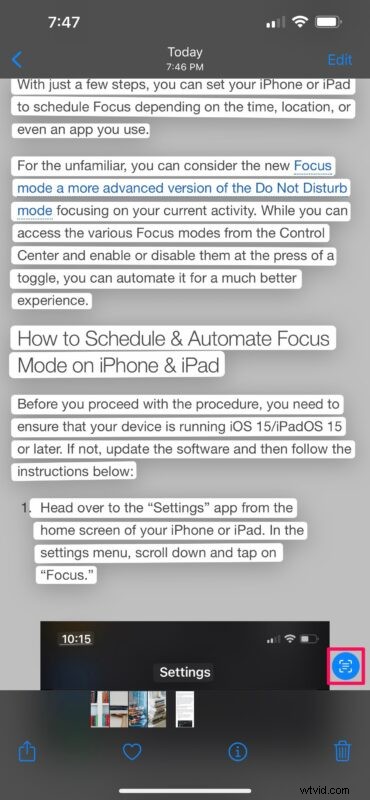
- However, if the picture has minimal text content, you can tap on the word you want to select and then drag the ends to manually select all the written information. Once you select the text, you’ll have access to the context menu, as shown below. Tap on “Copy” to copy the selected text to your clipboard.
- Now, switch to the app where you want to paste the content and long-press in the text field. Tap on “Paste” when you’re ready to input the text from your clipboard.

- Alternatively, if you want to paste text from something in the real world, you can tap on the “Live Text” icon, which will replace the keyboard with your camera. All you need to do is point the camera at the text, and your iPhone will automatically paste the detected information.
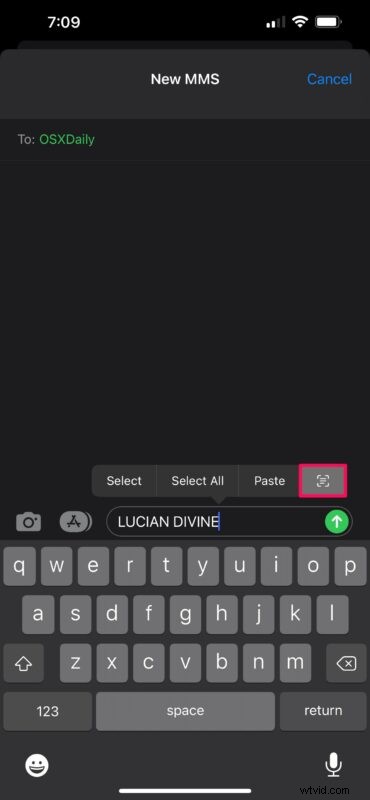
As you can see, it’s really that easy to copy and paste text content from images on iPhones and iPads.
Similarly, you can launch the Camera app and tap on the text content in your camera’s preview to access the same options we discussed above.
If you’re interested, you can learn about Live Text extensively here. Even if the handwritten text is barely legible, iOS does a great job at grabbing the information.
Besides the copy and paste functionality that we just discussed, Apple also allows you to translate text content into a different language or look up more information on a word using the built-in dictionary.
If you’re unable to use this feature for some reason, we’d like to point out that not all iOS 15/iPadOS 15 compatible devices support Live Text. You’ll need a device with the Apple 12 Bionic chip or later to take advantage of it on your updated device. Live Text works as intended on the iPhone XS, iPhone XR, iPad Air 2019 model, iPad mini 2019 model, iPad 8th gen, and newer devices (iPhone 11, 12, 13, etc). Likewise, if you own a Mac with the Apple Silicon chip, you can use Live Text in macOS too, provided it’s running macOS Monterey or later.
Were you able to use Live Text feature without any problems? What’s your primary use case for this nifty feature? What other iOS 15 features have you tried out so far and which one’s your personal favorite? Let us know your personal opinions and don’t forget to drop your valuable feedback in the comments section down below.