
“How do I copy music onto my iPhone from iTunes?” is a fairly common question. Fortunately, copying music onto an iPhone from iTunes is fairly easy once you learn how to do it, though you’d be forgiven if you find the music copy process to be a little confusing at first glance. It turns out there are several ways to get music onto an iPhone from iTunes on Mac and Windows PC, but we’ll show you the easiest way which involves a simple drag and drop music transfer onto the iPhone.
This method, which I think is the easiest in terms of behaving most like other computer interactions, allows for selecting music and dragging and dropping it to copy to iPhone from iTunes. This is not the same as the playlist sync method, since rather than creating music playlists in iTunes to sync to iPhone you’ll instead be able to manage music and copy on a per-song and per-album basis.
How to Copy Music Onto iPhone from iTunes with Drag & Drop
This works with basically every version of iTunes and every iPhone:
- Connect the iPhone to the computer with iTunes using a USB cable* if you have not done so already, then launch iTunes
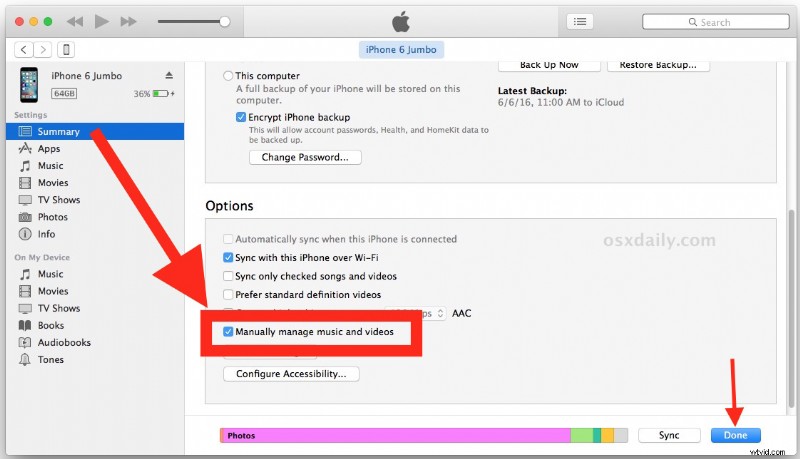
- Select the iPhone in the iTunes app**, then go to the “Summary” view and scroll down to the “Options” section
- Check the box for “Manually manage music and videos” and click “Done”
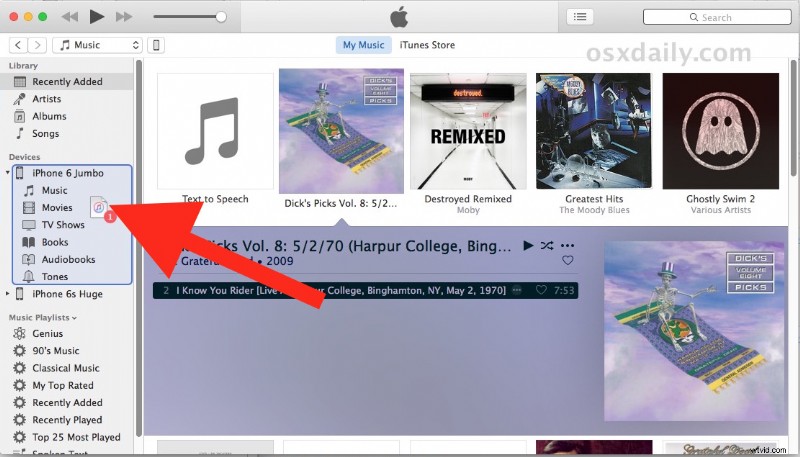
- Now return to the iTunes music playlist “My Music” section
- Select the song(s) you want to copy onto iPhone from iTunes, and click and drag them into the sidebar onto the iPhone to start the music copy process
- Repeat as necessary for other music you want to copy onto the iPhone
* You can use Wi-Fi transfer as well if you have it setup, but copying music from iTunes is usually faster and more reliable with a USB cable connected to iPhone.
** Selecting an iPhone with iTunes 12.4 is less than obvious, here’s how to do it.
That’s all there is to it. As long as the iPhone is connected to iTunes (by USB or wi-fi), you can drag and drop music onto the iPhone to copy it over from iTunes.
The music copied from iTunes appears in the “Music” app on iPhone, as expected:
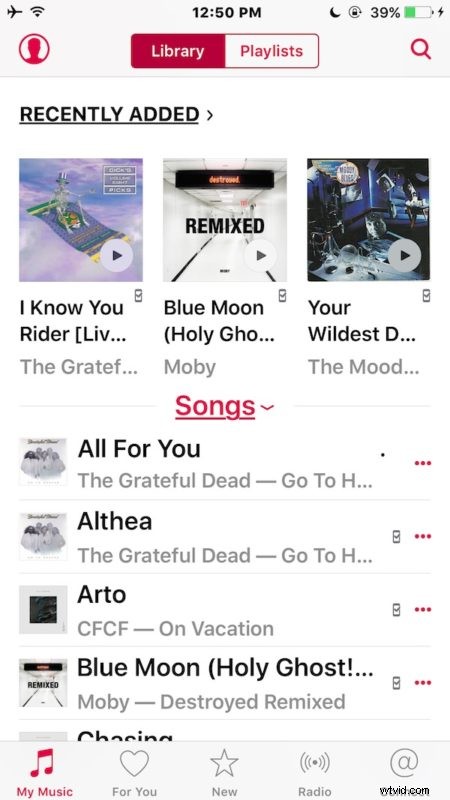
To me this is much easier to explain and use than creating a new playlist that syncs but sometimes brings with it stuff you don’t want or the auto-fill weirdness, or a myriad of other potential iTunes headaches. Another perk to manually managing your music this way is that you can actually copy audio and music directly from the file system to an iPhone, without importing it into a iTunes Library first.
As mentioned before, this works to copy music to iPhone from iTunes on either Windows PC or Mac, the process is the same for both platforms.
Now you can enjoy your music on the go from iPhone, the easy way. Play it in a car, through headphones, stereo, any AUX hookup, or out of the little speaker, enjoy!