
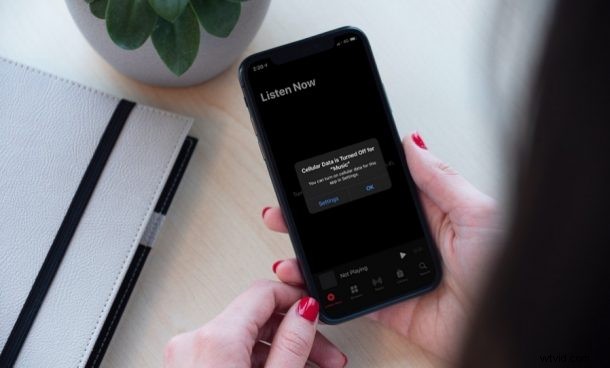
Do you want to stop Apple Music from accessing your cellular data? Maybe, you want to make sure it doesn’t exhaust your iPhone monthly data allowance?
Apple Music may not consume large amounts of data like a video streaming platform, but it can still have a noticeable impact on your cellular data usage since a three-minute song consumes over 5 MB of data. Since cellular data is really expensive in most parts of the world, a lot of people would want to avoid streaming music over LTE or 5G.
By blocking cellular access for the Music app, you don’t have to worry about accidentally listening to songs when you’re not connected to Wi-Fi. Here, we’ll be taking look at how to block Apple Music from using cellular data on iPhone.
How to Block Apple Music from Using Cellular Data on iPhone
Blocking cellular data access for the stock Music app is actually a straightforward procedure. Here’s what you need to do on your device:
- Go to “Settings” from the home screen of your iPhone or iPad.

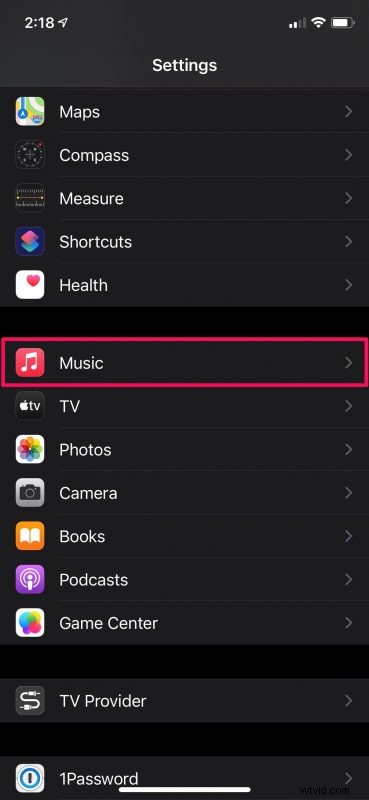
- In the settings menu, scroll down and select the Music app to access the app-specific settings.
- Here, you’ll the toggle to enable or disable cellular data. Set the toggle to OFF and you’re good to go.
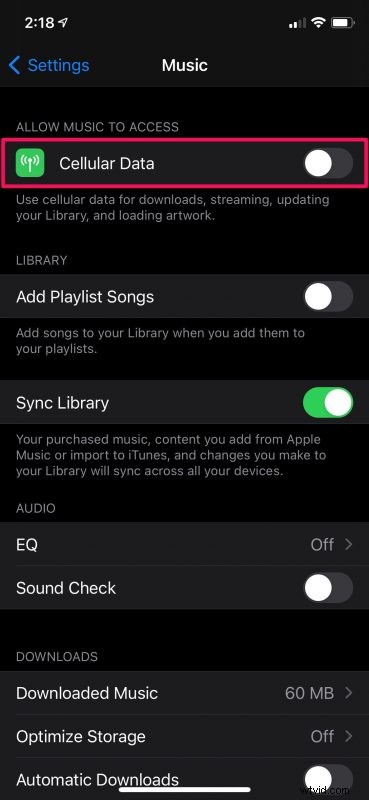
There you have it. It’s that easy to prevent Apple’s music streaming service from accessing your cellular data.
From now on, when you open the Music app while you’re connected to cellular, you’ll get a pop-up message informing you that cellular data is turned off for the app.
A similar toggle to blocking apps from accessing your LTE/5G data can be found in your cellular data settings too. This can be used to block any app from consuming your cellular internet connection.
The best way to keep your cellular data usage for Apple Music to a minimum would be by utilizing its offline listening feature. You can download all the songs you listen to while you’re connected to Wi-Fi and make sure they’re accessible without having to worry about cellular use.
We hope you managed to limit Apple Music from accessing your cellular data. Have you tried using the low data setting that the service offers? What other music streaming services have you used before? Let us know your thoughts, share your experiences, and leave your valuable feedback in the comments section down below.