
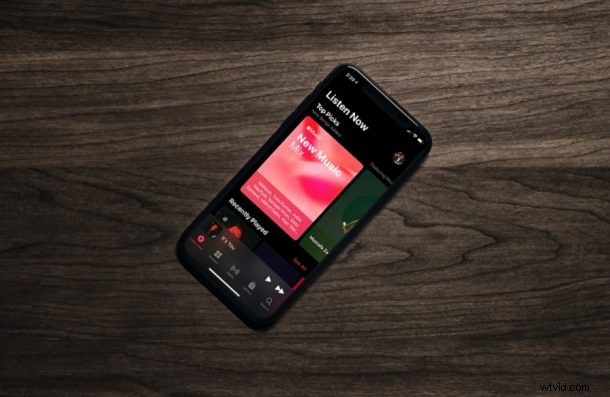
A lot of people use Apple Music while on the go from an iPhone, and this typically requires using cellular data. Since cellular bandwidth is often limited, you may be interested in preserving your cellular data and using Low Data Mode for Apple Music.
Apple Music’s streaming quality tops out at 256 kbps, which means that at the high-quality setting, you’d approximately consume a little above 5 MB of data for a three-minute song. Depending on how much music you listen to using cellular, this could be a lot especially if your monthly data allowance is low. By switching to a low data mode, you’re minimizing your data consumption for Apple Music, which can help for conserving bandwidth. If you’re interested in lowering your Apple Music data usage while you’re on cellular connections, read along.
Uisng Low Data Mode for Apple Music on iPhone
It’s actually pretty easy to change the streaming quality for Apple Music. Here’s what you need to do:
- Open “Settings” from the home screen of your iPhone.

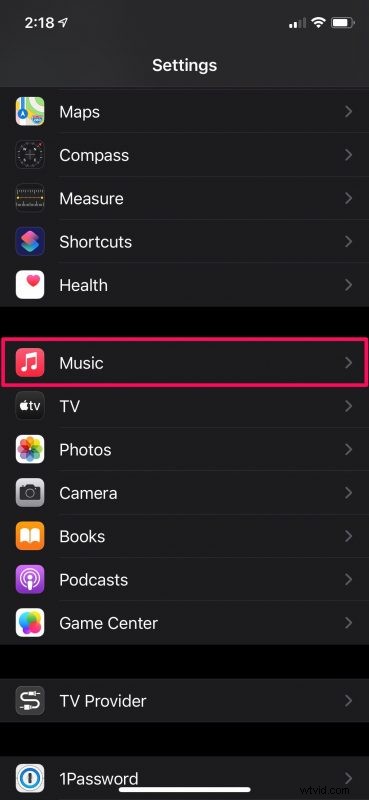
- In the settings menu, scroll down and select the Music app to change the app-specific settings.
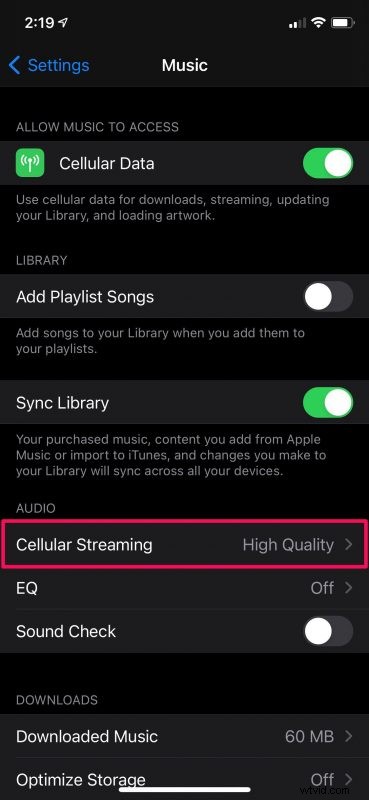
- If your device is running iOS 14.6 or later, you’ll find the “Cellular Streaming” setting under the Audio section as shown below. Tap on it. On older versions of iOS, you’ll find a similar setting under “Playback & Downloads”.
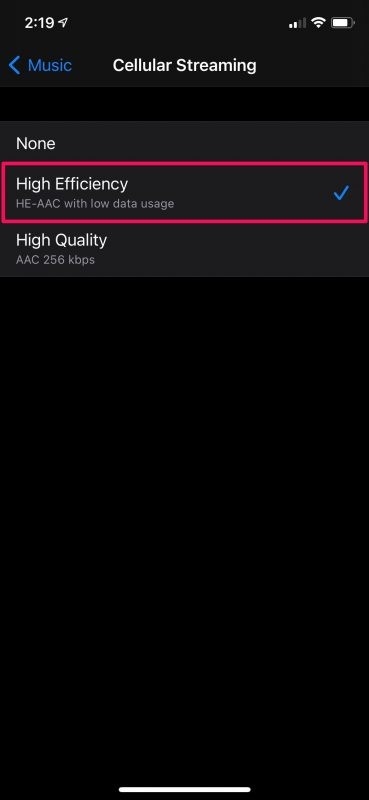
- Now, select “High Efficiency” for the cellular streaming setting and you’re pretty much set.
It’s that easy. You’ve successfully enabled low data mode for Apple Music.
Keep in mind that this quality change only applies to streaming over cellular. When you’re connected to Wi-Fi, Apple Music will still use the higher quality setting.
For the High Efficiency mode, Apple Music uses the HE-AAC format to lower the data usage. With this particular quality setting, you can stream music for over twice as long while consuming the same amount of data.
A smarter way to minimize Apple Music data usage over cellular would be to download your favorite songs and listen to them offline. It would be a one-time thing and you’ll never have to rely on cellular network to listen to those songs again.
And now you have learned how to minimize your data usage while streaming Apple Music content over LTE or 5G. How much do you use Apple Music every day? Have you tried out any other streaming services? What do you think of these features? Sound off in the comments.