
Ever wished you could search for a song by lyrics? You can perform lyrics searches with Apple Music on iPhone, iPad, or even Mac, to identify a song by words.
Have you ever been in a store, bar, club, restaurant, or any public venue where you actually liked the song that was being played, but couldn’t really figure out its name? Certainly many of us could relate to this situation, and this happens to some music lovers fairly often. Sure, there are apps like Shazam that detects music or if you’re using an iPhone or iPad, you could just ask Siri to identify the song playing, but most of us still take the old-fashioned route and use Google to find the song by typing out the lyrics we heard.
Well, if you use Apple Music to stream your songs, you’re in luck. The Music app that comes pre-installed on iOS devices is fully capable of finding songs with a simple lyric search, as long as they’re available on the streaming platform. It’s more convenient that using Google, as you could add it to your library, add it to a playlist, download it, or just start listening right away instead of going through a two-step process.
Are you an Apple Music user keen on trying this nifty lyrics search feature out? Look no further, because in this article we’ll be discussing exactly how you can search for songs by lyrics on Apple Music.
How to Search for Songs by Lyrics on Apple Music on iPhone or iPad
If the song title is all you’re looking for, you don’t really have to be subscribed to Apple Music. However, if you want to playback the song or add it to your library, you need to pay for the subscription. So, without further ado, let’s take a look at the necessary steps.
- Open the default “Music” app from the home screen of your iPhone or iPad.

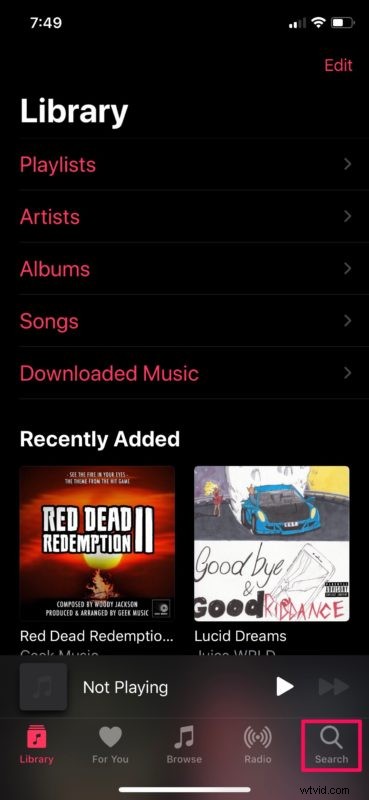
- Once you’re in the app, tap on the “magnifier” icon located at the bottom right corner of the screen, in order to head over to the search section.
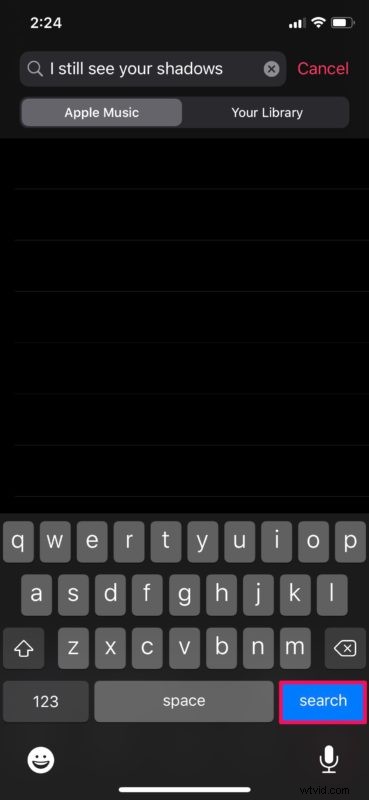
- In the Search bar, type a part of the lyrics you remember and hit “search” on your keyboard. Make sure you’re in the “Apple Music” tab while you’re doing the search.
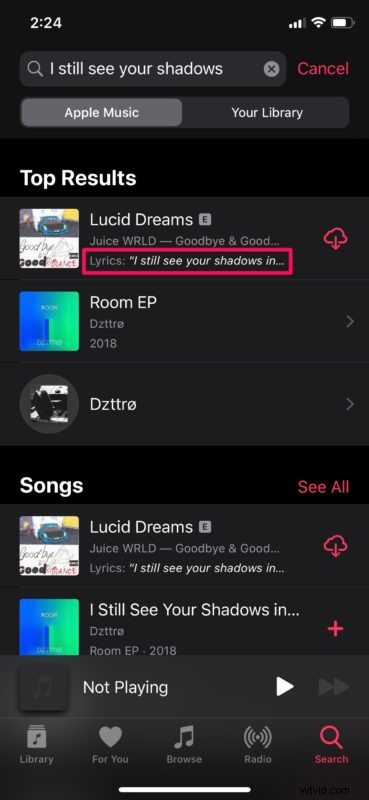
- If the song you’re looking for is available on Apple Music, it will show up in Top Results. The Lyrics you searched for will be displayed under the name of the artist to indicate that your lyric search actually worked as intended.
That’s pretty much all you need to do in order to search for songs by lyrics on Apple’s popular music streaming platform.
In the same menu where you found the song you were looking for, you could quickly add it to your music library by tapping on the “+” icon right next to the song title.
This makes the whole process a lot more convenient, especially if you’re already using Apple Music as your primary streaming platform and you want to add your newly found music to a playlist.
With all of this being said, this feature doesn’t really work if you’re looking up a song that does not have lyrics added to it. So, if you’re trying to search more obscure, rare, or regional songs on Apple Music using this functionality, there’s a pretty good chance you won’t get any results. Apart from this, if the song you’re trying to find isn’t available on Apple Music, your search will fetch no results and you’ll have to resort to Google or Shazam instead.
What do you think about Apple Music’s “Search by Lyrics” feature? Do you see yourself using it to find new songs, or are you going to stick to Google or Shazam? Do let us know your thoughts and opinions in the comments section down below.