
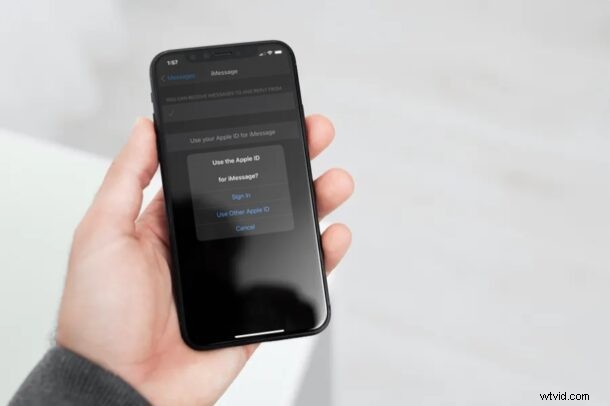
Do you want to use a different Apple ID or email address for sending and receiving messages over iMessage? Fortunately, this is pretty easy to do on an iPhone and iPad, and all you need is a minute or two of your time.
Apple’s iMessage service is extremely popular among Apple users, as it offers a free and convenient way to text other iPhone, iPad, and Mac owners. By default, iMessage uses the Apple ID that’s linked to your iOS or iPadOS device. Contacts who don’t have your number will be able to send texts to this Apple ID email address. However, if you would like to, you can use a completely different Apple account for use with iMessage without affecting other account data that’s linked to your device.
The majority of users should not make this change and just keep iMessage setup the way it is by default, but nonetheless if you’re interested in doing so, you can change Apple ID for iMessage on both the iPhone and iPad.
How to Change Apple ID for iMessage on iPhone & iPad
Switching to a different Apple account for iMessage is actually a lot easier than you may think. Simply follow the steps below to get started.
- Head over to “Settings” from the home screen of your iPhone or iPad.

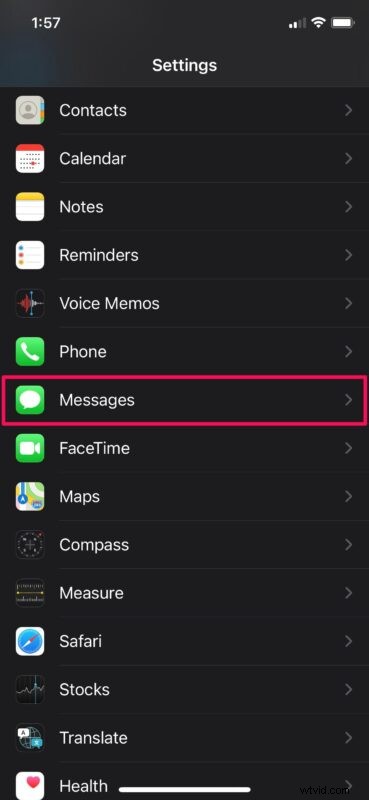
- In the settings menu, scroll down and tap on “Messages” to change the settings for iMessage.
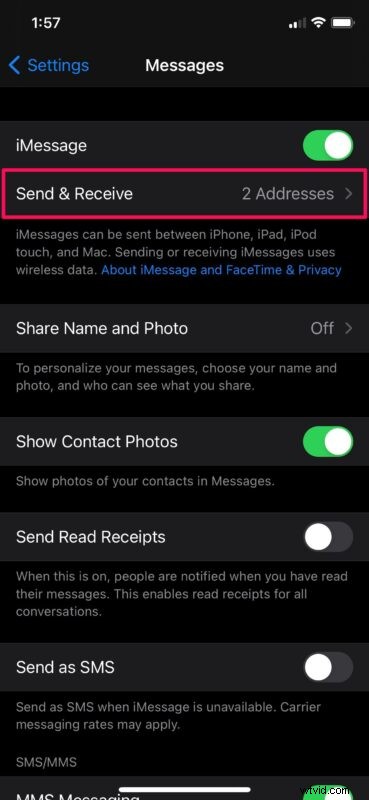
- Here, tap on “Send & Receive” as shown in the screenshot below to proceed to the next step.
- Now, you’ll see the phone number and email address that’s used for sending and receiving texts over iMessage. Tap on your Apple ID at the bottom to access more options.
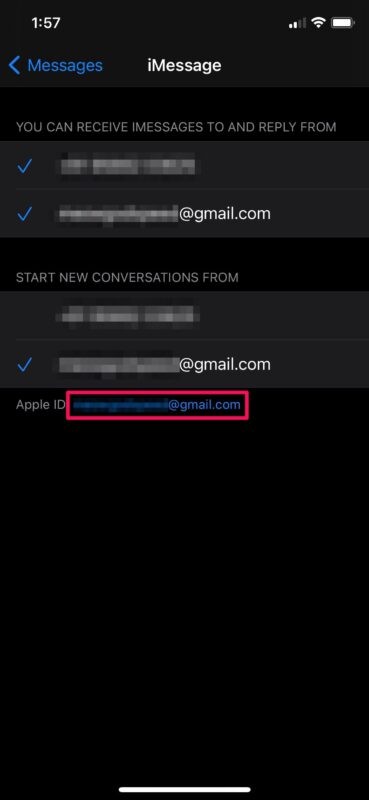
- You’ll find the option to sign out of your iMessage account. Tap on “Sign Out” to continue.
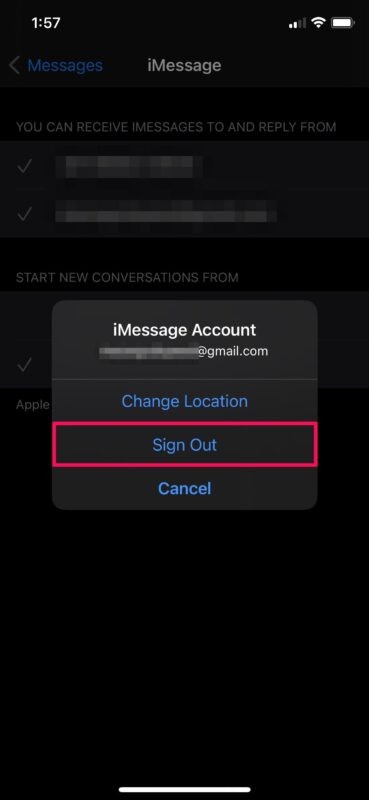
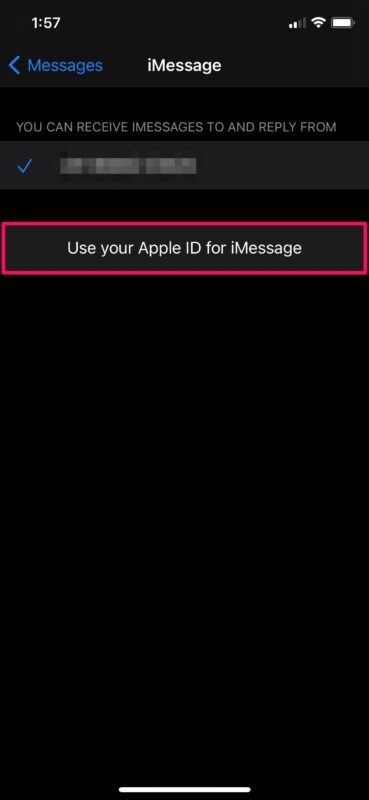
- You’ll now notice that you’re using just your phone number for iMessage. Tap on “Use your Apple ID for iMessage” as shown here.
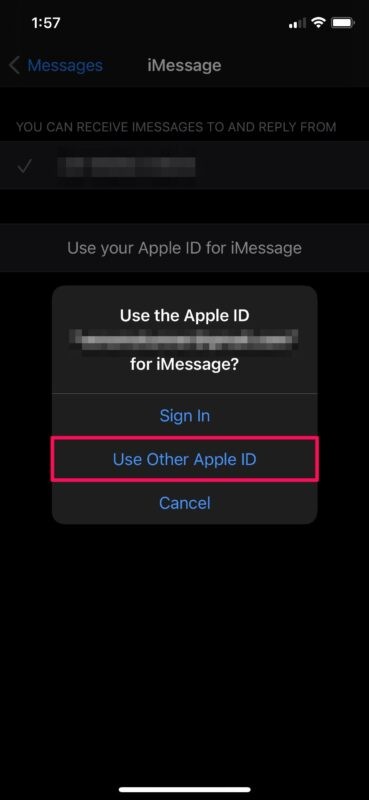
- Now, you’ll be given the option to sign in with the Apple ID that’s linked to your device. To use a different account, tap on “Use Other Apple ID”.
- Now, enter the email address and password details for your alternate Apple ID and tap on “Sign In”.
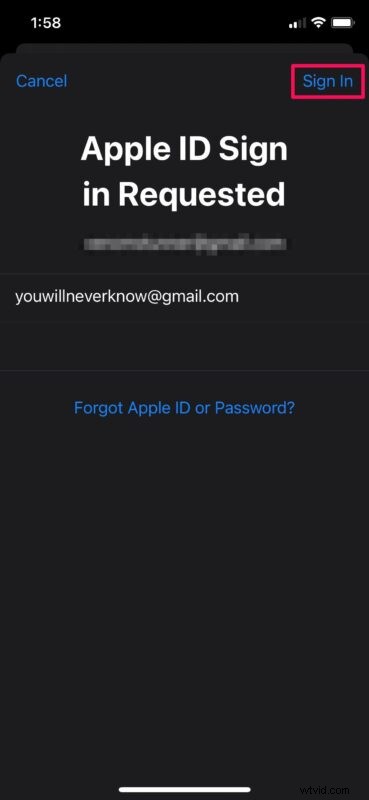
There you go. You’ve successfully managed to log in to iMessage with a different Apple account.
From now on, you can keep your actual Apple ID private while you use a different account just for iMessage. In the same menu, you can change the send & receive addresses for iMessage. You can set this up in a way that you stop using your phone number for new iMessage conversations and keep your details private.
There’s one downside to this procedure, however: when you use a different Apple account for iMessage, you won’t be able to use iCloud with iMessage, since the iCloud email address is the one that’s linked to your device. As a result, your iMessage conversations won’t be synced across all your other Apple devices.
Remember, you can also delete an iCloud account from an iPhone or iPad and simply sign in to an entirely different Apple ID if you’d like to as well, but doing so obviously impacts all other iCloud and Apple ID syncing that uses the same Apple ID.
It’s best to always just use the same Apple ID for all of your own, this allows for reliable syncing, data backups, and easier use of devices.
Did you set iMessage to use a different address? Did you set this up due to privacy concerns? If not, what’s your reason for using a different Apple ID for iMessage? Do share your valuable thoughts and experience in the comments section down below.