
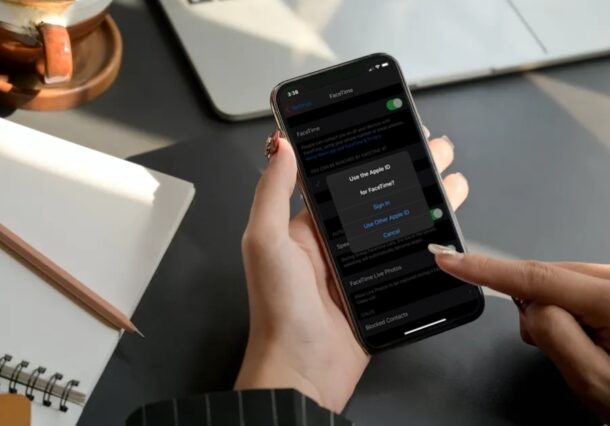
Do you want to use a different Apple ID / email address for making and receiving calls over FaceTime? Fortunately, this is pretty easy to do on an iPhone and iPad, and all you need is a minute or two of your time.
Apple’s FaceTime video-calling service that’s integrated into iOS and macOS devices is extremely popular among Apple users, as it offers a convenient way to video conference and call other iPhone, iPad, and Mac owners for free. By default, FaceTime uses the Apple ID that’s linked to your iOS/iPadOS device in addition to your phone number. Contacts who don’t have your number will be able to call you using this email address over FaceTime. However, you can use a completely different Apple account for use with FaceTime without affecting other account data that’s linked to your device. Generally speaking, this is not recommended, as it’s always better to use the same Apple ID for all of your Apple devices and needs. Nonetheless, there are some unique circumstances where using a different Apple ID for FaceTime may be desired or necessary.
How to Change Apple ID Used with FaceTime on iPhone & iPad
Switching to a different Apple account for FaceTime is actually a lot easier than you may think. Simply follow the steps below to get started.
- Head over to “Settings” from the home screen of your iPhone or iPad.

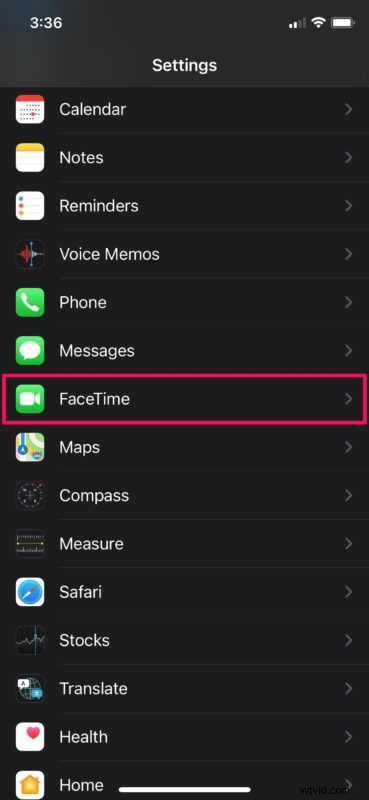
- In the settings menu, scroll down and tap on “FaceTime” to proceed.
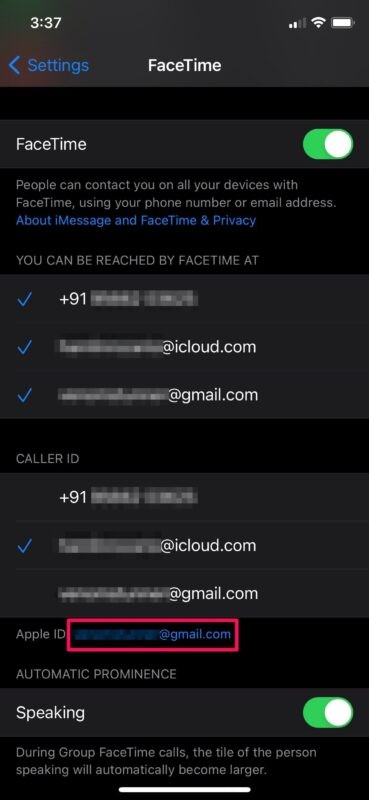
- Here, scroll down and tap on your Apple ID email address in blue, located below the “Caller ID” category.
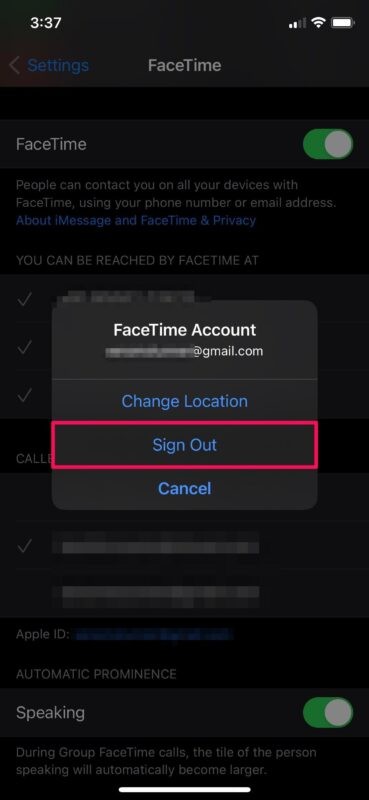
- Now, choose “Sign Out” to log out of your current Apple account.
- Next, tap on “Use your Apple ID for FaceTime” in the same menu.
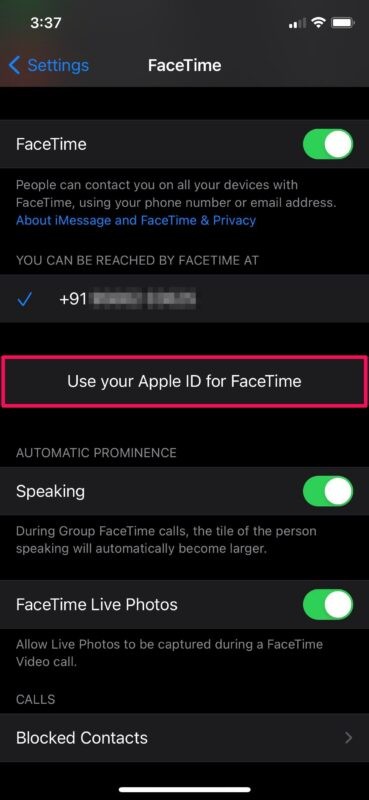
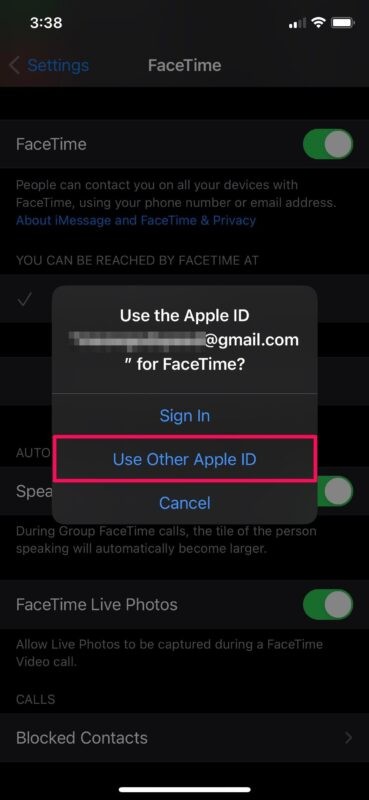
- Now, you’ll be given the option to sign in with a different account. Choose “Use Other Apple ID” to go ahead.
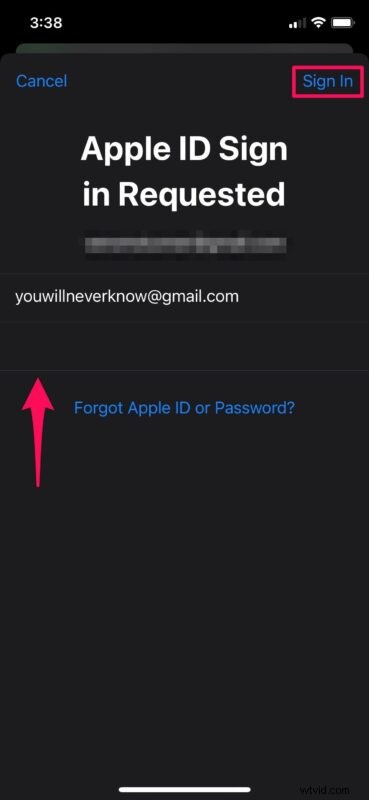
- Simply type in the login credentials for your other Apple ID and tap on “Sign In” to start using this account with FaceTime.
That’s pretty much all there is to it. Now you know how easy it is to use a different Apple account with FaceTime on your iPhone or iPad.
From now on, you can keep your actual Apple ID private while you use a different account just for FaceTime. In the same menu, you can change the Caller ID that’s used when you make a FaceTime call. You can set this up in a way that you stop using your phone number for FaceTime calls and keep your details private.
Likewise, you can change the Apple ID for iMessage and use a completely different email address if you want to keep your primary email address private. Or, if you don’t want to reveal your phone number while texting someone over iMessage, you can remove the phone number that’s used for iMessage and FaceTime.
Did you setup FaceTime to use a different email address on your iPhone and iPad? Did you set this up due to privacy concerns? What’s your reason for using a different Apple ID for FaceTime? Do share your valuable thoughts and experience in the comments section down below.