
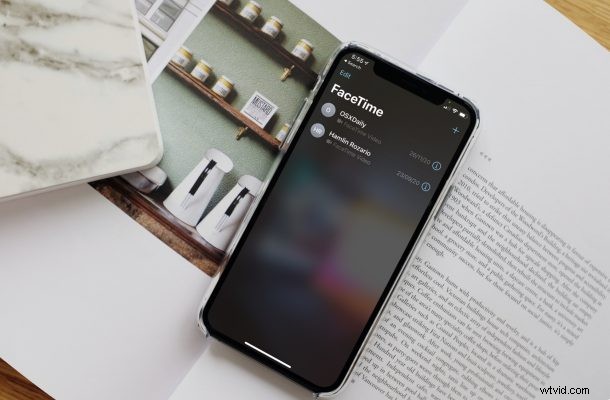
Do you want to disable FaceTime on your iPhone or iPad completely? Apple gives users the option to turn off the FaceTime functionality on their devices, so whatever the reason you want to turn off FaceTime, you can do that.
Let’s take a look at how you can turn off FaceTime on your iOS or iPadOS device.
How to Disable FaceTime on iPhone / iPad
As long as your iPhone or iPad is running a fairly recent version of iOS, you should be ready to go forward with the following steps. So, without further ado, let’s get started:
- Head over to “Settings” from the home screen of your iPhone or iPad.

- In the settings menu, scroll down and select the FaceTime app which is typically located along with the list of other stock iOS apps.
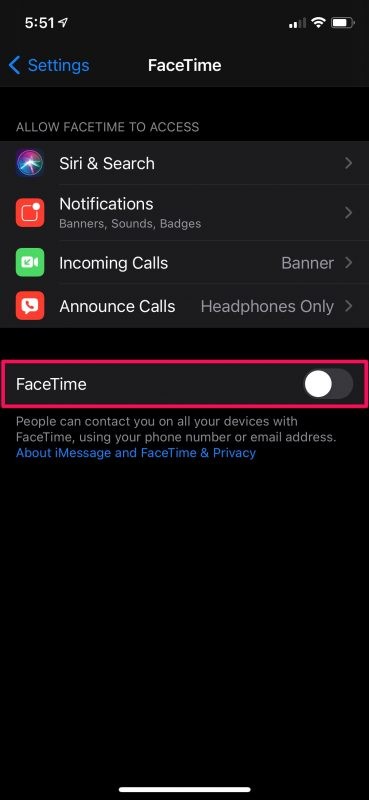
- Here, you’ll find a toggle next to FaceTime. All you need to do is disable this toggle and you’re done.
That’s pretty much all there is to it. You’ve successfully turned off FaceTime on your iOS/iPadOS device.
Now that you’ve done this, your contacts and other users will not be able to reach you via FaceTime. Obviously, you won’t be able to make video calls either.
There’s one thing to keep in mind, however. When you open the FaceTime app on your iPhone, you’ll see a Continue option. Don’t click on it, because if you do, it will reactivate the service on your device.
Likewise, you have the option to disable iMessage completely on your iPhone and iPad too. This will prevent other users from reaching out to you via the service and instead, they’ll be forced to send an SMS when they try to text you.
FaceTime is obviously really popular and very useful, but not everyone uses it or wants to. Or perhaps you’re concerned about privacy. You may have heard about the dreaded eavesdropping bug that Apple came under fire for back in 2019, which basically allowed anyone to eavesdrop on other users by making a group FaceTime call even if the recipient didn’t answer it – oops! Although that serious flaw was fixed shortly after, privacy buffs might still be extra cautious after that incident.
Did you disable FaceTime? Why? Share your experiences with us, drop your valuable feedback and sound off in the comments section down below.