
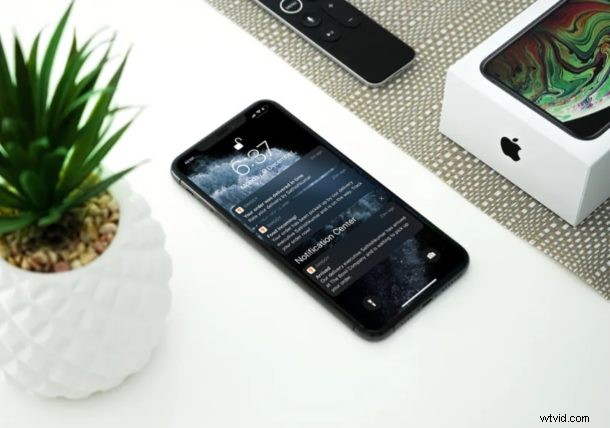
Want to hide notifications from your iPhone lock screen? Maybe you don’t want any notifications showing up on the locked screen of an iPad? We all receive several notifications from multiple apps on our iPhone and iPad on a daily basis, and we glance through most of them from our device’s lock screen. Although this may be a lot more convenient since you don’t really have to unlock your phone, this convenience of visible lock screen notifications could come at the cost of privacy.
Having lock screen notifications turned on allows anyone to pick up your phone and view all those notifications, which may include important emails, messages, payment confirmations and a lot more. This is definitely not something you’d want if you’re concerned about snoopers, whether at home or work or public, and your device is within the reach of someone else.
If this sounds like something you’d like to change, then don’t fret, because iOS users have had the ability to customize how their devices displayed notifications on the lock screen. Keen on trying it out for yourself? Look no further, because in this article we’ll be discussing how you can disable lock screen notifications on your iPhone and iPad.
How to Disable Lock Screen Notifications on iPhone & iPad
The notifications that are shown on your lock screen can be customized within Settings. You could either set it in a way that the notifications don’t display previews or you could just disable them altogether on a per-app basis. Without further ado, let’s discuss how to turn off notifications on the lock screen of iOS and iPadOS:
- Open “Settings” app from the home screen of your iPhone or iPad.
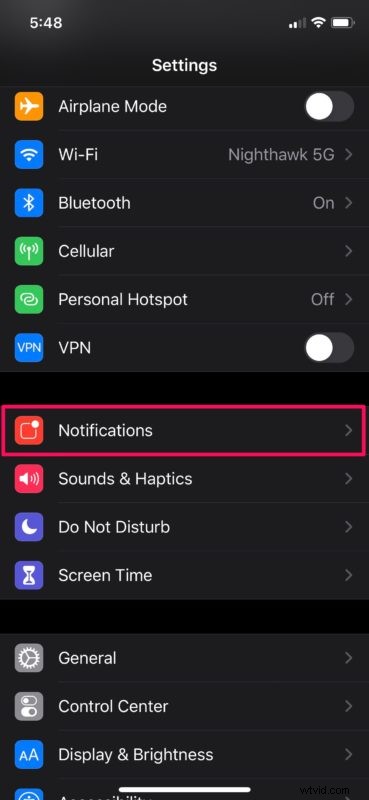
- Now, tap on “Notifications” within Settings.
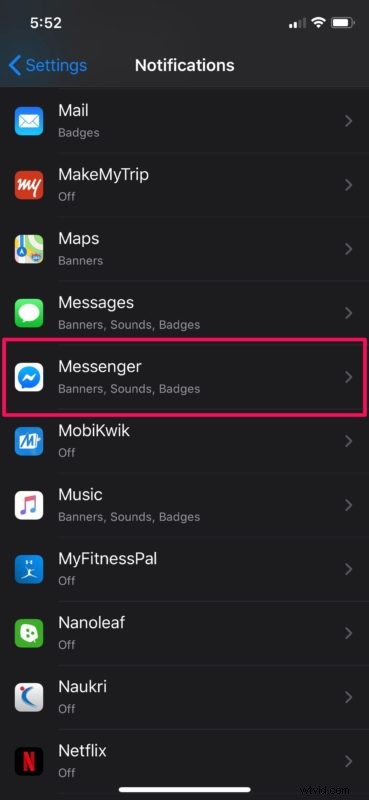
- Here, you’ll be able to scroll through all the apps stored on your device and adjust notification settings for each of them individually. Simply tap on the app that you want to disable lock screen notifications for, as shown in the screenshot below.
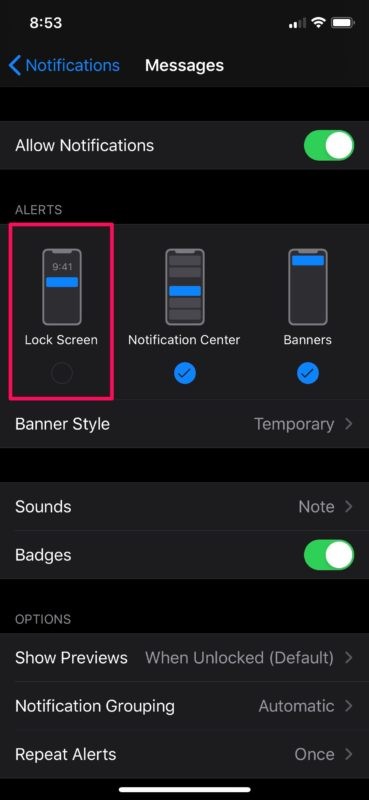
- Under the Alerts section, uncheck the option right below “Lock Screen”. In the same menu, you can disable all notifications if that’s what you prefer.
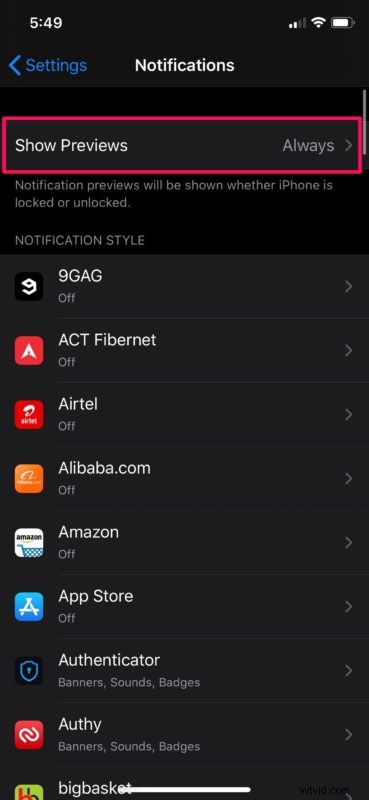
- If you want to take it a step further and stop all apps from displaying previews for notifications on the lock screen, go back to the Notifications section and tap on “Show Previews”.
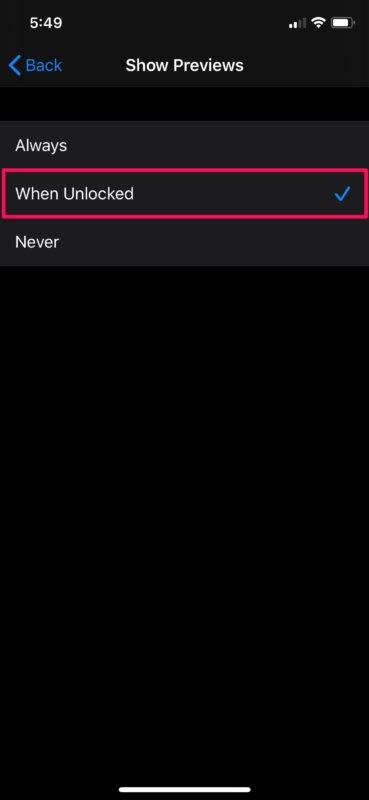
- Now, select “When Unlocked”. This setting stops apps from showing previews for notifications on your lock screen. Instead, only the name of the app and its icon will be displayed.
That’s pretty much all you need to do, in order to disable lock screen notifications on your iPhone and iPad.
Regardless of what setting you’ve chosen, you can rest assured that no one will be able to glance through your notifications or read the messages you’ve received if they’ve grabbed hold of your iPhone or iPad. That being said, there’s no setting yet to turn off lock screen notifications for all the apps at once. We may hope that’ll change in one of the future software updates, but until then, your best bet is to disable it for each of the apps individually if you don’t want them showing up on your locked iPhone or iPad display.
One particularly interesting feature of lock screen notifications that is privacy-centric is available to the latest iPhone and iPad models with Face ID. In this case, the notification previews feature works seamlessly along with Face ID on recent iOS devices like iPad Pro, iPhone X or later. For example, let’s say when your iPhone is lying flat on the table and you receive a notification, the previews won’t be displayed. However, as soon as you pick it up, Face ID unlocks your device for you and the previews will now be shown. That’s pretty convenient too.
This obviously applies to iPhone and iPad, but you can actually hide notifications from the Lock Screen on Mac too if you’re interested in doing that as well.
Have you disabled lock screen notifications on your iPhone and iPad? Did you turn off lock screen notifications on a per-app basis or did you just disable notification previews altogether? Do let us know your thoughts and opinions in the comments section down below.