
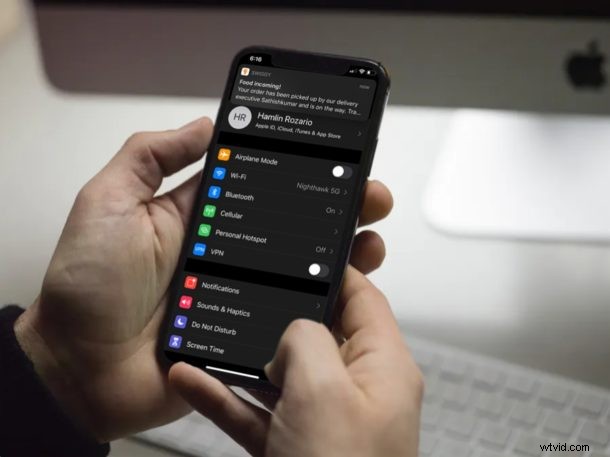
If you work or play a ton on your iPhone or iPad, there’s a good chance you’ve missed several notifications while you were in the middle of something. That’s because of how the banner style notification system works on iOS. Regular notifications pop up from the top of the screen for a few seconds and simply disappear. In some cases, that’s not even enough time to read the entire message that’s displayed.
This is exactly where Persistent Notifications come in, which stay at the top of the iPhone or iPad screen until you switch to a different app or exit to the home screen, unlike regular notifications.
Interested in trying this out for yourself? You’ve come to the right place. In this article, we’ll be discussing how you can enable persistent notifications on iPhone and iPad with apps of your choice.
How to Enable Persistent Notifications on iPhone & iPad
Simply follow the steps below to enable persistent notifications for an app or apps in iOS and iPadOS:
- Open “Settings” app from the home screen of your iPhone or iPad.

- Now, tap on “Notifications” in the Settings menu.
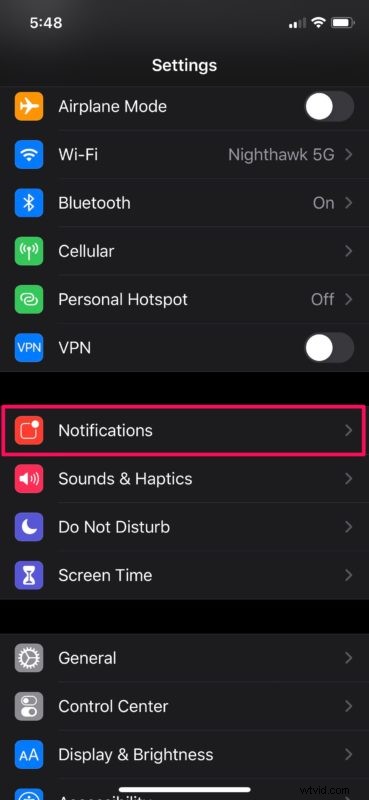
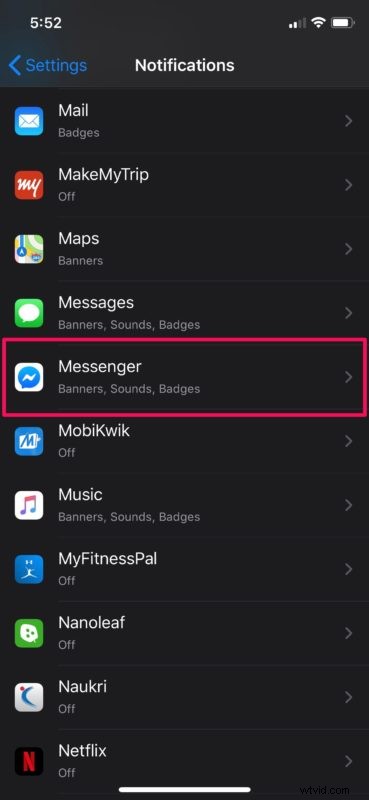
- Here, you’ll see a list of all the apps that are stored on your device. Simply select the app that you want to enable Persistent Notifications for, as shown in the screenshot below.
- Now, head over to “Banner Style” located under the Alerts section.
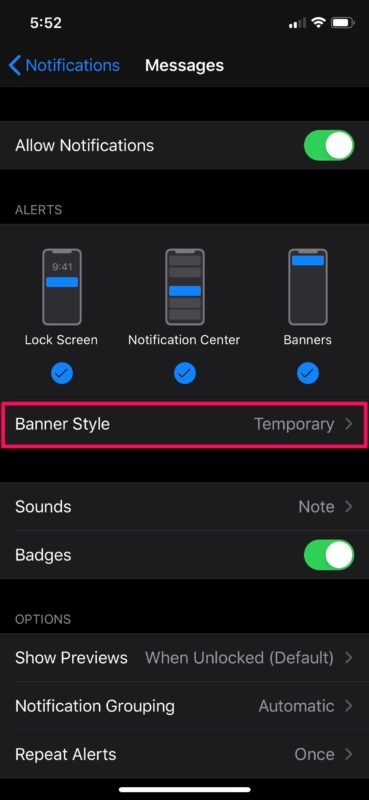
- Select “Persistent” to make sure the notifications you receive from this app, stick to the top of your screen.
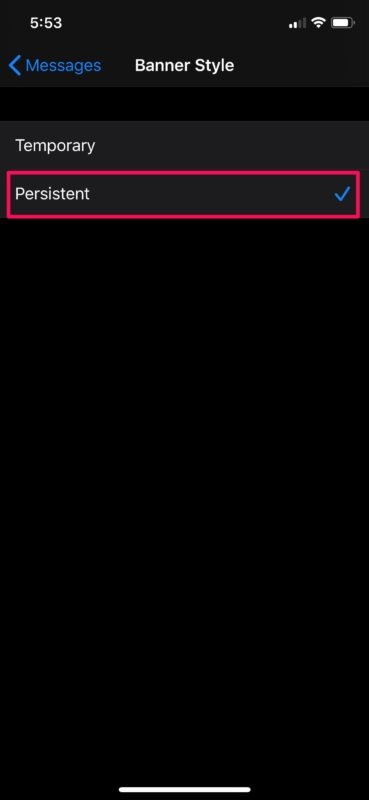
That’s pretty much all you need to do in order to enable Persistent Notifications on your iPhone and iPad.
Unfortunately, you can only enable this banner style on a per-app basis for now, as iOS does not feature a global toggle to enable Persistent Notifications for all apps simultaneously. However, it’s possible Apple could add that functionality in future iterations of iOS at some point down the line, who knows?
With persistent notifications enabled, the notifications will stay at the top of your screen indefinitely until you switch to a different app, exit to the home screen or simply just lock your phone. This makes it easier to get back to your messages, emails or any other form of notifications whenever you’re ready to, without having to worry about missing them. These notifications are perhaps best suited for use with apps you frequently use for calls, messaging, emails, social networking, etc.
Considering how MacOS users have had access to this functionality for way longer in comparison to iOS devices, this feature isn’t exactly new. Persistent Notifications have been available as an option since iOS 11 came out two years ago and it’s buried deep in settings, so if you’ve never seen the option before don’t be too surprised.
Of course if you have previously enabled Persistent Notifications for an app that you now want to change, you can easily reverse the setting by following the instructions above and disabling the persistence of the notifications for that app(s).
What do you think about the Persistent Notification functionality on iOS? Did it help you to get back to your notifications and messages? Do let us know your thoughts and opinions in the comments section down below.