

Have you ever stumbled into something while browsing the web in Safari on Mac that you’d like to continue reading, watching, or listening to on your iPhone? This is the perfect scenario for the Handoff feature, which allows you to pass an app session from one Apple device to another so long as a few conditions are met.
This article will show you how to use Handoff to pass a web page from Mac to iPhone.
To be able to use Handoff with Safari from Mac to iPhone, all devices must be using the same Apple ID and iCloud account, Handoff must be enabled on Mac and iPhone, and the devices must be within relatively close range of one another. The rest is quite simple and just a matter of knowing how the feature works and how to access it.
How to Open Safari Handoff Pages on iPhone from Mac
This is how you pass a Safari webpage session from Mac to iPhone using Handoff:
- From the Mac, open Safari and navigate to the website you want to Handoff to the iPhone
- From the iPhone, have the device in close proximity to the Mac then open the Application Switcher (on iPhone’s without a Home button, swipe up from the bottom of the screen, whereas on iPhones with a home button double-click the Home button)
- Look at the bottom of the application switcher on iPhone to find “Safari – From (Mac Computer Name)” and tap on that
- The webpage that was open on the Mac will instantly open on Safari on iPhone, right where you left off

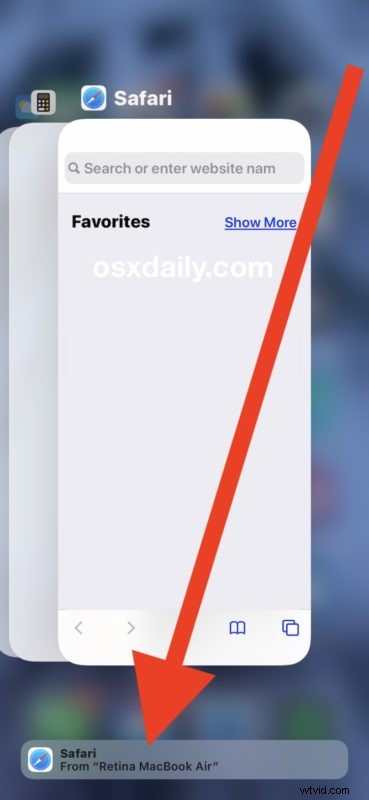

Now you’re free to view the webpage on the iPhone that was open on the Mac. If it’s an article read away, if it’s a video keep watching, if it’s a podcast or song or other music then you can keep listening.
This article is obviously discussing using Handoff for sending Safari web pages between a Mac and iPhone, but you can also rely on Safari and Handoff between other Apple devices too, for example using Handoff with Safari from iOS to iPadOS, iOS to iOS, or iPadOS to iPadOS, and you can go Mac to Mac as well. As long as it’s an Apple device and supports Handoff, the feature will be available to use. And obviously this is focusing on Safari, but Handoff works with other Handoff compatible apps as well, which includes just about every Apple application.
If you want to Handoff Safari from Mac to iPad, the process is similar except that you will find the Safari Handoff page in the Dock of modern versions of iPadOS. All else is the same. Of course this article is focusing on Mac to iPhone however, but the principles are the same.
Handoff works seamlessly, quickly, and very well. If you’re experiencing issues with Handoff you’ll want to make sure the devices are nearby, that Bluetooth and wi-fi are enabled on all devices involved, that they’re using the same Apple ID / iCloud account, and that the versions of system software are modern enough too support the Handoff feature (virtually anything vaguely recent supports Handoff so this is unlikely to be the issue unless your Mac or iPhone is very old).
Do you use Handoff to send Safari browsing sessions from Mac to iPhone? Do you use Handoff for other purposes? Let us know your thoughts in the comments below.